When you try to connect TestRail to 1Password SaaS Manager you will be asked for a web address, username and API key. This article shows you how to find and create an API key.
To integrate with SaaS Manager you will need a SaaS Manager account. If you don’t have one then contact us through our website to get set-up.
Important
You must be an administrator of your TestRail instance to connect with SaaS Manager.
As an administrator, you may have received an invitation from someone in your IT team asking you to connect TestRail to SaaS Manager.
Log in to TestRail and navigate to Administration > Site Settings > API to enable TestRail’s API.
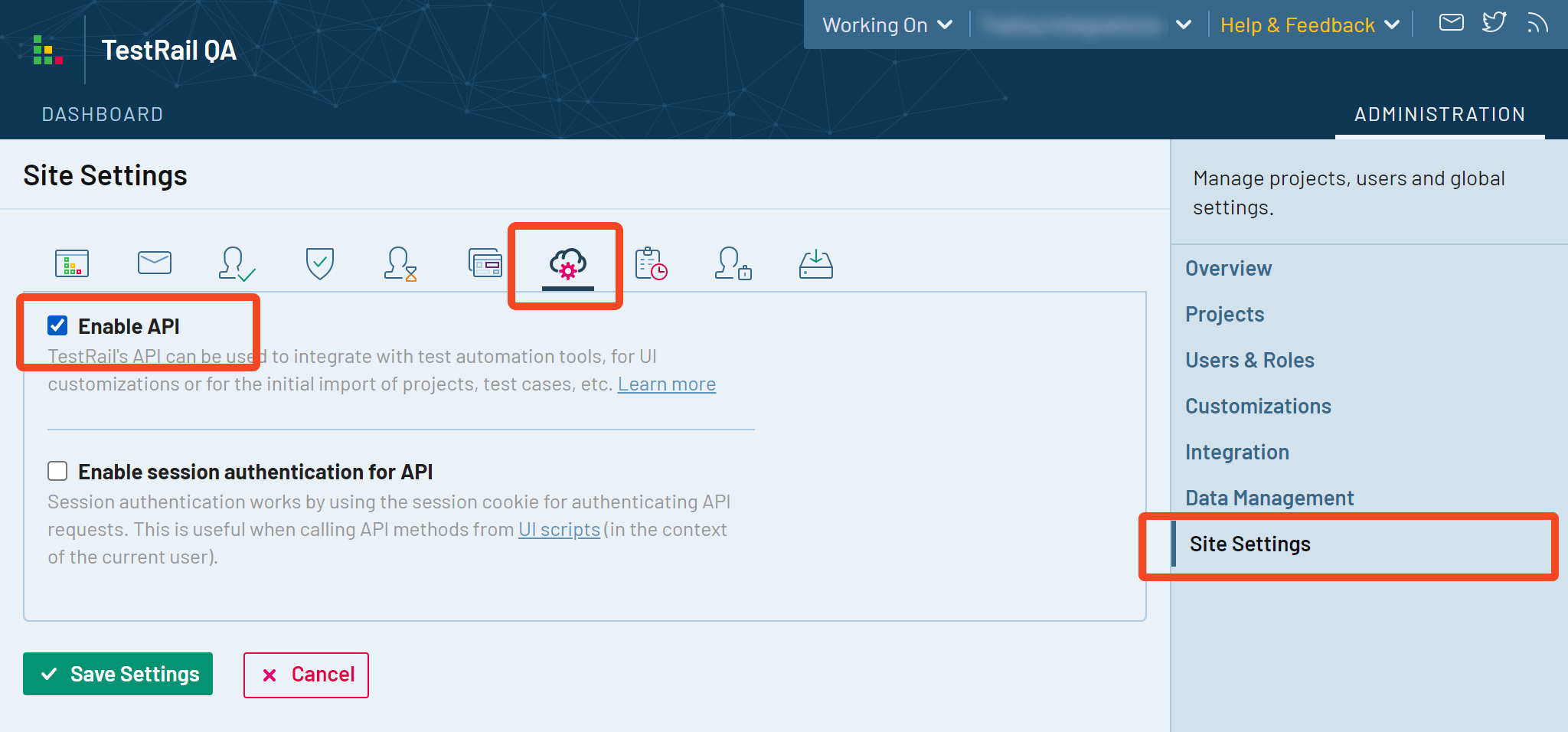
Check Enable API if it is not already enabled, and remember to click Save Settings after.
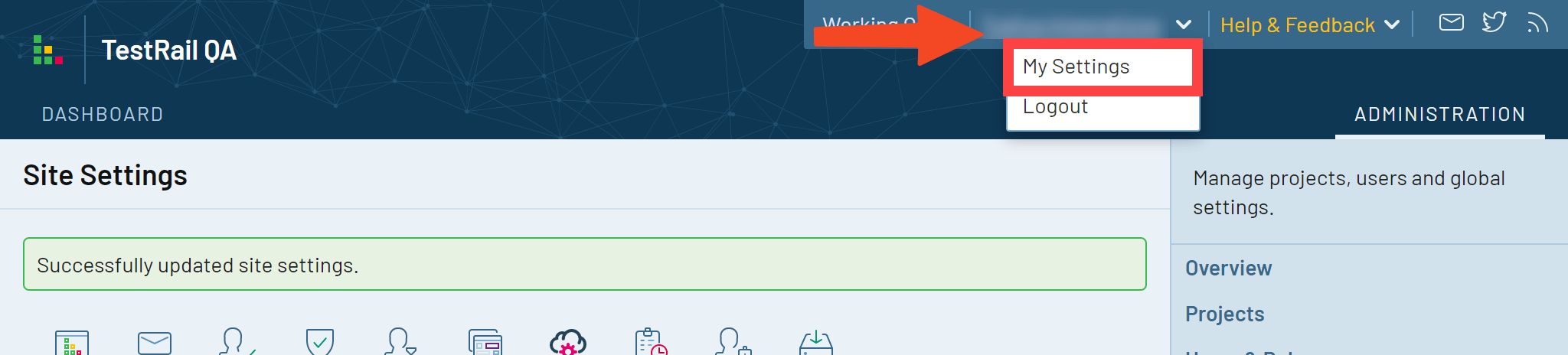
Navigate to My Settings > API Keys and click Add Key.
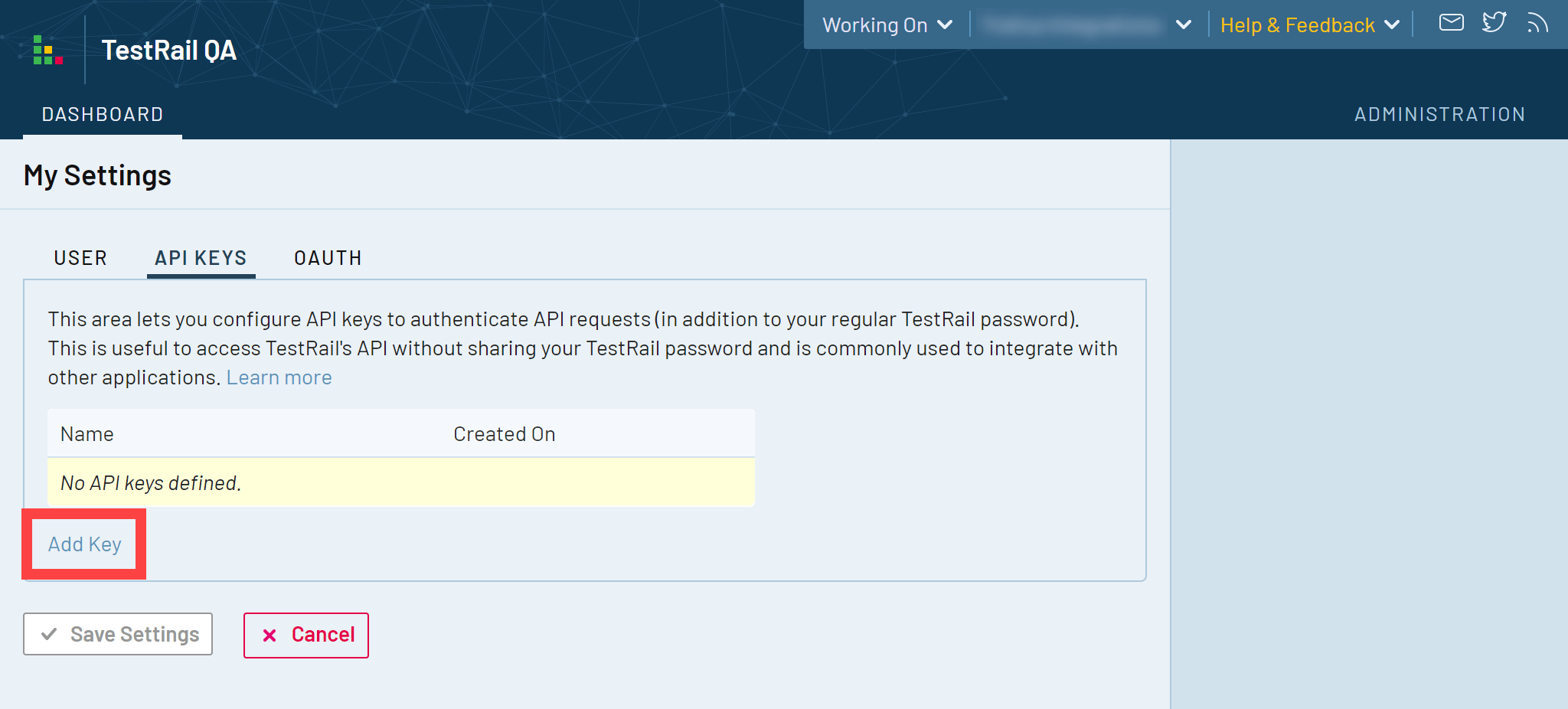
Enter a name for the API key, for example SaaS Manager, then click Generate Key and copy the API key to a safe place so that it can be used when connecting TestRail to SaaS Manager.
Click Add Key.
Important
When asked for a Web address, Username and API key while connecting TestRail to SaaS Manager:
- Enter the URL you use to log in to TestRail as the Web address, for example
https://yourorganization.testrail.io. - Enter the username of the administrator user you logged in as to create the API key as the Username.
- Enter the API key you copied to a safe place as the API key.
Was this article helpful?
Glad to hear it! If you have anything you'd like to add, feel free to contact us.
Sorry to hear that. Please contact us if you'd like to provide more details.