When connecting the Snyk integration in 1Password SaaS Manager you will be asked to provide an API key. This guide will explain how you can find your API key.
Log in to Snyk as an Administrator
Navigate to your Account settings on the bottom left by hovering on your organization name
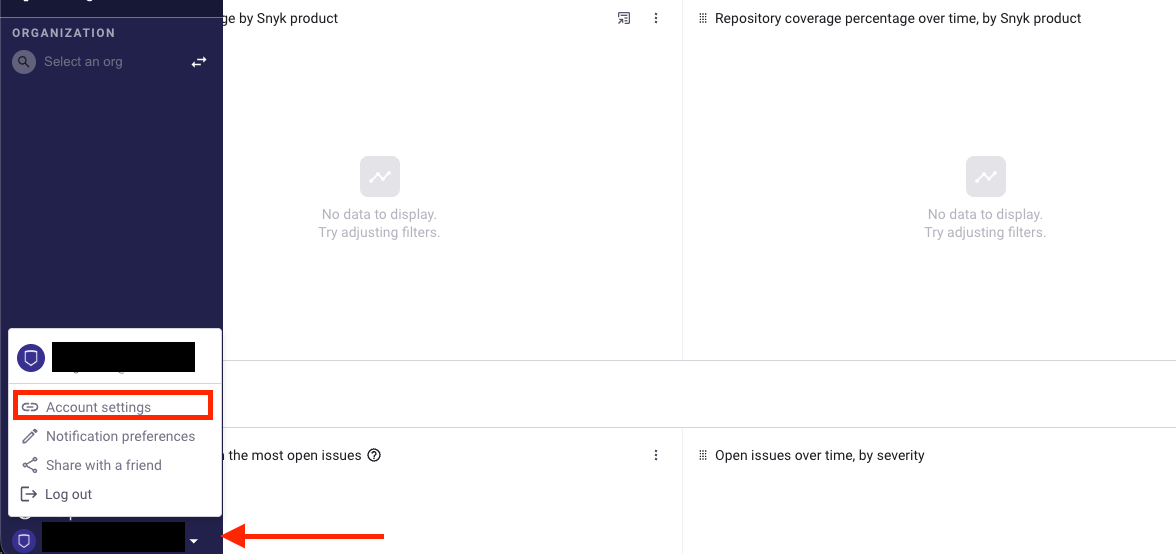
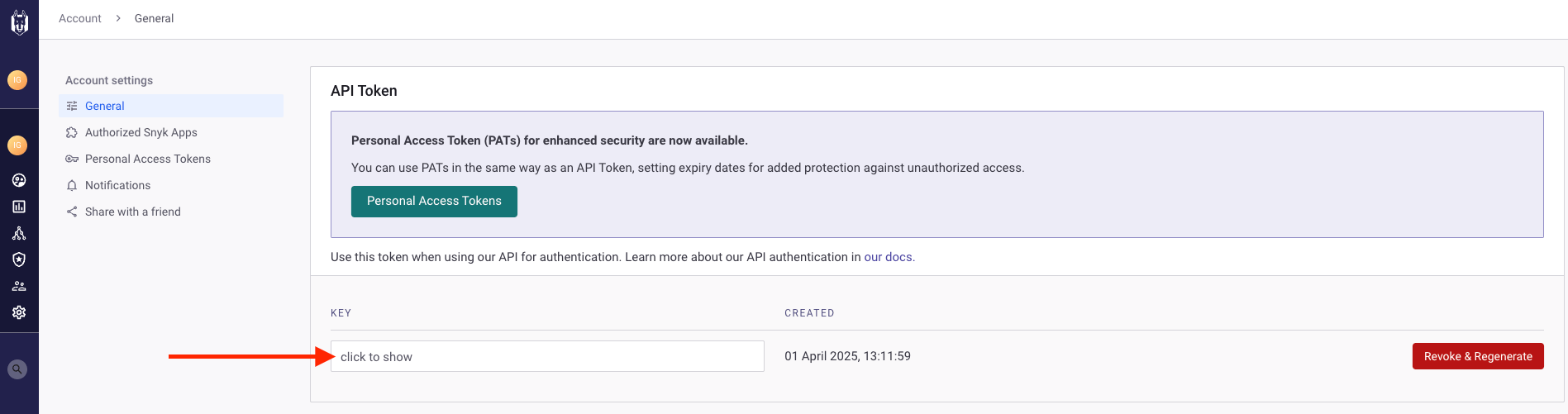
In the Account Settings, go to General > API Token
In API Token section, Click inside the KEY box to display your API token
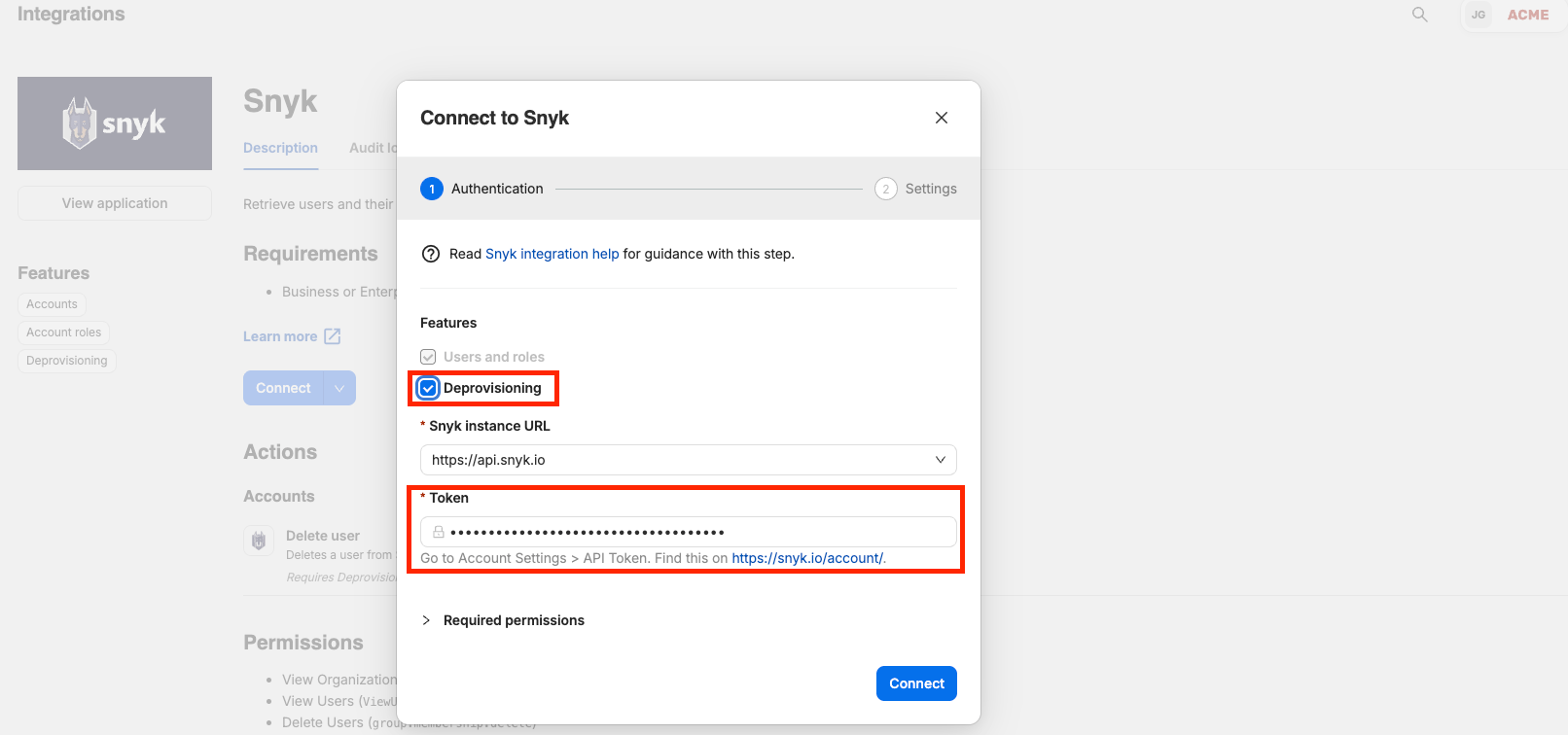
Copy the token and save it in a secure location, ready to paste into the SaaS Manager integration connection modal. To enable deleting users, select Deprovisioning to enable feature.
Was this article helpful?
Glad to hear it! If you have anything you'd like to add, feel free to contact us.
Sorry to hear that. Please contact us if you'd like to provide more details.