When connecting Sentry to 1Password SaaS Manager you’ll be asked for a User Authentication Token and optionally a SCIM Token. This article explains how to obtain them.
Important
User Authentication Token
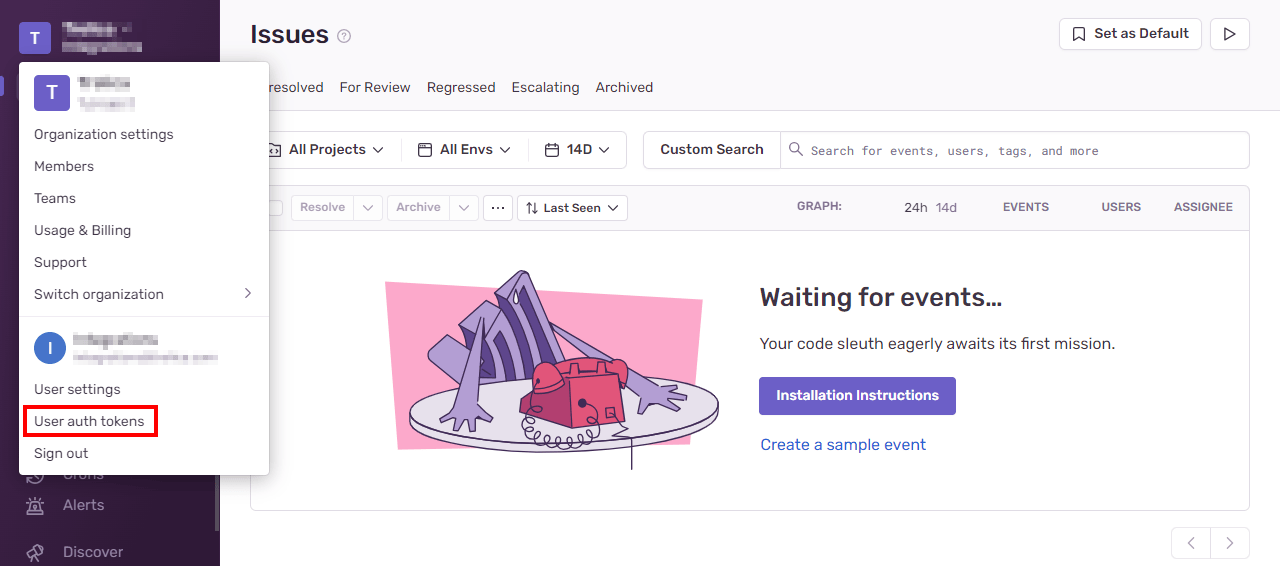
Navigate to User auth tokens:
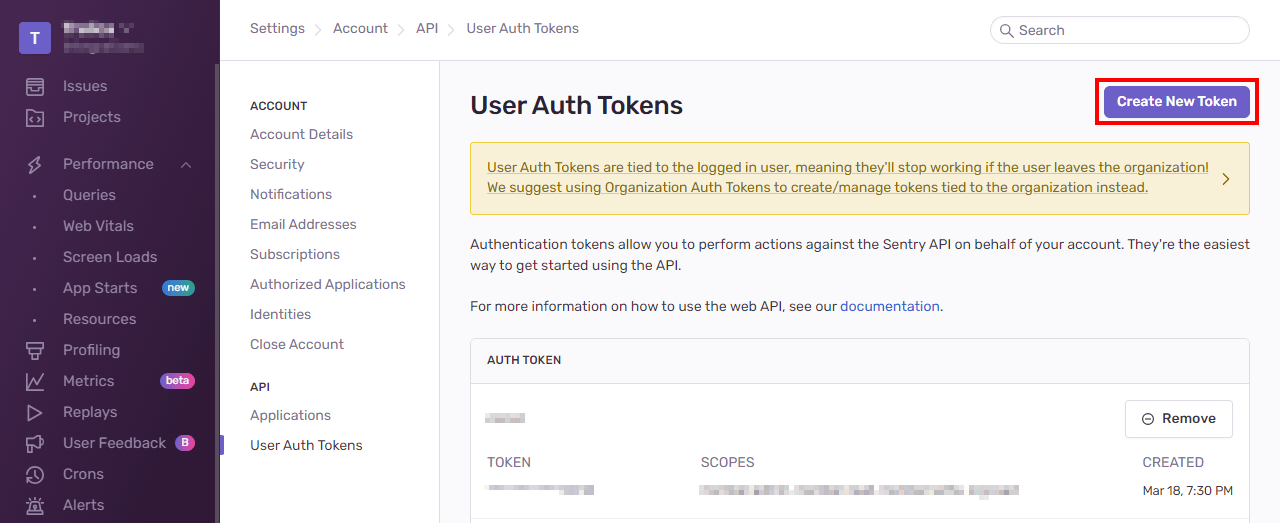
Click Create New Token:
At a minimum you must select the Read scope for both Organization and Member:
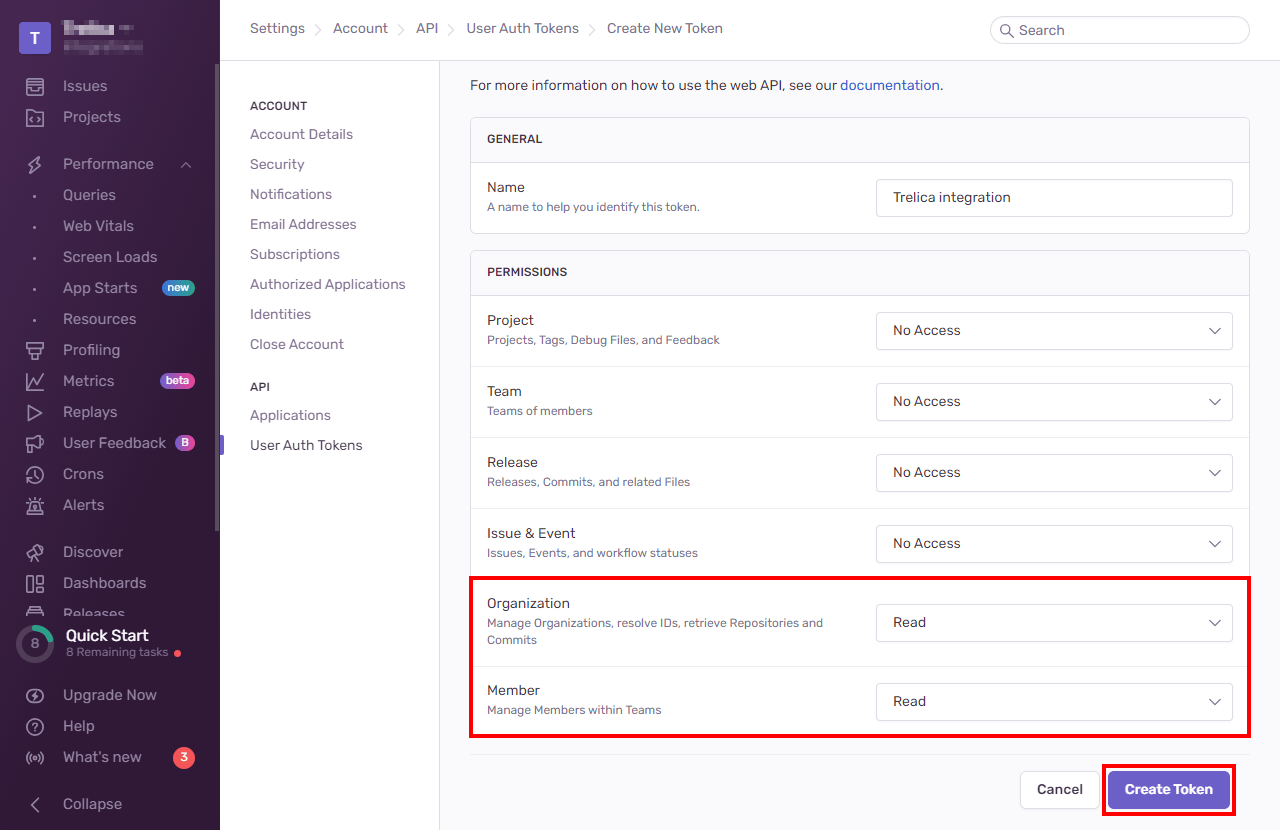
If you plan to enable the roles, (de)provisioning and/or group features for the integration you will also need Member:Admin and Team:read scopes.
If the user that created the token is removed from the organization, you'll need to generate a new token and reconnect the integration in SaaS Manager.
SCIM Token
Note
- Go to Settings and under the Organization section select Auth:
- Under General Settings check Enable SCIM and then click Save Settings
- The token will be automatically generated and presented to you.
For further details see Sentry’s SCIM documentation.
Important
Was this article helpful?
Glad to hear it! If you have anything you'd like to add, feel free to contact us.
Sorry to hear that. Please contact us if you'd like to provide more details.