This article describes how to generate credentials to connect 1Password SaaS Manager to SAP Concur.
Log in to Concur as an administrator.
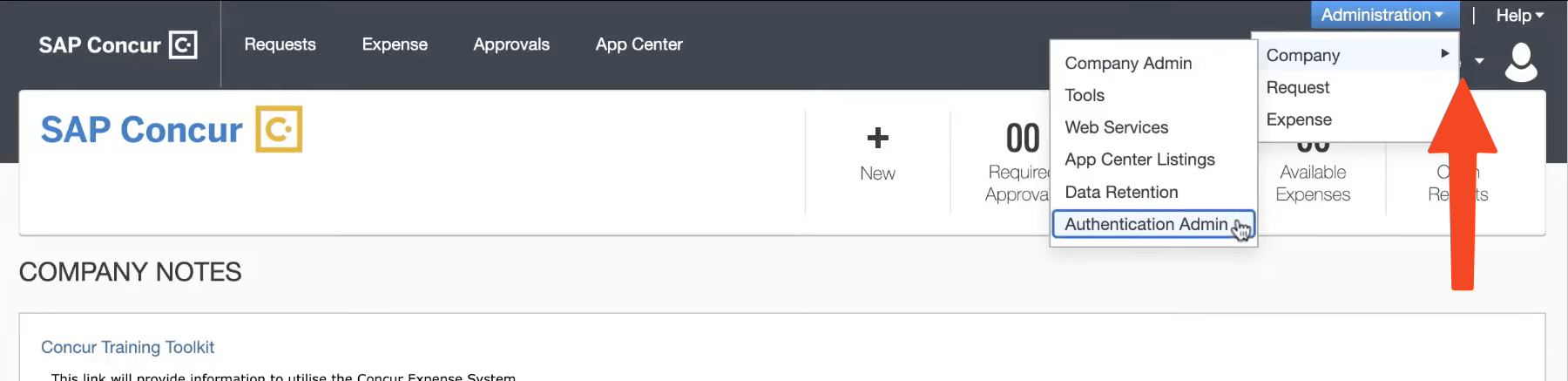
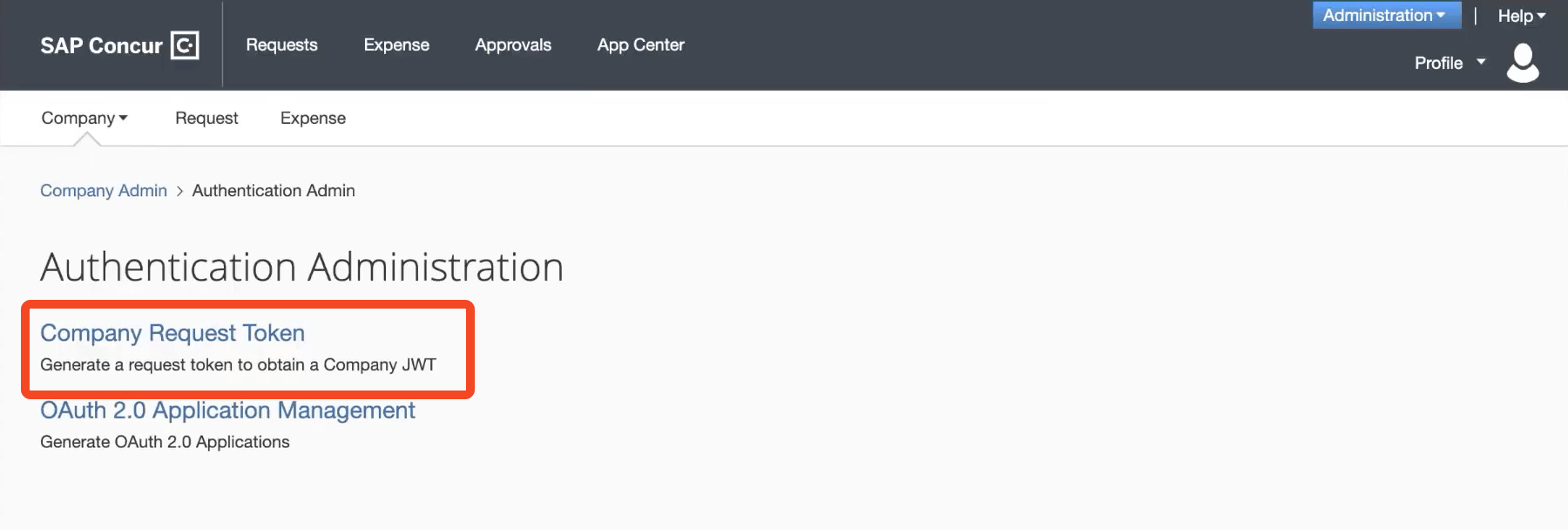
Go to Administration > Company > Authentication Admin:
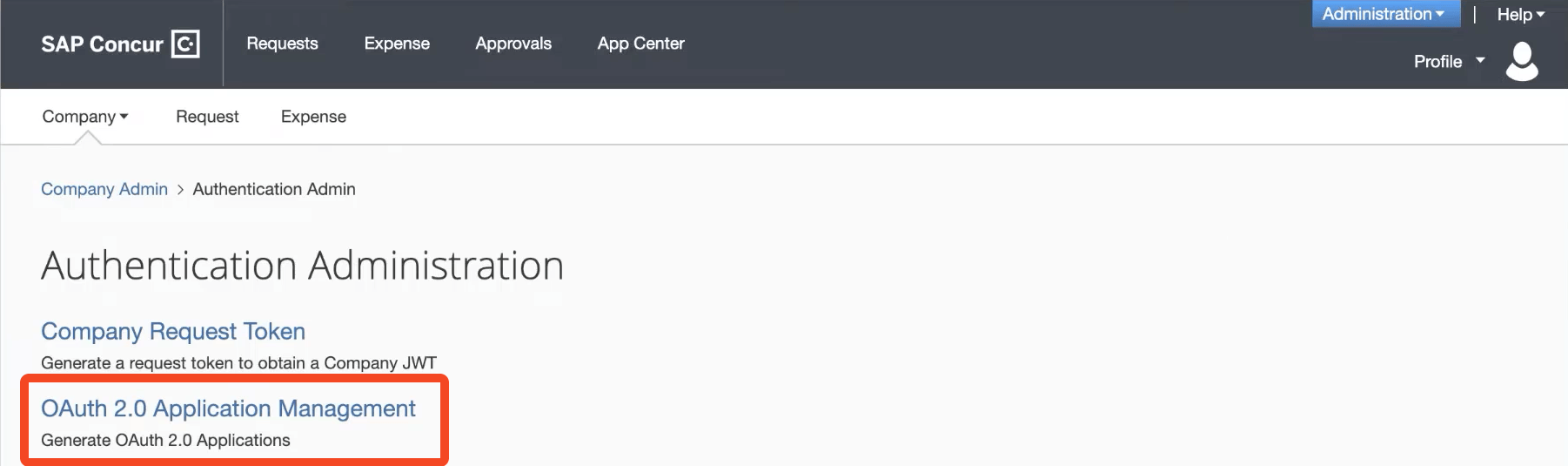
Click OAuth 2.0 Application Management:
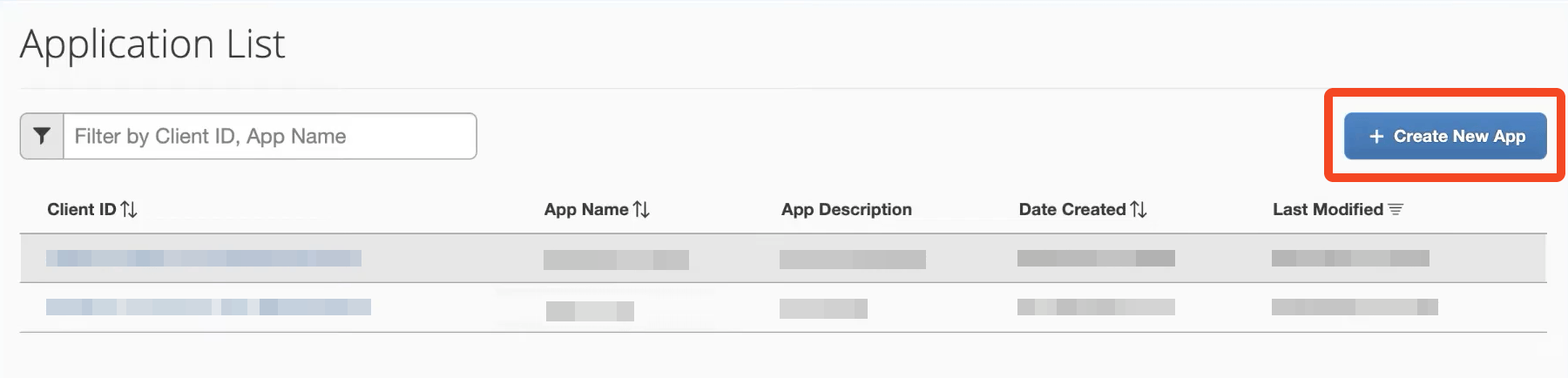
In the Application list view, click Create New App:
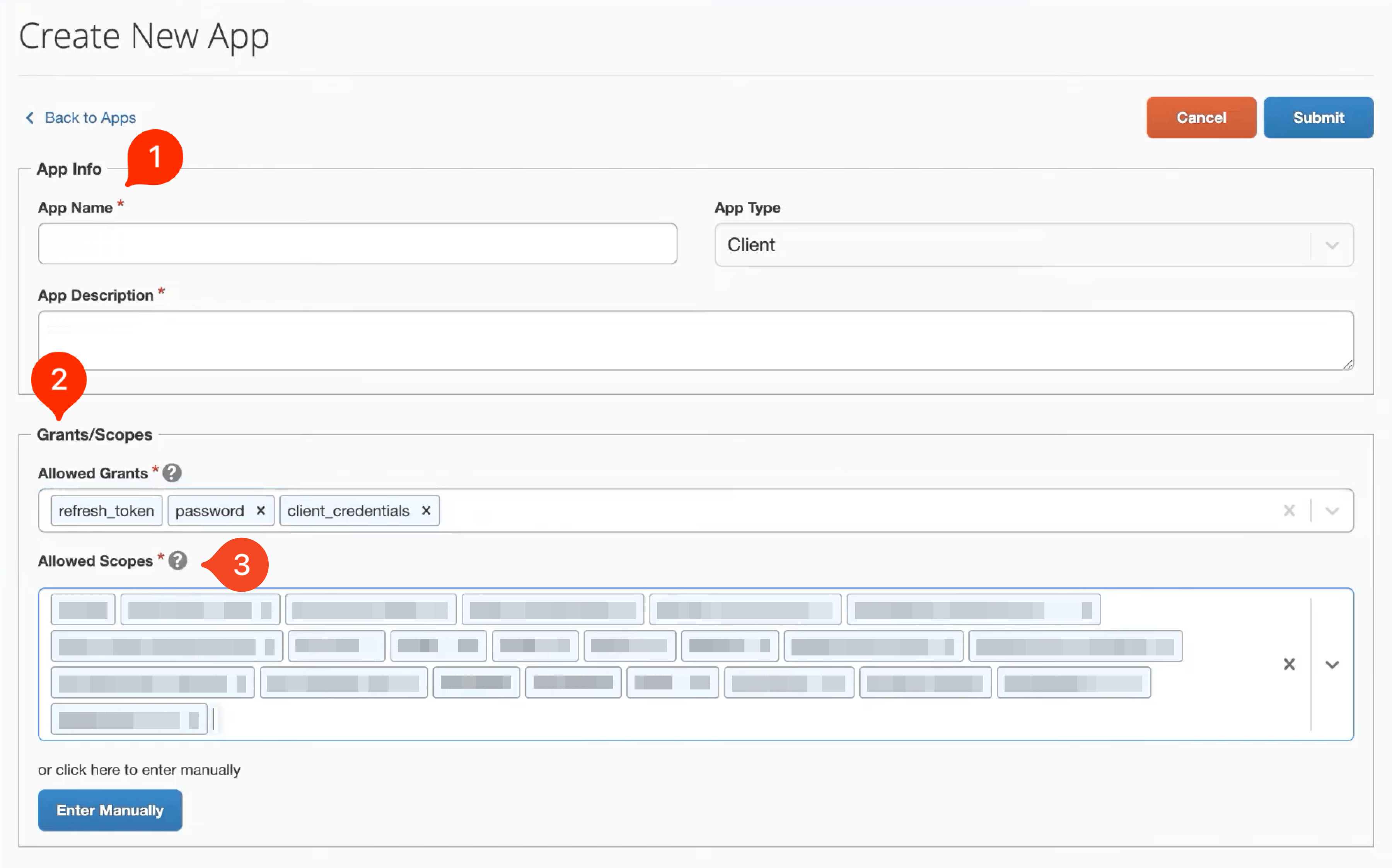
In the Create New App screen:
Enter an App Name (for example ‘SaaS Manager’) and App Description (‘SaaS Manager connector’).
For the Allowed Grants enter:
refresh_tokenpasswordclient_credentialsThe Allowed Scopes depend on the features you enable when you connect SAP Concur to SaaS Manager:
Users (required)
identity.user.ids.readidentity.user.core.readidentity.user.enterprise.read
Additional user data (optional)travel.user.general.readspend.user.general.readExpense reports (optional)
company.readcreditcardaccount.readexpense.report.readpurchaserequest.readuser.readspend.list.readuser_readBANKCCARDCOMPANYEXPRPTEXTRCTFOPGHOSTINVVENAdditional receipt data (optional)receipts.readIMAGEProvisioning and Deprovisioning (optional)
identity.user.coreenterprise.writeonly
Click Submit.
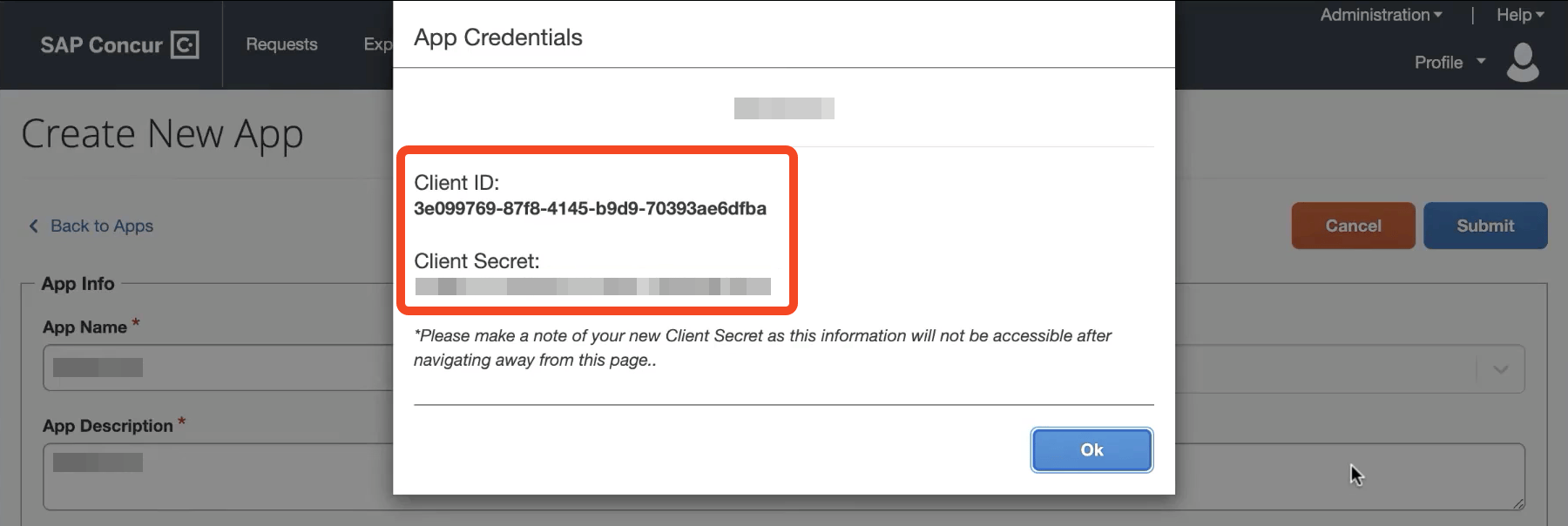
You will now be shown the Client ID and Client Secret. Note these down (for example copy to a text editor) as you will need to enter these into SaaS Manager later.
Go back to the Authentication Administration screen and click Company Request Token:
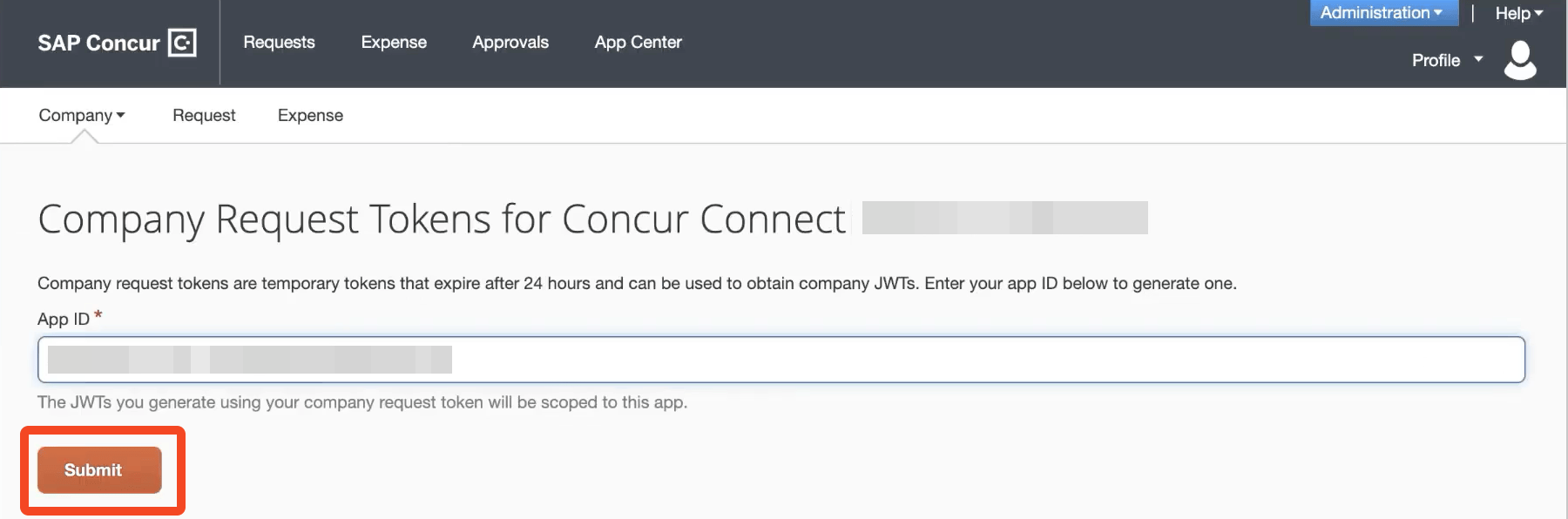
Enter the Client ID that you received earlier into the App ID field.
Click Submit:
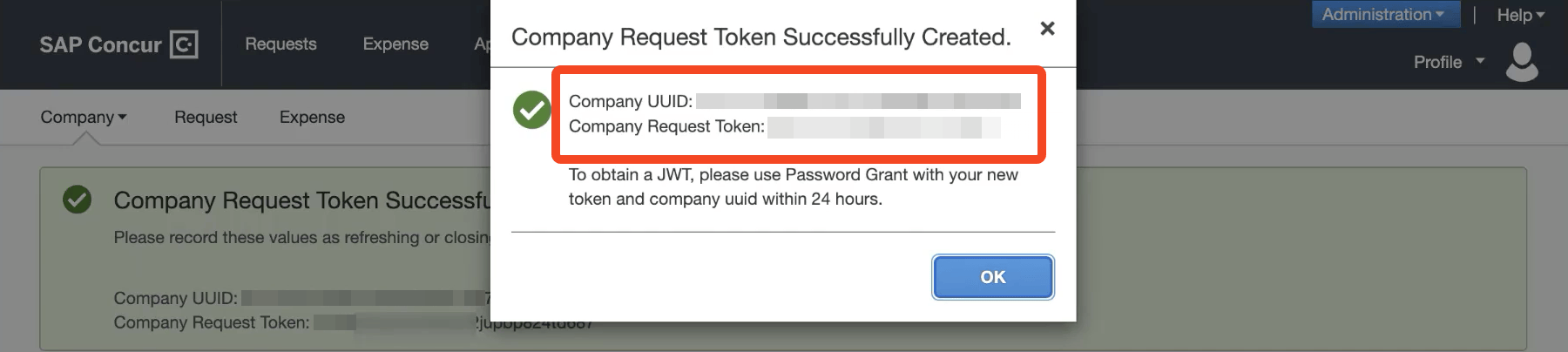
Finally you will be shown a Company UUID and Company Request Token. You will need to enter both of these into SaaS Manager, so copy them to a text editor.
Was this article helpful?
Glad to hear it! If you have anything you'd like to add, feel free to contact us.
Sorry to hear that. Please contact us if you'd like to provide more details.