1Password SaaS Manager connects to Okta using an Okta API token.
This is used to:
- List your Okta users, and which groups they are in.
- List system and custom roles assigned to users.
- List the applications your users are assigned to.
- Read the date/time that users last logged in to applications through Okta from the Okta audit log.
If you enable Provisioning or Deprovisioning then you can also:
- Assign and unassign users to and from applications in Okta
- Create and suspend users in Okta
- Run additional workflow actions related to onboarding and offboarding
- Automate access requests that assign users to Okta groups or apps to grant access
Okta API tokens are granted the permissions of the user who issued them.
We always recommend limiting the permissions of access tokens to the minimum required and these instructions describe how to create a specific SaaS Manager API user with the minimal permissions needed.
If you change permissions you will have to recreate the Okta access token.
Note
If you’re wanting to configure Okta SSO with SaaS Manager read the dedicated article on SAML configuration.
There’s also an article about how SaaS Manager works with Okta particularly relating to approaches to onboarding and offboarding.
Creating an Okta user with limited permissions
Log in to Okta as a full administrator.
Create a new custom role
- Go to Security > Administrators and click the Roles tab.
- Click Create new role
- Enter the name
SaaS Manager - Enter an appropriate description, for example if the role is going to allow provisioning and deprovisioning, then enter something like
SaaS Manager usage, provisioning & deprovisioning
Add the following permissions:
| Permission to include | Connection feature | Needed for |
|---|---|---|
| User permissions | ||
| Create users | Provisioning | Provision user |
| Suspend users | Deprovisioning | Suspend user |
| Clear users' sessions | Deprovisioning | Revoke all active Okta sessions for a user |
| Unsuspend users | Provisioning | Activate user |
| Activate users | Provisioning | Activate user |
| Deactivate users | Deprovisioning | Deactivate user |
| View users and their details | Default | |
| Reset users' passwords | Deprovisioning | Reset password |
| Reset users' authenticators | Deprovisioning | Reset all MFA factors |
| Edit user's application assignments | Deprovisioning | Removing access from an app / Assigning access to an app / Access requests |
| Edit user's profile attributes | Provisioning | Set Okta Profile attribute |
| Edit users' group membership | Provisioning | Provision user / Add to group / Remove from group / Access requests |
| Identity and access management permissions | ||
| View roles, resources, and admin assignments | Default | User roles |
| Group permissions | ||
| Edit groups' application assignments | Deprovisioning | Removing access from an app / Assigning access to an app / Access requests |
| Manage group membership | Provisioning | Provision user / Add to group / Remove from group / Access requests |
| View groups and their details | Default | |
| Applications permissions | ||
| View application and their details | Default | |
| Edit application's user assignments | Deprovisioning using Okta | Deprovision user / Access requests |
| Manage applications (optional) | Default | Map additional profile fields during integration synchronization |
| Devices permissions | ||
| View devices | Devices | Fetching devices |
| Activate devices | Devices | Activating devices |
| Deactivate devices | Devices | Deactivating devices |
| Suspend devices | Devices | Suspending devices |
| Unsuspend devices | Devices | Unsuspending devices |
Click Save role
Note
Create a new resource set
- Go to Security > Administrators and click the Resources tab
- Click Create new resource set
- Enter the name
All resourcesand an appropriate description. - Clicking Add another resource type to add resources for Users, Groups and Applications.
- For each type, select ‘All users’, ‘All groups’, ‘All applications’, ‘All Identity and Access Management resources’ respectively (or restrict according to specific requirements you may have).
- Click Create
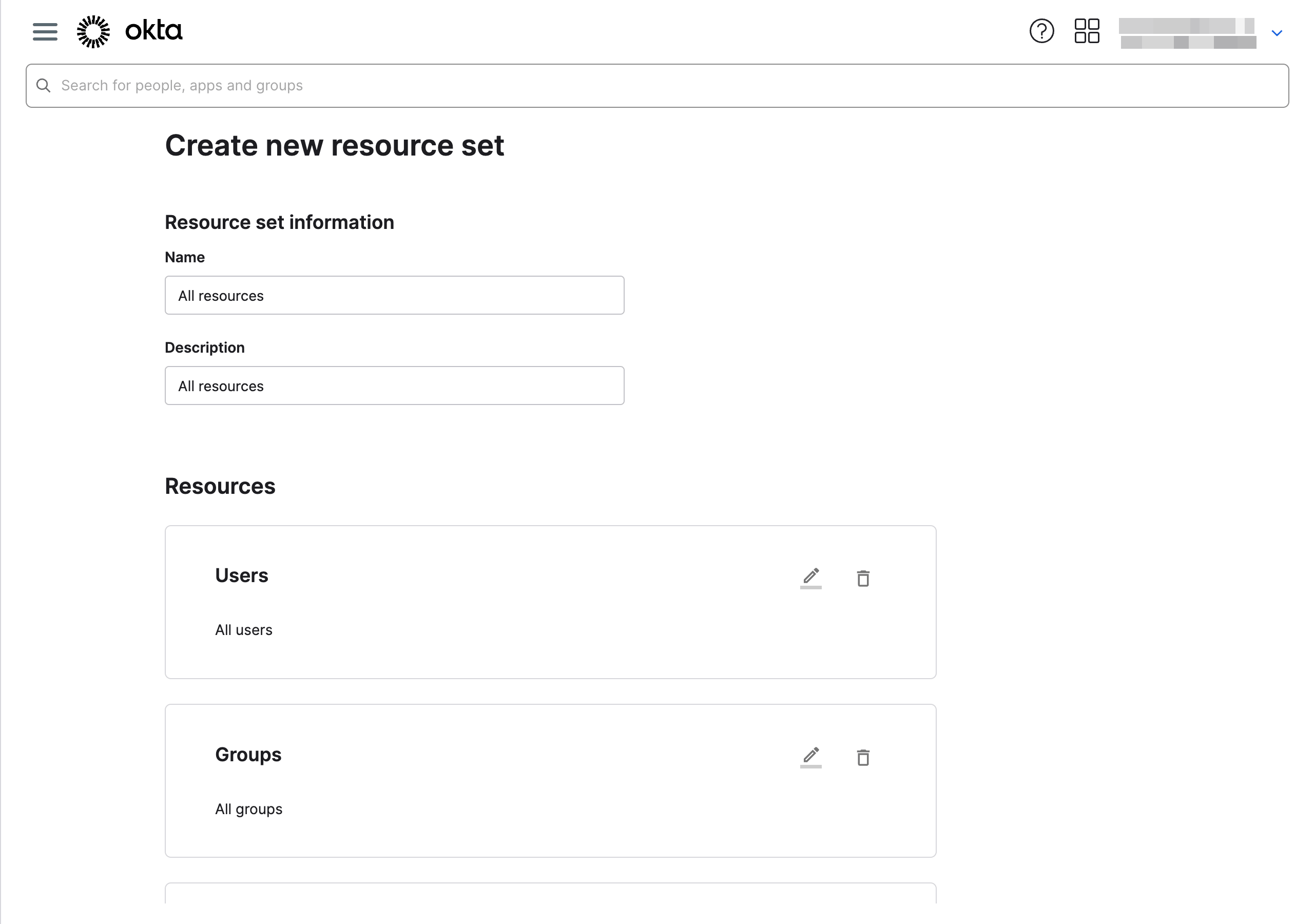
Creating a new resource set in Okta
Create a new person
Okta API tokens are linked to a user account so we need to create a new user account which can be used to issue the API token.
- Go to Directory > People
- Click Add person
- Enter details
- First name:
SaaS Manager - Last name:
API - Username & Primary email: (your choice)
- Choose Set by admin for the password, and untick User must change password on first login
- Enter a strong password
- Click Save
- First name:
Creating a new person in Okta
Assign the new person administrative rights
- Go to Security > Administrators and click the Admins tab
- Click Add administrator
- Search for and select the SaaS Manager API person you just created
Now we need to add the required roles. For each role click Add assignment.
| Role | Usage |
|---|---|
| Read-only Administrator | Read-only access to Okta data. This is required because the assignable permissions don't include access to the Okta audit log which is needed to analyze last usage data. |
| SaaS Manager | Specific permissions to modify users and groups |
| Organization Administrator | Only assigned temporarily, but this is needed to issue the API token. Once the token is issued you will be shown how to remove this role assignment. |
When you add the SaaS Manager role, then you will need to choose a resource set. Use the All resources set that you created earlier.
Once you’re done, don’t forget to scroll to the top of the page and click Save changes.
Creating an Okta API token
Log in as the person we just created, using the credentials that you entered for them.
Go to Security > API > click the Tokens tab, and then click Create Token:
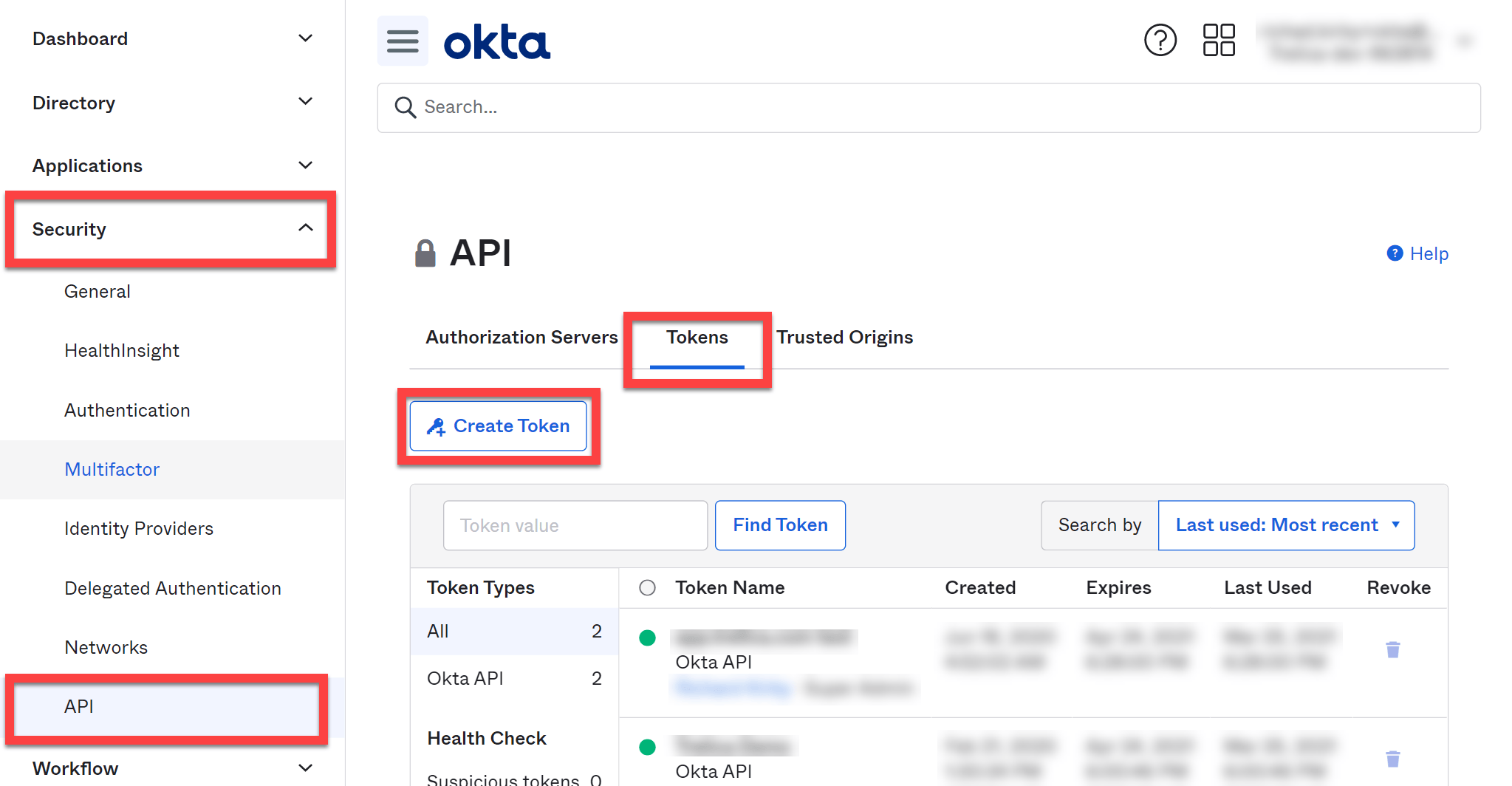
Enter a name for the token, for example SaaS Manager and click Create Token:
The token will now be shown:
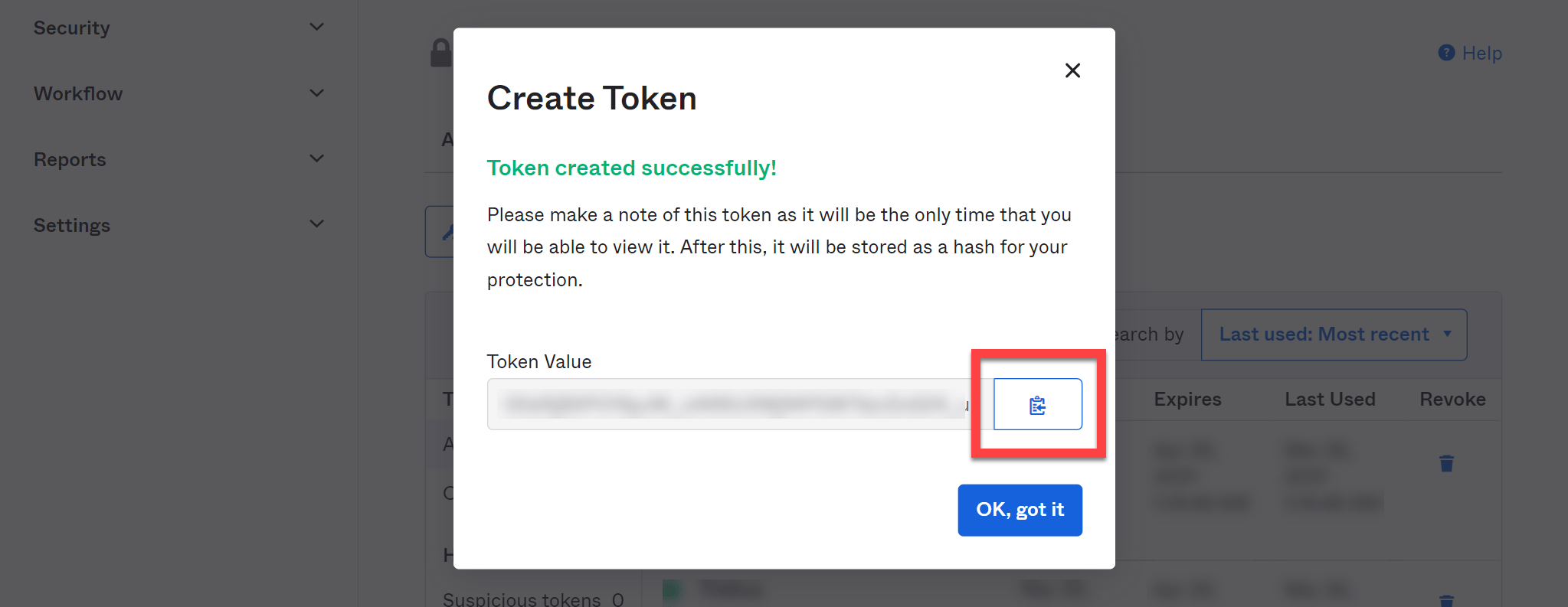
Click the Clipboard icon to copy it to the clipboard, click OK, got it and then paste the token into SaaS Manager when you connect to Okta.
Removing the Organization Administrator role
The Organization Administrator role is only required to issue the API token. Once the token has been issued you should remove this role.
- Login to Okta as a full administrator.
- Go to Security > Administrators and click the Admins tab
- Find the SaaS Manager role in the list, click Edit > Edit assignments
- Click the trash icon by the Organization Administrator role
- Click Save Changes (at the top of the page)
- Confirm the assignment deletion in the dialog box that appears.
People directory profile fields retrieved by SaaS Manager
By default SaaS Manager pulls the following default fields from Okta People directory profiles:
| SaaS Manager | Okta profile attribute name |
|---|---|
| Job title | title |
| Line manager | managerEmail, manager, managerId |
| Team | department |
| Location | location |
| Cost center | costCenter |
| Employee number | employeeNumber |
| Employee type | userType |
| Start date |
SaaS Manager tries to parse most date formats. xx-xx-yyyy is ambiguous and is interpreted as mm-dd-yyyy on trelica.app and dd-mm-yyyy on trelica.eu. |
| Leaving date | future_termination_date, TerminationDate, terminationDate, termDateSaaS Manager tries to parse most date formats. xx-xx-yyyy is ambiguous and is interpreted as mm-dd-yyyy on trelica.app and dd-mm-yyyy on trelica.eu. |
| Personal email | personalEmail |
| Time-zone | timezone |
Okta statuses are mapped in SaaS Manager as follows:
| SaaS Manager | Okta status |
|---|---|
| Active | Active, Password Expired, Provisioned |
| Invited | Staged |
| Suspended | Suspended, Recovery |
| Inactive | Deprovisioned |
If you need support for mapping custom schema items, or other changes, contact saasmanager@1password.com.
SaaS Manager also extracts the Okta groups that each person belongs to.
How does SaaS Manager deprovision users from applications in Okta?
Users are associated with applications in Okta through an ‘assignment’ that links the user to the application.
Typically group membership is used to assign users to applications (for example, people in the ‘All staff’ group are assigned to ‘Airtable’).
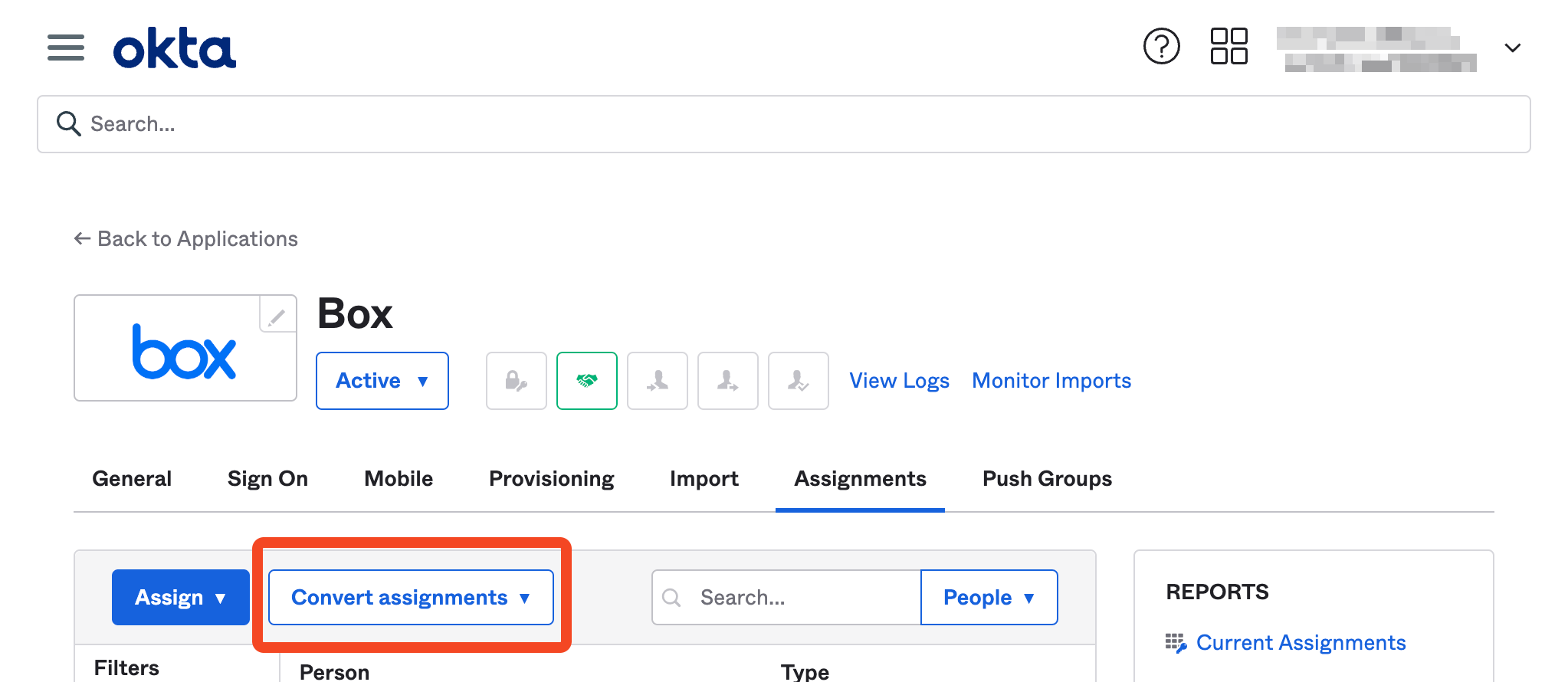
Okta’s API supports modifying this assignment on a per user basis: even though a user might be assigned using group membership, this assignment can be converted to a ‘user’ scope assignment and then the assignment removed.
The user will no longer see the app in Okta, and if Okta has a SCIM connection to the application that the user was assigned to, then SCIM deprovisioning is triggered and the user is also removed from the underlying application.
This means that SaaS Manager can instruct Okta to remove a user from an application, even if the assignment was originally through group membership, without having to remove the user from a group (which might have broader implications).
You can reverse this process (using the Convert assignments button in Okta).
FAQs
Is there a way to terminate a user’s Okta sessions and log them out of all apps that they’ve signed in to using Okta?
No. This isn’t possible because once Okta has logged someone in, then it has no control over their access to the application in question.
Does SaaS Manager import bookmarked apps?
SaaS Manager returns bookmark applications that have been added by an Okta administrator using the Admin UI, since these have Okta assignments for people and or groups. It doesn’t, however, return personal bookmarks due to API restrictions and the fact that the data quality is potentially poor and very noisy.
Administrator created bookmarks don’t get created as recognized apps in SaaS Manager, so won’t display in the default filter on the application list when you load it. To see these apps currently go to the Applications list, select the All apps filter and then add a filter for Source = Okta.
To make these apps appear in the default application list we recommend editing each relevant app to set the Audience to Business.
Which person attributes does SaaS Manager set when provisioning?
SaaS Manager maps the following user attributes when provisioning a new user in Okta:
| SaaS Manager attribute | Okta attribute |
|---|---|
| First name | First name |
| Last name | Last name |
| New username / email | Username, Primary email |
| Job title | Title |
| Cost center | Cost center |
| Employee ID | Employee number |
Additional attributes can be set after provisioning using the Set Okta Profile Attribute step.
Was this article helpful?
Glad to hear it! If you have anything you'd like to add, feel free to contact us.
Sorry to hear that. Please contact us if you'd like to provide more details.