When connecting the Mosyle integration in 1Password SaaS Manager you will be asked to provide a username, password and API token.
Where possible we recommend using a service account to connect the integration.
The username and password should be those of the user you plan to connect the integration with, and the account that you use to generate your API token.
To create your API token:
Login to Mosyle as an administrator.
Go to Mosyle API Integration.
Click Add new token.
Enter a name, for example “SaaS Manager”.
Optionally select Restricted by Server IP, to restrict use of the token to SaaS Manager IP addresses.
Click Save
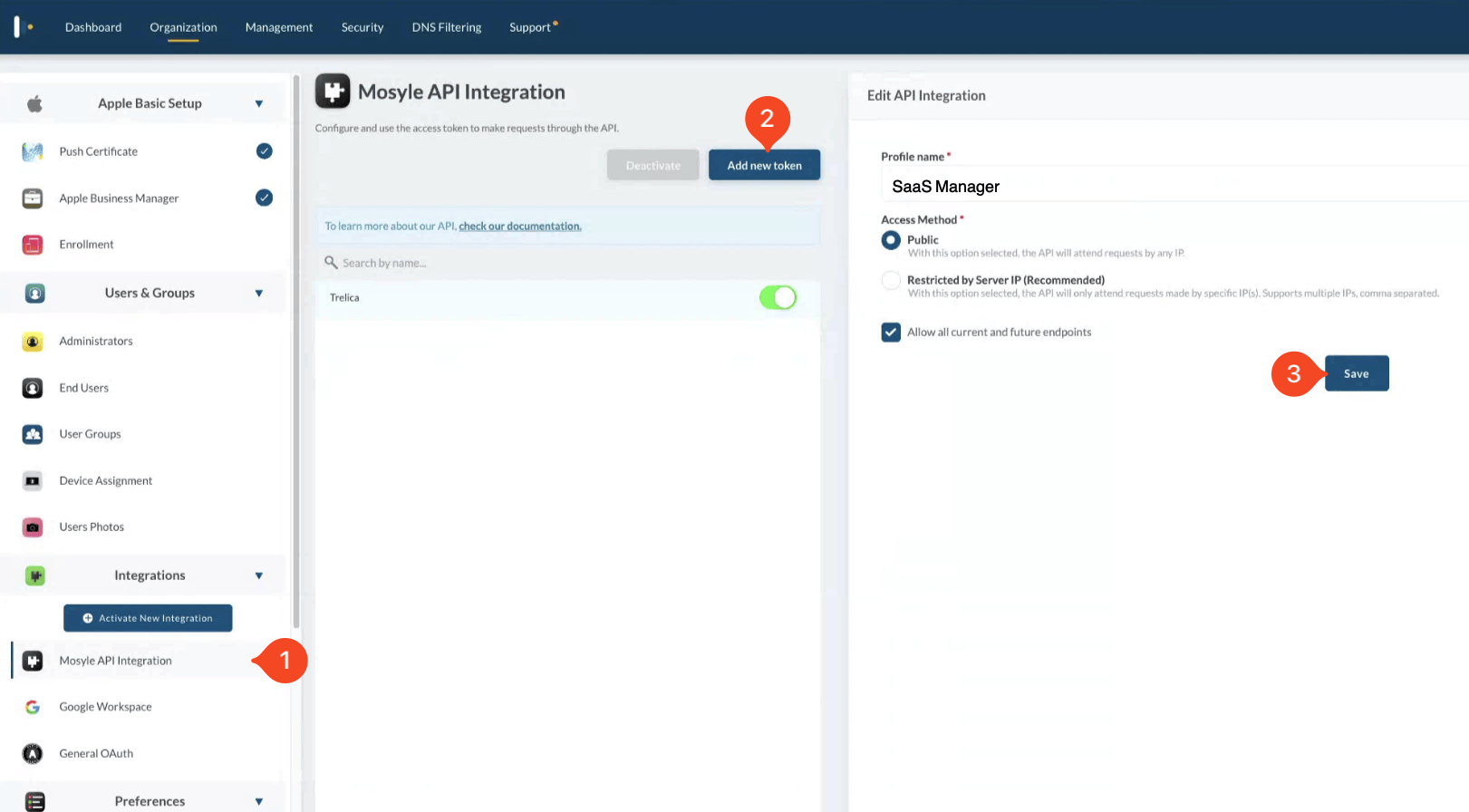
Now copy and paste the Access Token - you will need this when connecting to SaaS Manager, as well as your administrative user credentials.
You may want to consider creating a dedicated Admin account and Limit the user permissions using a role.
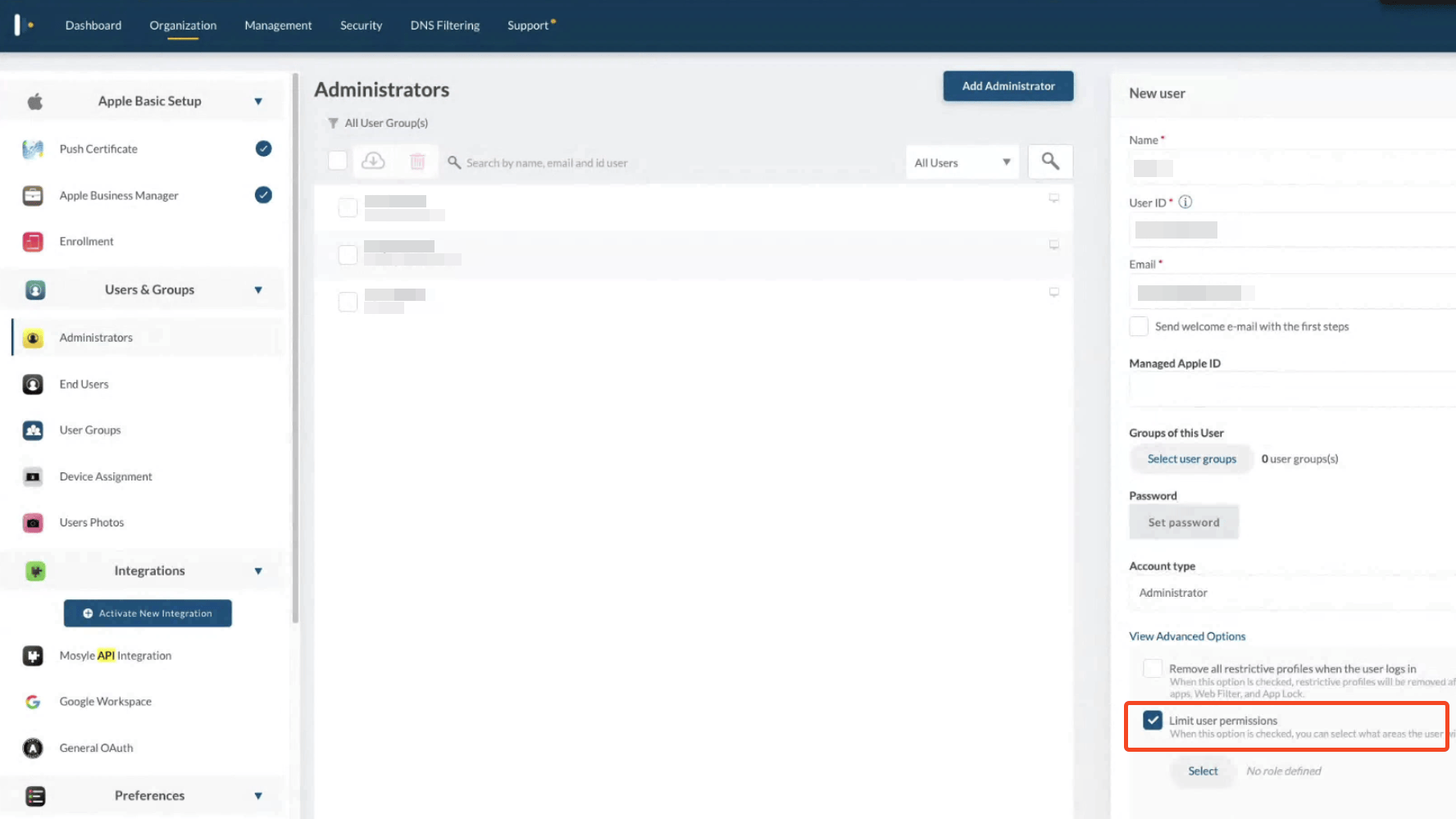
The user will need the following permissions:
- Users > Administrators (View)
- Users > End Users (View)
- Users > User Groups (View)
- Management > Settings > Devices > View
If you want to use the “(Un)assign and remote lock devices” feature of the integration, you will also need:
- Users > Assign Devices (View | Update)
- Management > Settings > Lock Device (View | Update)
- Management > Settings > Wipe (Update)
Was this article helpful?
Glad to hear it! If you have anything you'd like to add, feel free to contact us.
Sorry to hear that. Please contact us if you'd like to provide more details.