How does 1Password SaaS Manager work with LastPass?
1Password SaaS Manager helps IT teams keep on top of what SaaS software has been bought, how much money is being spent on it, how well it’s being used and whether everything is compliant from a security and privacy point of view.
SaaS Manager can connect directly to different SaaS tools (like LastPass) to extract up-to-date information about which of your users are using LastPass, and how regularly they are logging in. This will help you improve engagement, deprovision unused seats, and prepare for your license renewal.
Note
Note
Connecting to LastPass from 1Password SaaS Manager
If you received an email asking you to set up the integration, then just click the link, otherwise go to Admin > Integrations to get started.
Important
You must be an administrator of your LastPass site to connect with SaaS Manager.
You must also have a LastPass Enterprise Account.
In the Search… box, type LastPass, then click the LastPass logo to get started.
Click the Connect button.
You will then be asked to enter the Account number (sometimes referred to as the cid) and Provisioning hash for your LastPass account. If you’re not sure how to find these read the section below.
Copy these from LastPass and paste them into SaaS Manager and then click Connect.
After a short pause, SaaS Manager will start to synchronize with LastPass and you’ll see a green tick when everything is done.
Note
If you click the View application button then you can go through to the LastPass profile page and see more information:
At this point you may wish to review the user list or fill in more information about the number of seats you have, when you renew your LastPass license.
Finding your account number and provisioning hash
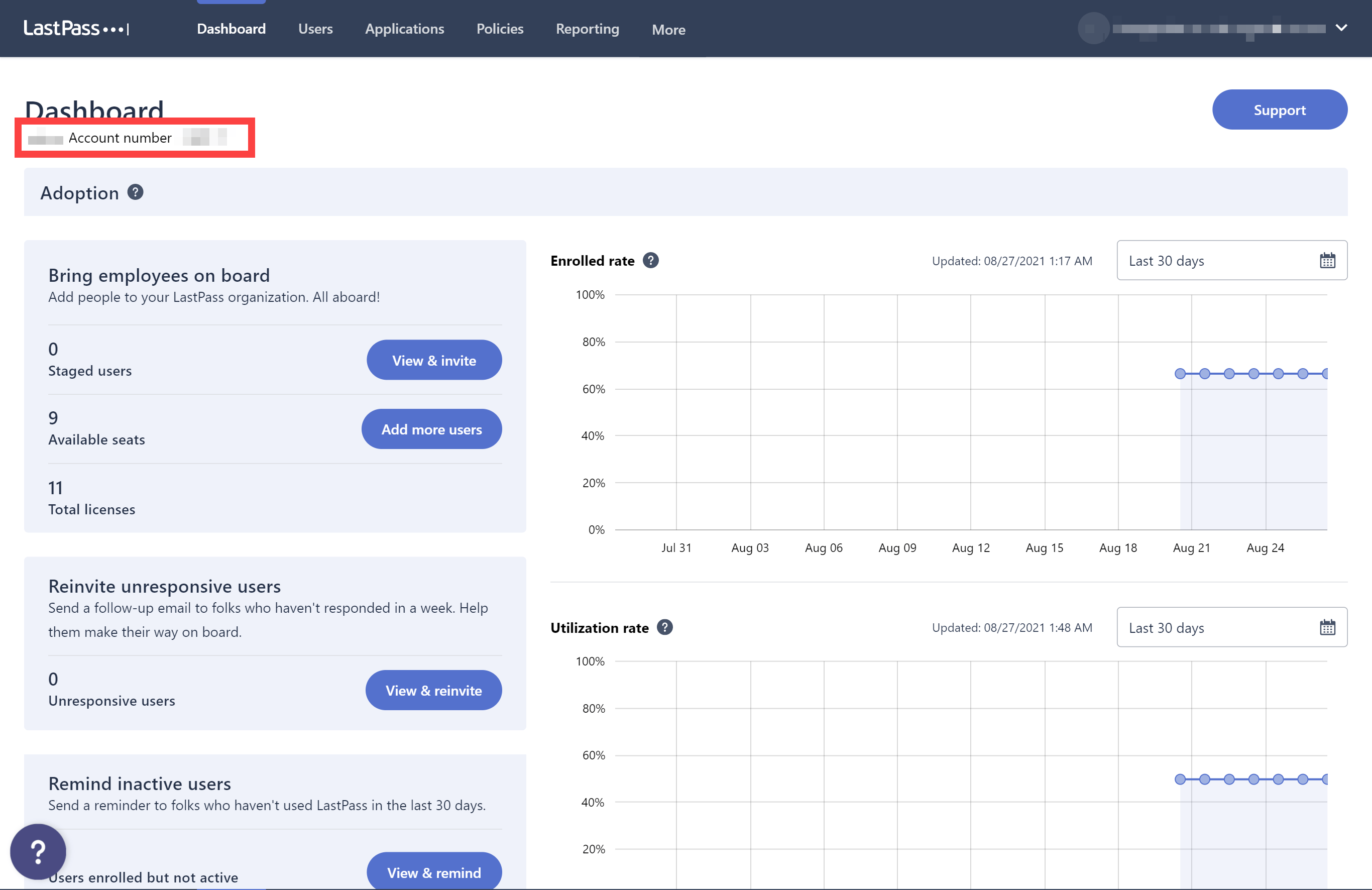
Your Account number can be found on your LastPass dashboard.
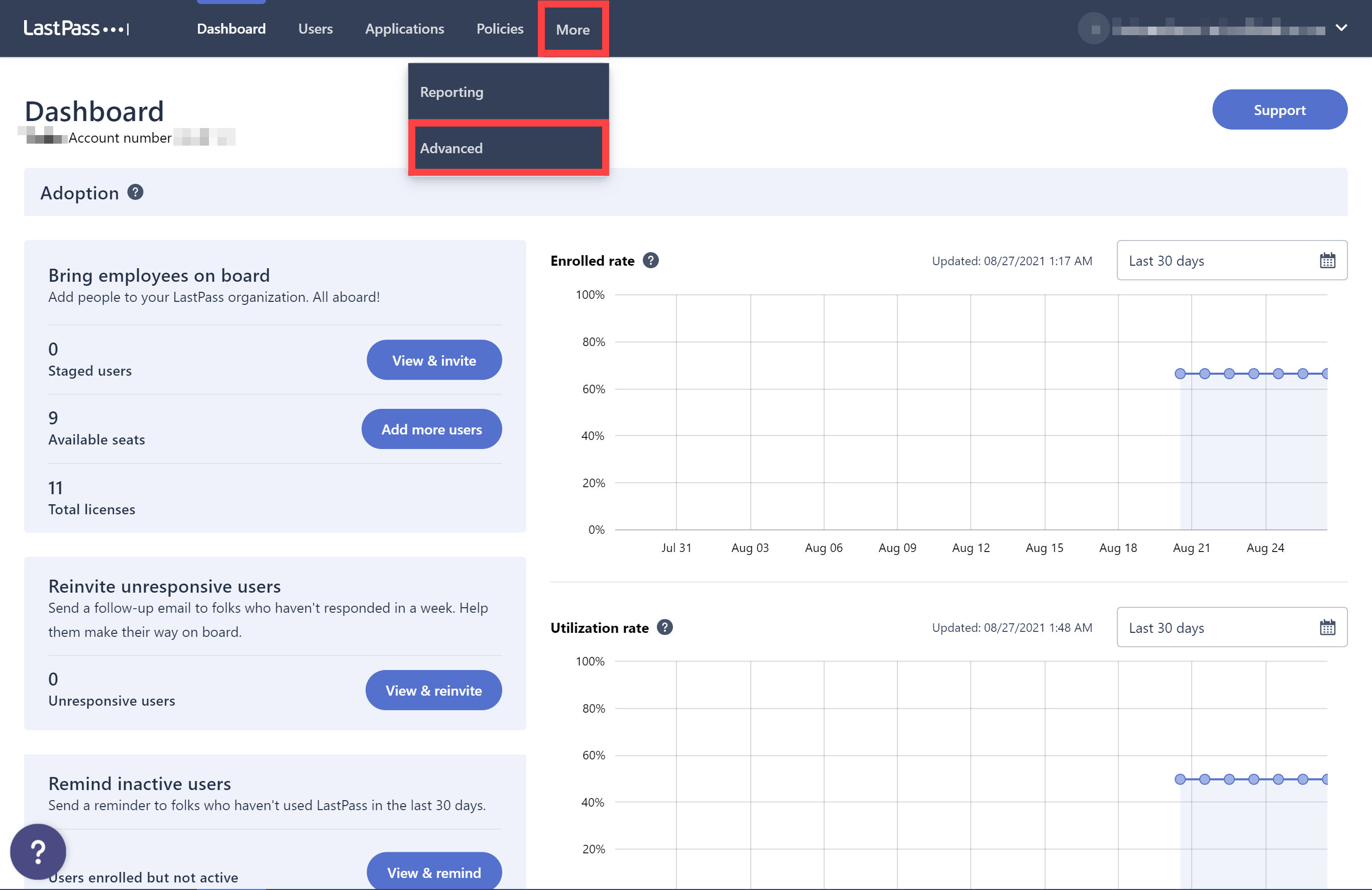
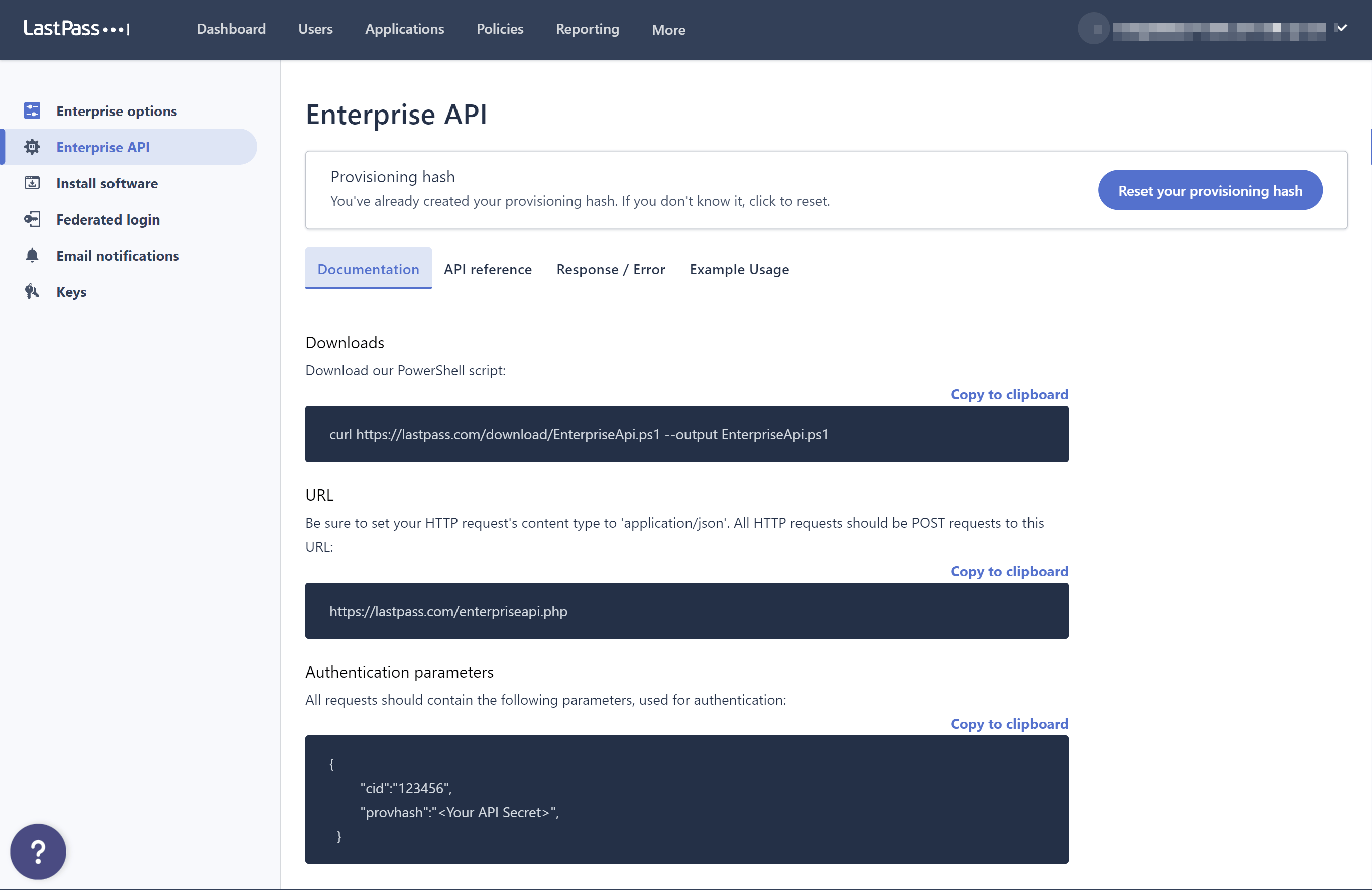
Your Provisioning hash can be created on the Enterprise API page, which you can navigate to using the menu using Advanced > Enterprise API.
Important
cid or provhash visible in the sample JSON in the Authentication Parameters section of the page, as these are mock values.If you haven’t already created a provisioning hash, you can create one for the first time. Make note of the provisioning hash somewhere secure as LastPass will not show it to you again.
If you’ve already created a provisioning hash but you don’t know what it is, then you may have a copy of this saved somewhere (for example in your LastPass vault). If not then you will need to regenerate the provisioning hash by clicking Reset your provisioning hash.
Important
Using LastPass’ old console
If you have any issues creating a provisioning hash or using LastPass’ new console, you can Switch to old console.
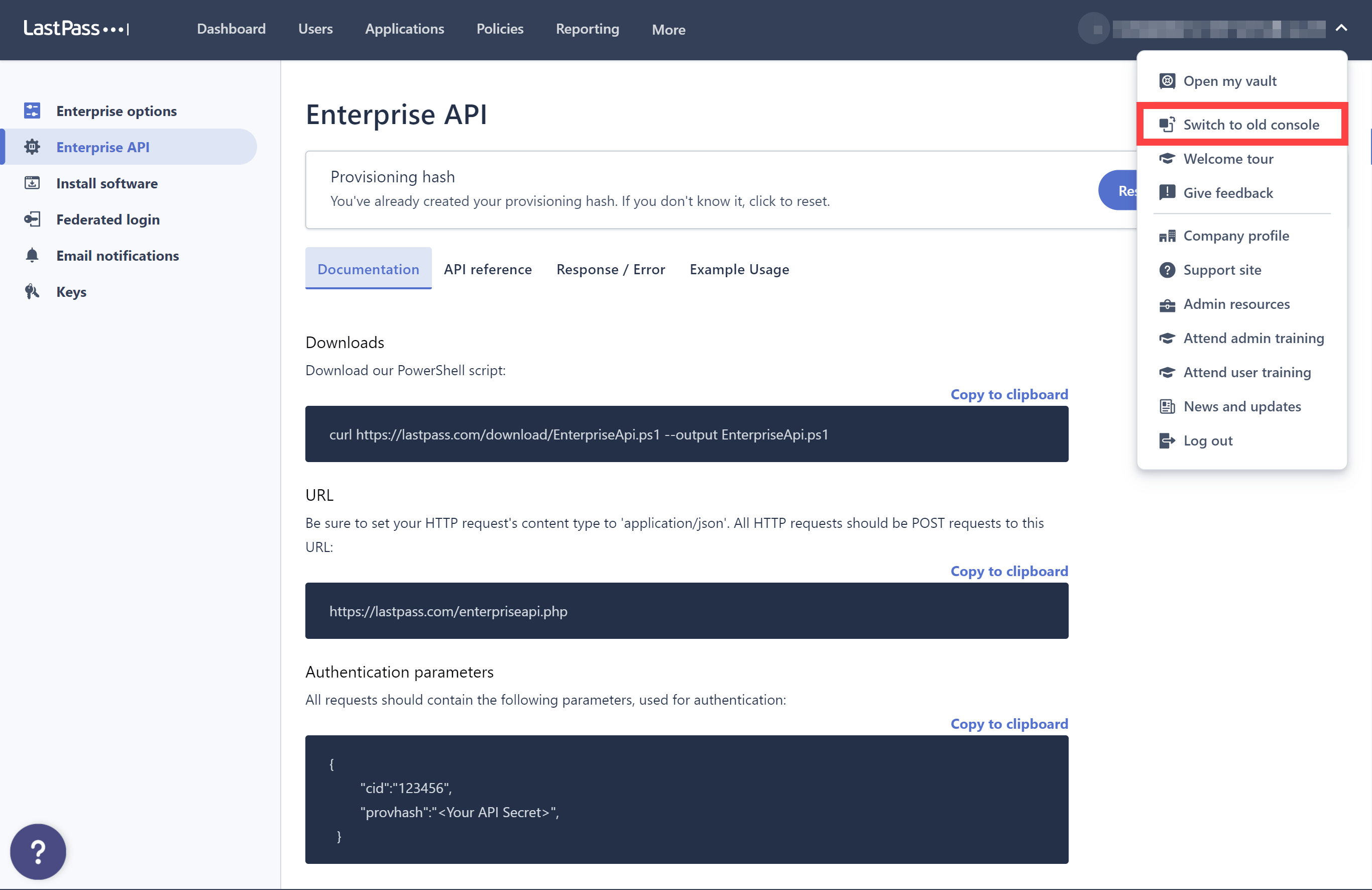
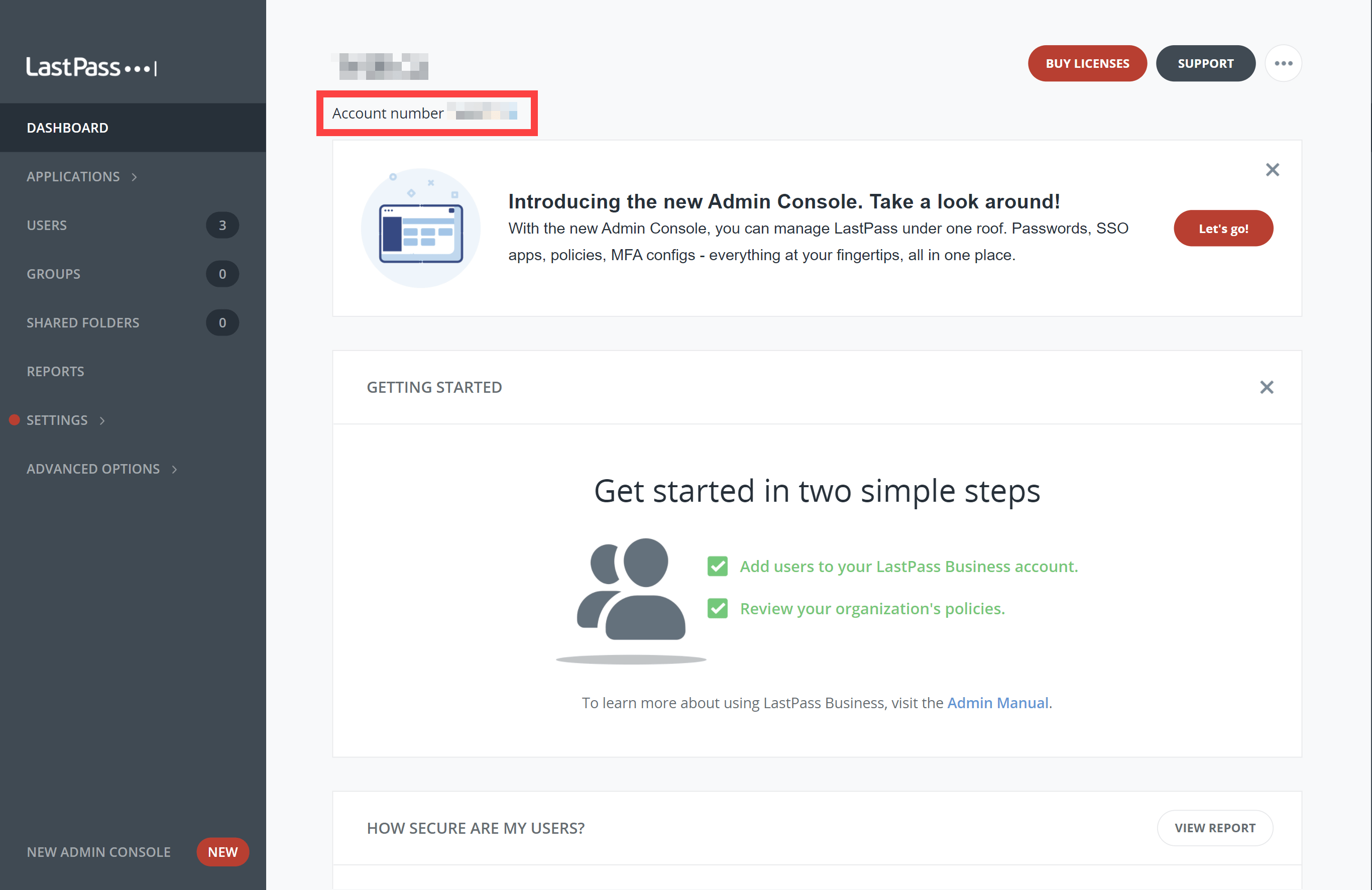
With the old console dashboard, you can copy your Account number.
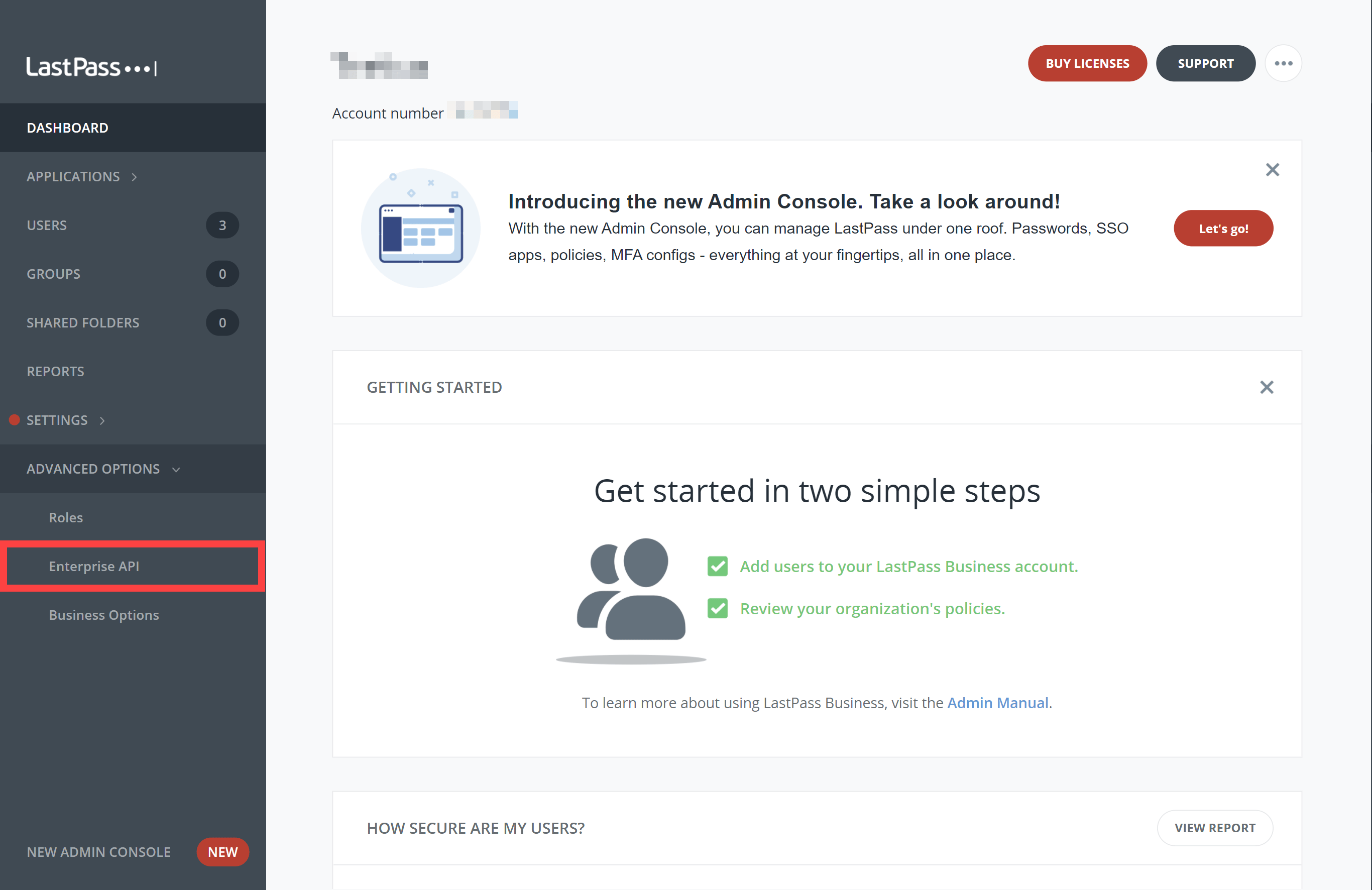
You can then navigate to Advanced options > Enterprise API to create or reset your Provisioning hash.
Note
cid visible in the sample JSON in the Authentication Parameters section of the Enterprise API page, when using the old console.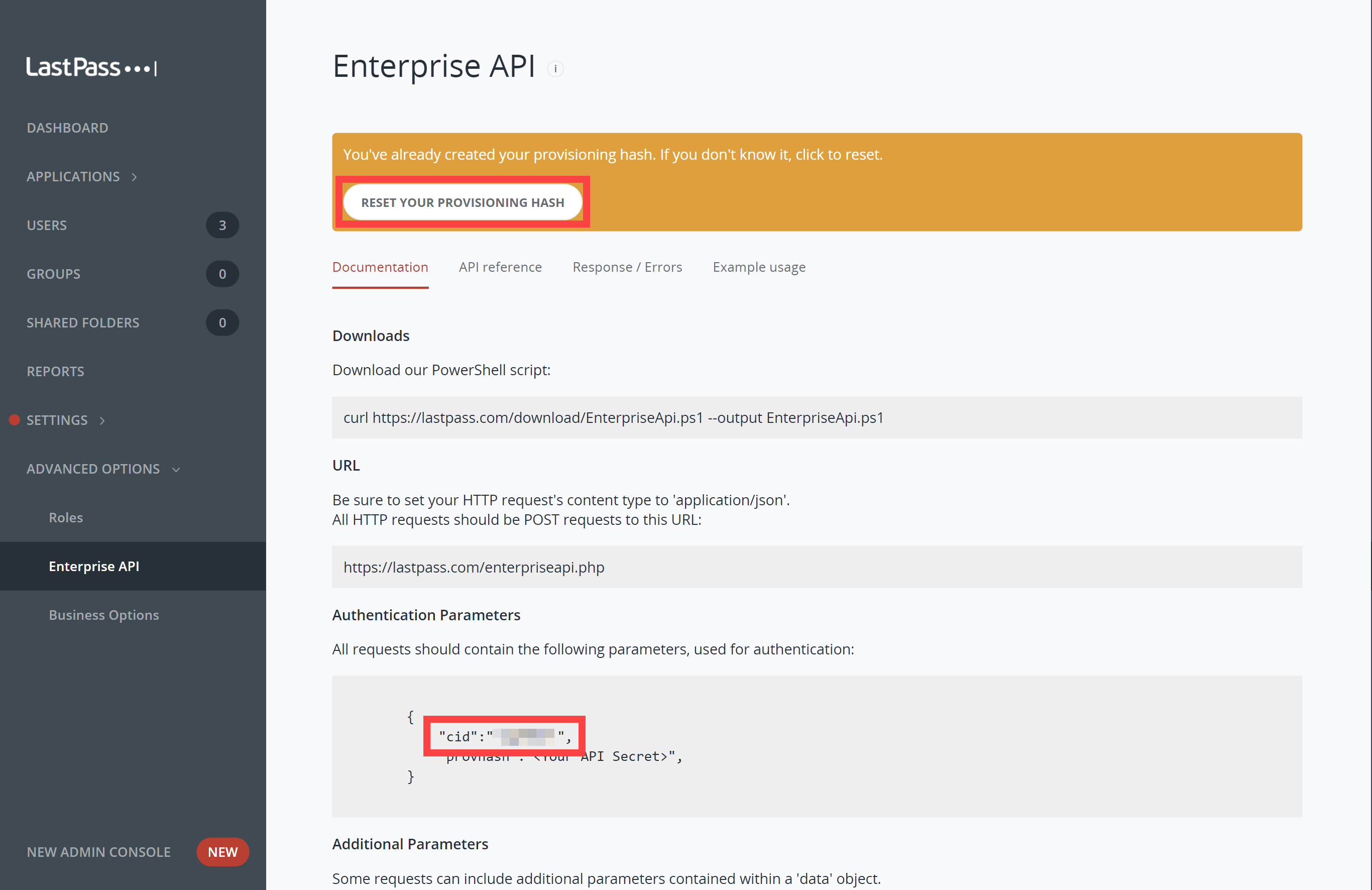
If you haven’t already created a provisioning hash, you can create one for the first time. Make note of the provisioning hash somewhere secure as LastPass will not show it to you again.
If you’ve already created a provisioning hash but you don’t know what it is, then you may have a copy of this saved somewhere (for example in your LastPass vault). If not then you will need to regenerate the provisioning hash by clicking Reset your provisioning hash.
Important
Support
If you have any problems either connecting with LastPass or using SaaS Manager contact our support team. Just drop us an email at saasmanager@1password.com to start the conversation.
Was this article helpful?
Glad to hear it! If you have anything you'd like to add, feel free to contact us.
Sorry to hear that. Please contact us if you'd like to provide more details.