To connect to Kandji to return device data you will need to create an API Token with specific permissions, and also enter your Kandji API URL into 1Password SaaS Manager.
To enable API access in Kandji, navigate to Settings > Access.
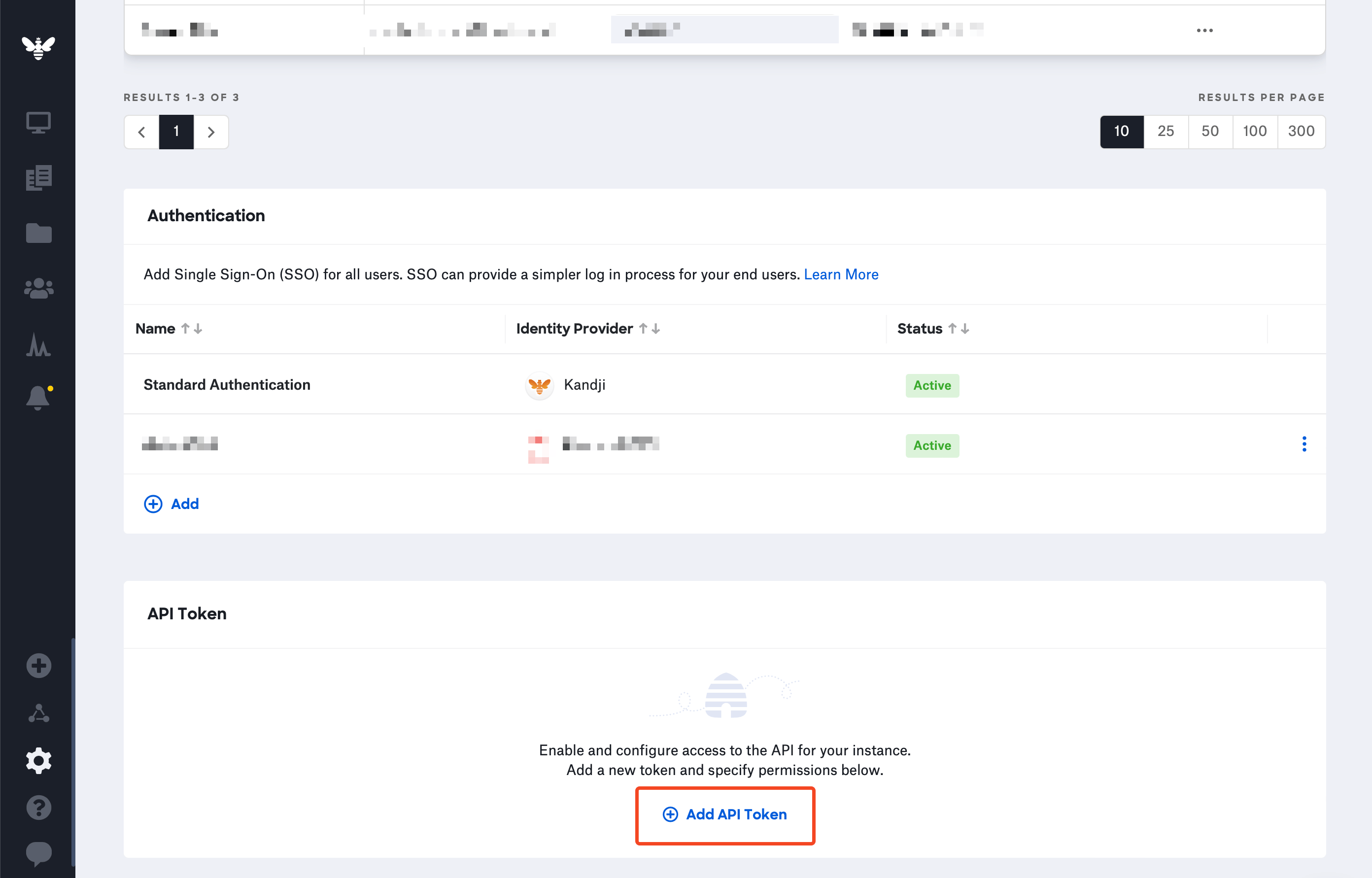
Scroll down to API Token and select Add API Token to create a new API key.
Enter “SaaS Manager” as the name, and a brief description, then select Create.
Copy the token and select Next.
Select Configure to set the permissions.
Make sure the following endpoint permissions are enabled for the token.
- Device ID:
/devices/{device_id} - Device list:
/devices - Device details:
/devices/{device_id}/details - Application list:
/devices/{device_id}/apps - ADE device list:
/integrations/apple/ade/devices
If you’re enabling the Device actions feature, you will also need these additional endpoint permissions:
- Device actions:
POST /devices/{device_id}/action/lock - Device actions:
POST /devices/{device_id}/action/erase - Device actions:
DELETE /devices/{device_id} - Device secrets:
GET /devices/{device_id}/secrets/unlockpin
- Device ID:
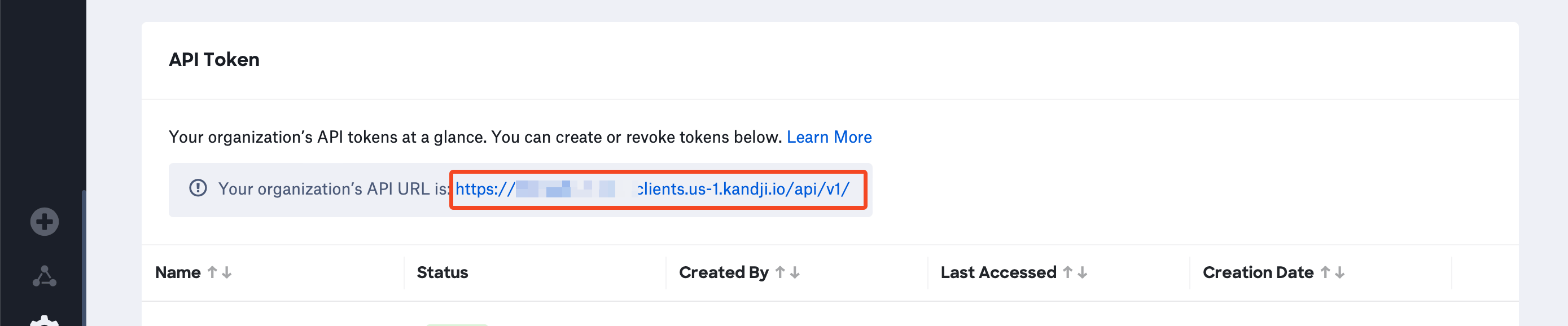
When you’re done, select Save. You’ll be shown your API URL which you also need to enter into SaaS Manager:
Was this article helpful?
Glad to hear it! If you have anything you'd like to add, feel free to contact us.
Sorry to hear that. Please contact us if you'd like to provide more details.