To connect to JumpCloud you need to enter an API Key.
You can find this by logging in to the JumpCloud admin console.
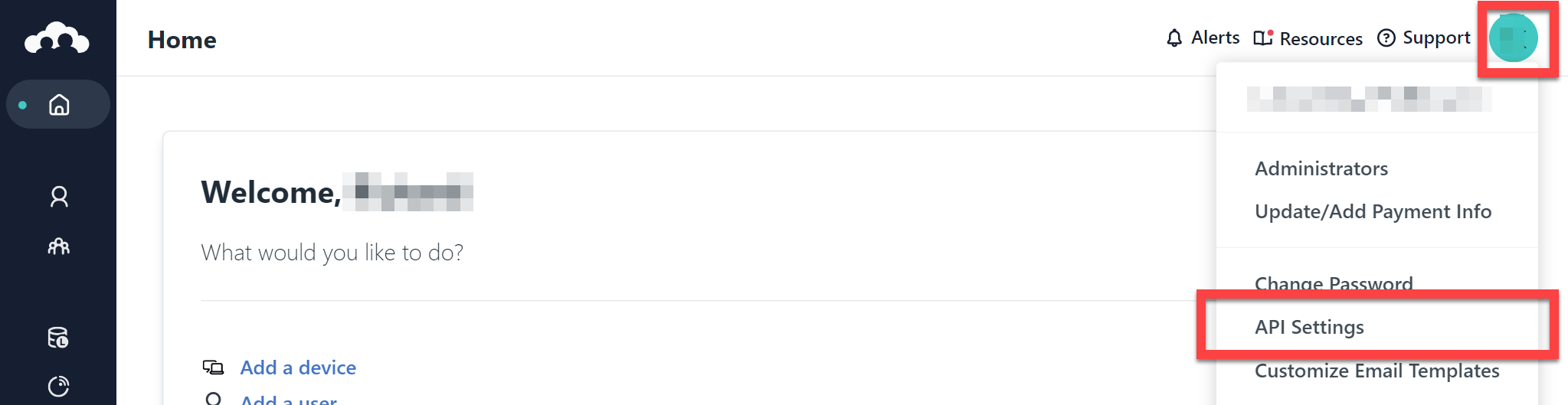
Click your profile icon at the top-right, and then choose API Settings:
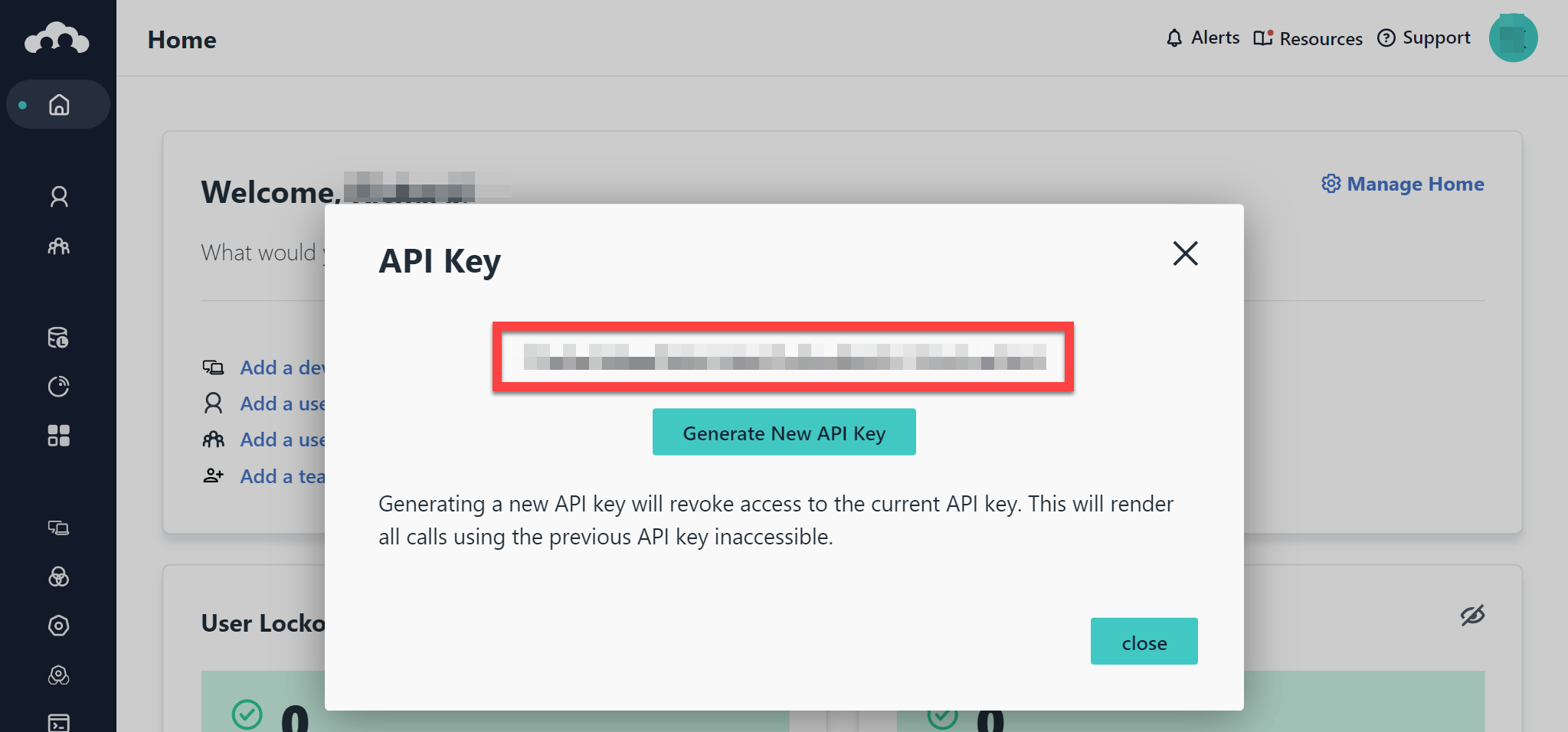
This will then show you your API key which you can copy to the clipboard by clicking on it:
FAQ
Troubleshooting multi-tenant connections
The 1Password SaaS Manager integration with JumpCloud is built to support connection to a single organization. If you have a multi-tenant JumpCloud configuration you will need to:
- Log in with your primary administrative account
- Navigate to Settings
- Select Administrators
- Click ‘+’ to add an account
- Make sure you assign the Administrator with Billing role, to grant API access
- Scope the administrator to the specific organization you would like to connect to SaaS Manager (for further information, see JumpCloud’s guide to scoping MSP admins to orgs)
- Log in as that new admin account to generate an API key
Which person attributes does SaaS Manager set when provisioning?
SaaS Manager maps the following user attributes when provisioning a new user in JumpCloud:
| SaaS Manager attribute | JumpCloud attribute |
|---|---|
| First name | First Name |
| Last name | Last Name |
| New username (step input; defaults to Email) | Company Email, Username |
| Job title | Job Title |
| Location | Location |
| Cost center | Cost Center |
| Employee ID | Employee ID |
| Employee type | Employee Type |
| Team | Department |
| Line manager | Manager |
| Personal email | Alternate Email |
| Phone number | Personal Cell |
| Personal address | Home Street Address |
Was this article helpful?
Glad to hear it! If you have anything you'd like to add, feel free to contact us.
Sorry to hear that. Please contact us if you'd like to provide more details.