Action1 has the concept of an Enterprise and Organizations.
Users are managed at Enterprise level, and endpoints are assigned per organization.
You can create service accounts and assign permissions and a scope to each service account. For example if you are an MSP and want to only assign access to a specific organization, then you can create a service account and associated scoped role, and 1Password SaaS Manager will just read endpoints for the nominated organization.
If multiple organizations are in scope, SaaS Manager will request that you select one when connecting.
Create a new role
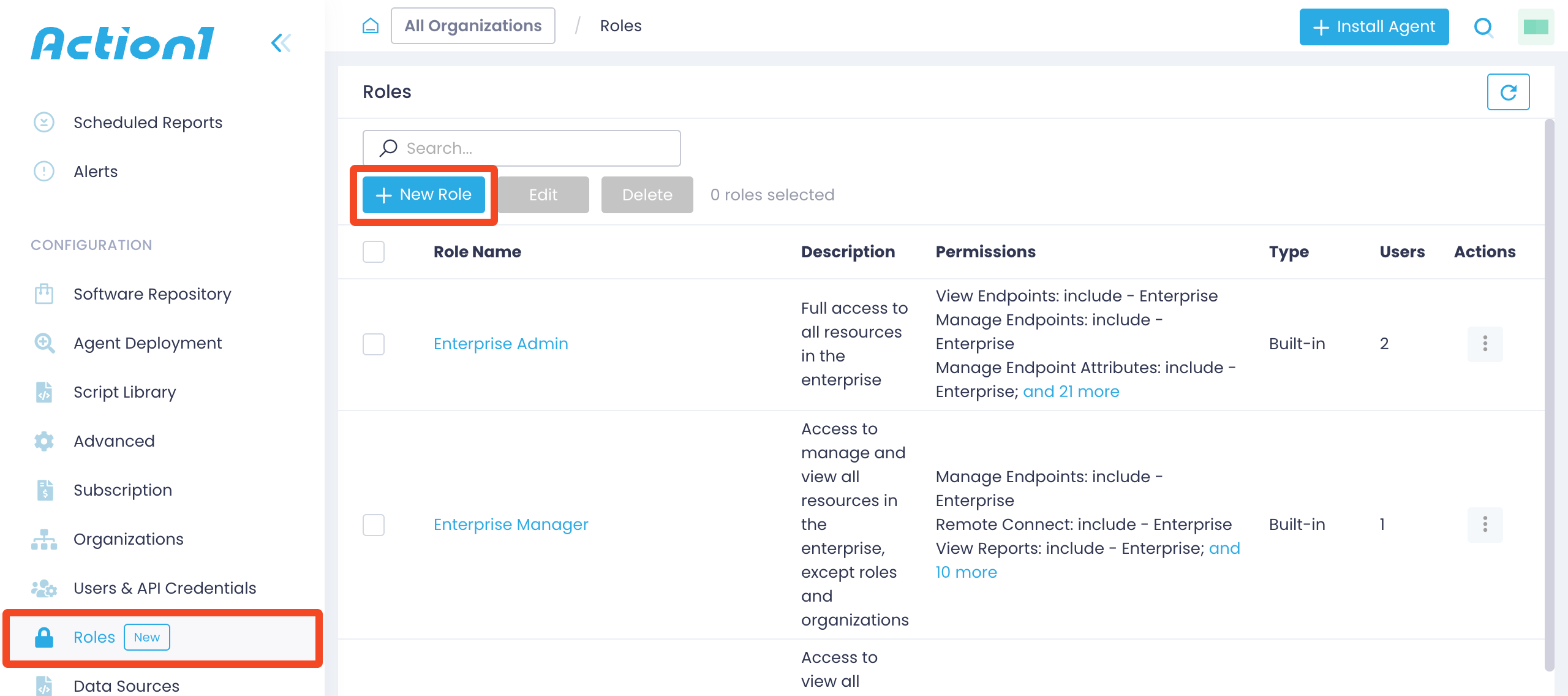
Go to Roles and click New Role:
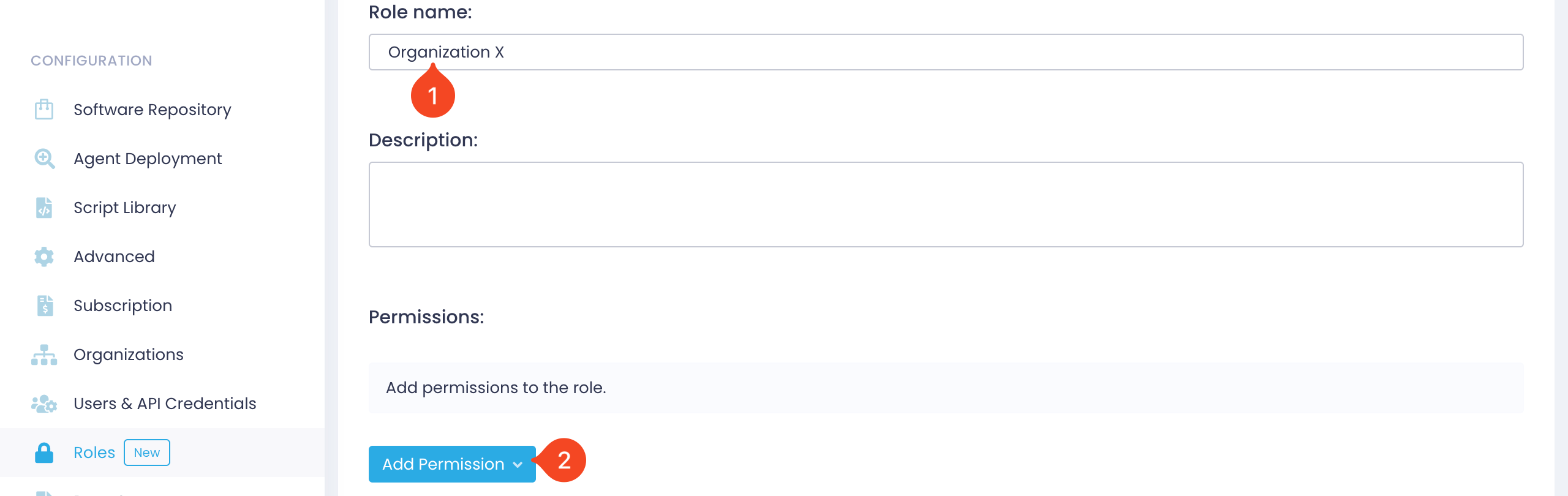
Enter a Role name and click Add Permission:
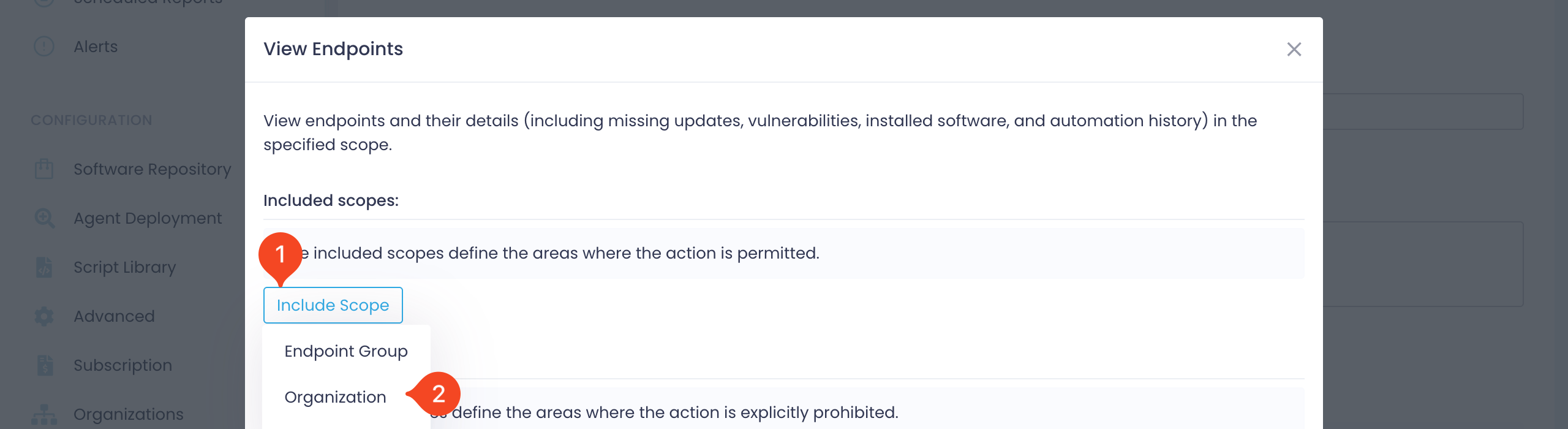
Choose a permission from the list, for example View Endpoints.
In the dialog that appears, select the scope to include, for example Organization:
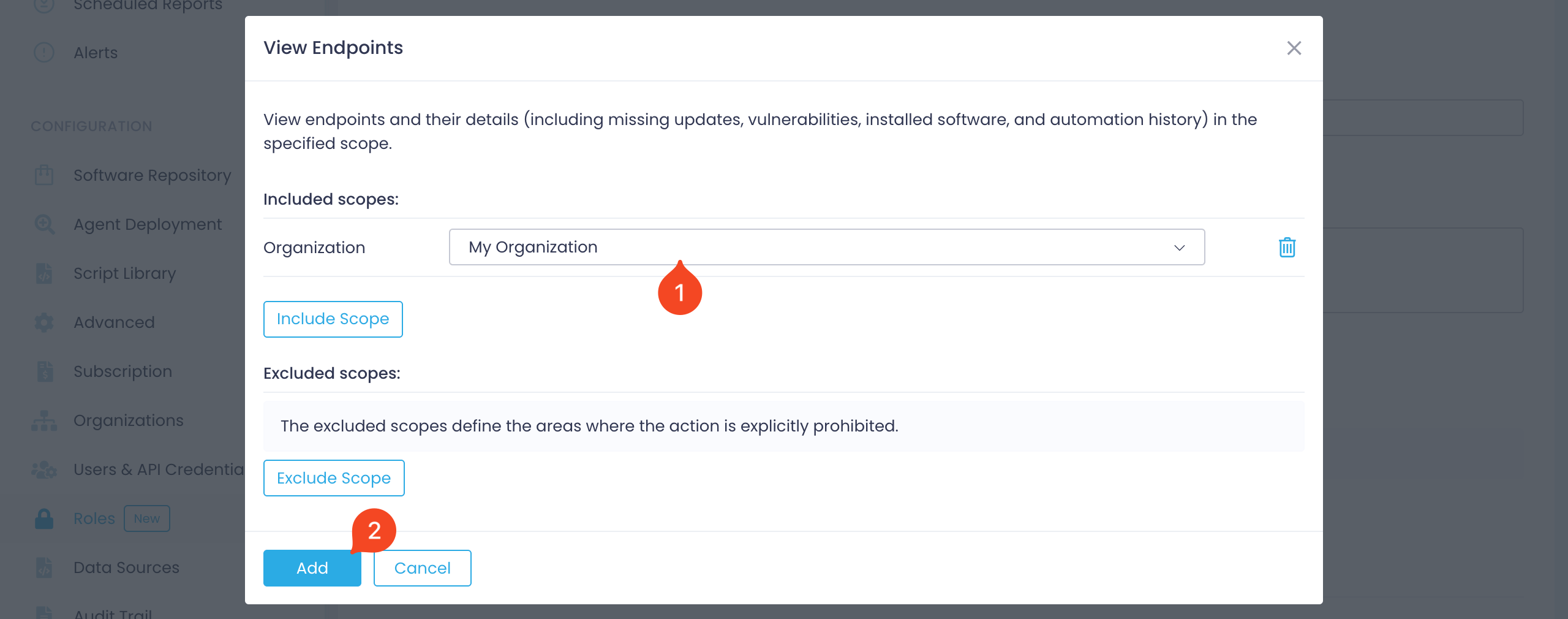
Pick the specific organization to restrict the scope to:
Assign the following permissions, based on the features you require:
| Feature | Permissions | Scope |
|---|---|---|
| Endpoints | View Endpoints, View Installed Software | Organization |
| Users | Manage Users, Manage Roles, View Audit Trail | Enterprise |
| Provisioning | Manage Users, Manage Roles | Enterprise |
| Deprovisioning | Manage Users, Manage Roles | Enterprise |
When you’re done, select Create role.
Now select Users & API Credentials, then select New API Credentials.
Enter a name for the credential and select the role you created earlier.
Select Proceed.
Copy and paste the Client id and Client Secret to SaaS Manager.
SaaS Manager also needs to know the base URL for your Action1 instance. This is shown in the Authenticate request or in the browser address bar, for example https://app.eu.action1.com.
Was this article helpful?
Glad to hear it! If you have anything you'd like to add, feel free to contact us.
Sorry to hear that. Please contact us if you'd like to provide more details.