Tip
Set up 1Password for Safari
Before you can use 1Password for Safari on your iPhone or iPad, you’ll need to download and set up 1Password on your device. Then follow these steps:
- Open Safari and navigate to any website.
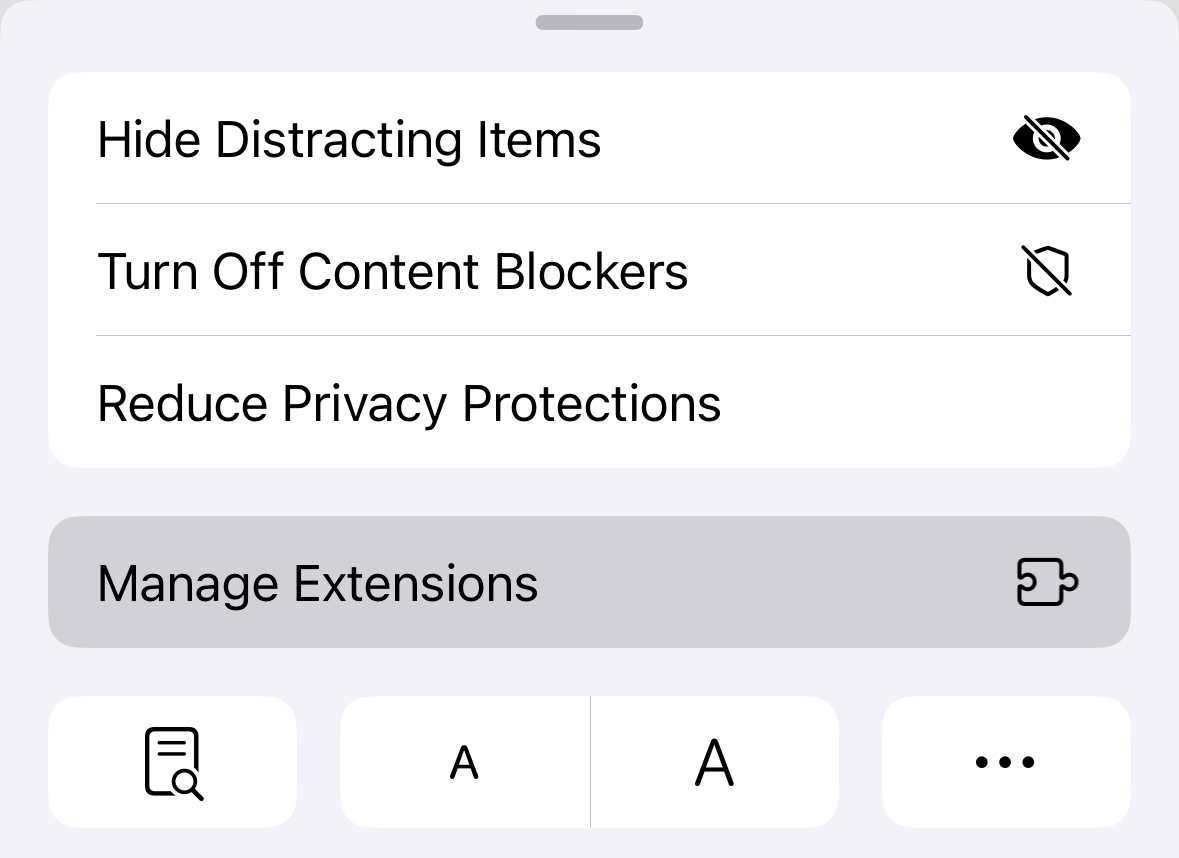
- Select
 in the address bar, then select Manage Extensions.
If you're using an iPad, select
 in the address bar.
 - Turn on 1Password, then select Done.
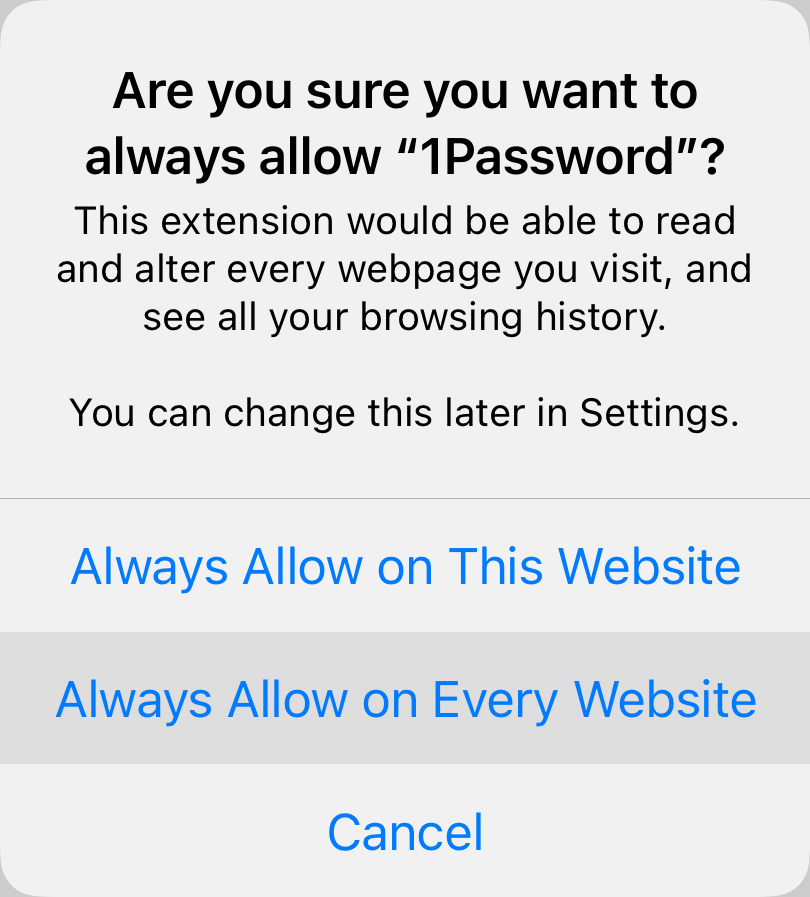
To make sure you can always fill your passwords and other items, you’ll need to allow 1Password for Safari to have access to all websites:
- Select in the address bar, then select 1Password.
If you're using an iPad, select
in the address bar, then select 1Password. - Select Always Allow, then select Always Allow on Every Website.
From now on, you’ll be able to fill passwords and more using 1Password for Safari.
Save a login
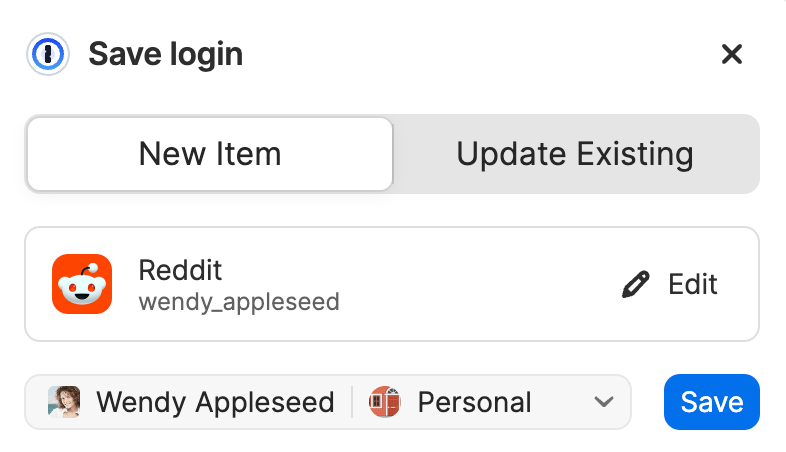
To save a login, enter your username and password, then sign in to the website. 1Password will automatically offer to save your login.
You can edit the details of the login and the vault where you want to save it. Then select Save.
Tip
Fill logins and other items
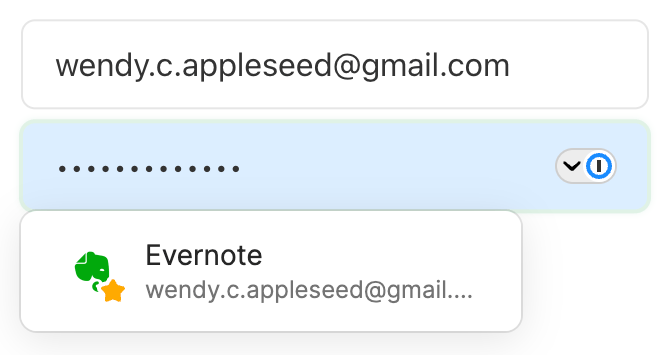
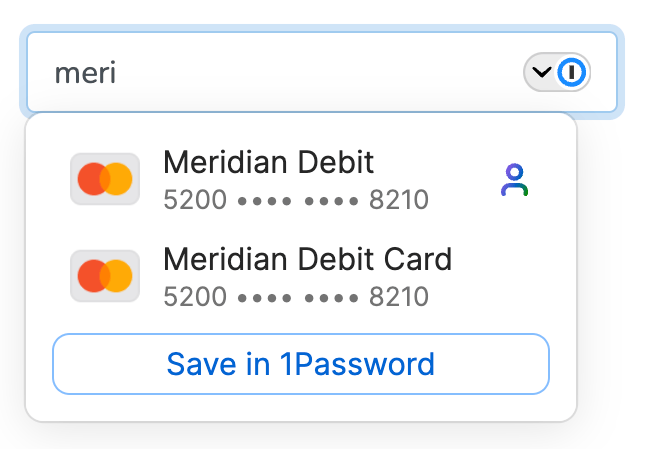
To fill an item, select a username or password field on the sign-in page of a website, then choose the login you want to fill.
If 1Password suggests more than one item, you can scroll through the list to choose the one you want. Or start typing to find it.
To fill your credit card or address in a form, select a credit card or address field, then choose the credit card or address you want to fill.
Use a suggested password
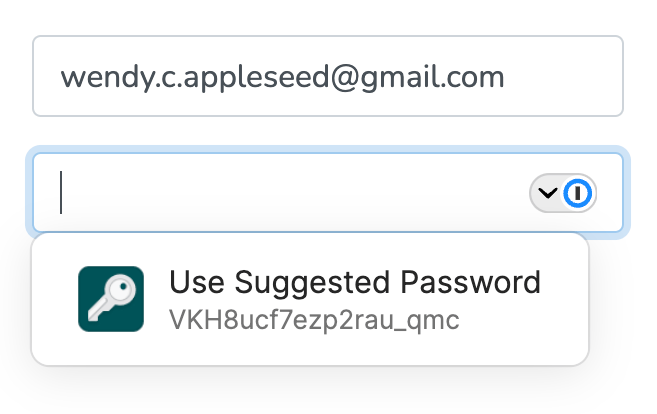
1Password suggests strong passwords when you’re changing a password or signing up for a new account.
To use a suggested password, select the password field then select Use Suggested Password.
Create a custom password
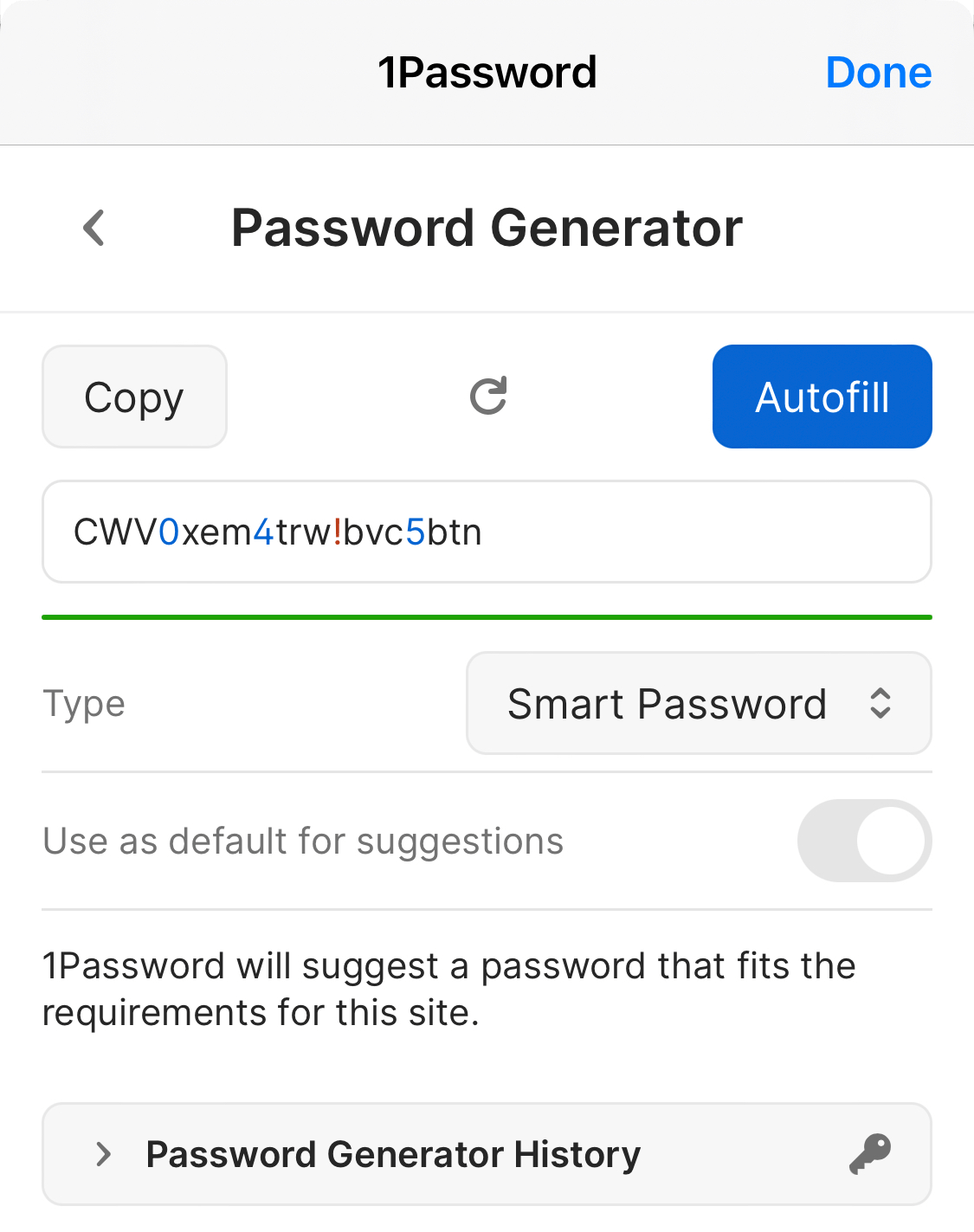
You can use the 1Password pop-up to create custom passwords. To open the pop-up on any website, select in the Safari address bar, then select 1Password.
If you're using an iPad, select  or > 1Password in the Safari address bar to open the pop-up.
Select the menu button , then select Password Generator. Adjust the settings for your new password, then select Autofill to fill it on the page. Or select Copy to copy it to the clipboard.
Search 1Password
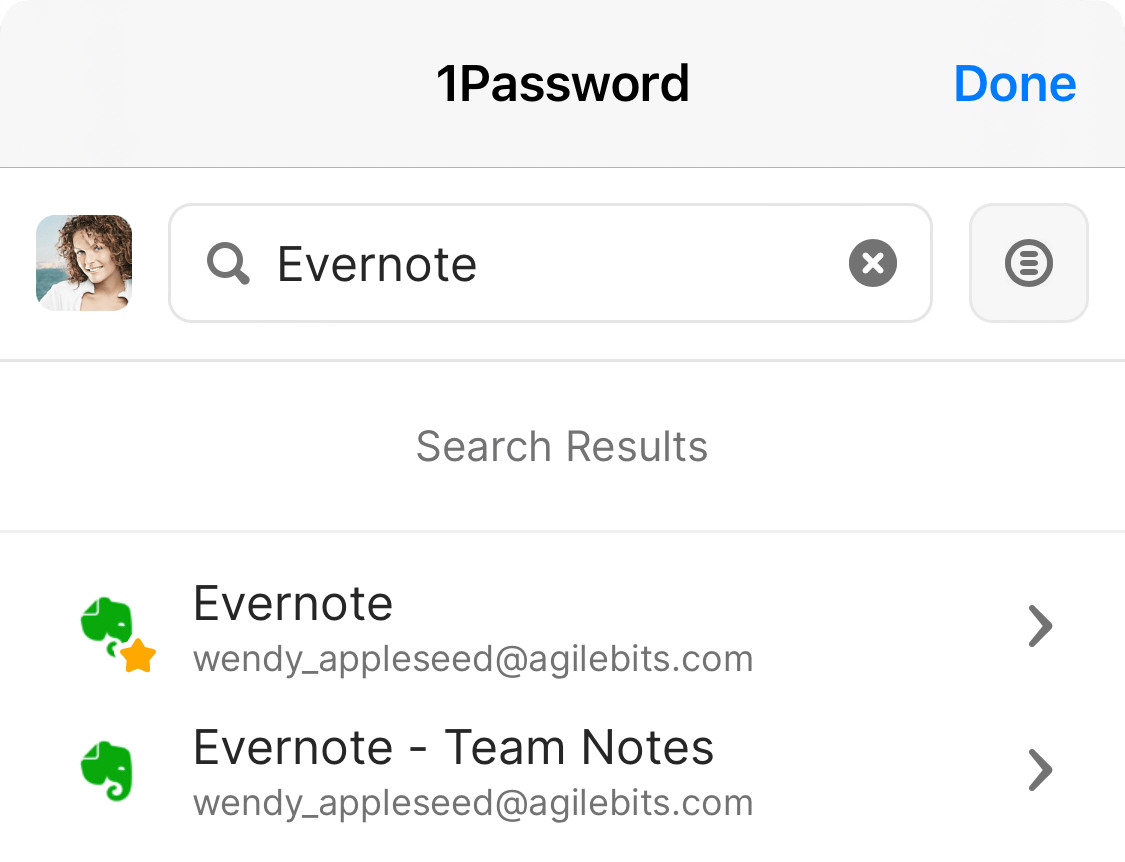
Searching is the fastest way to find what you need in 1Password.
To search in 1Password for Safari, open the pop-up, then select the search field and start typing.
To cancel the current search, select or select Done.
View and edit items
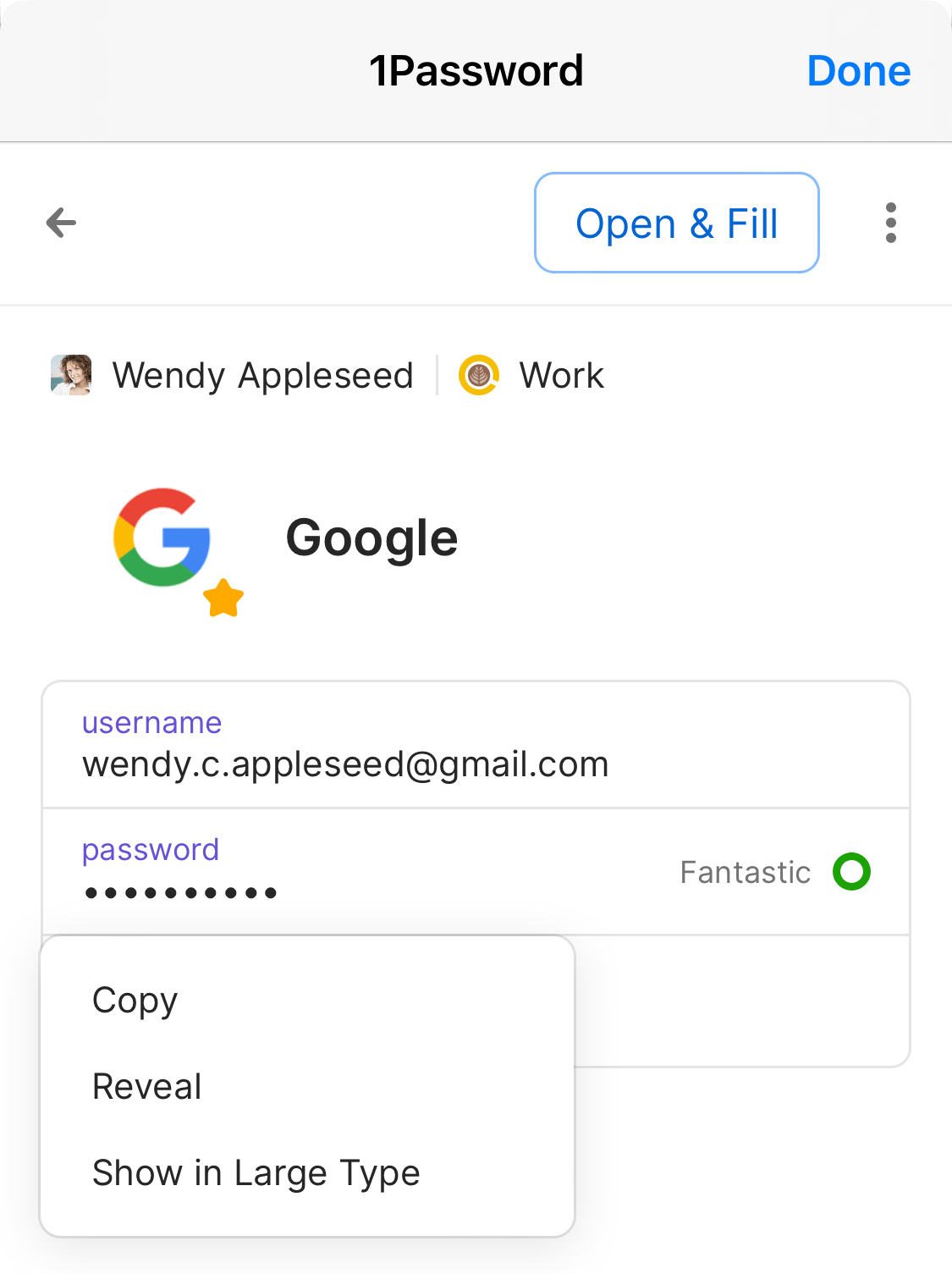
To view an item’s details, search for the item in the pop-up, then select it. When you’re finished, select Done.
To mark an item as a favorite, select the ellipsis then select Add to Favorites.
To copy any field, select it then select Copy.
To reveal a password, select it then select Reveal.
To enlarge a field, select it then select Show in Large Type.
To edit an item, select the ellipsis then select Edit. The item will open in the 1Password app, where you can add tags, custom fields, or answers to security questions.
Fill one-time passwords
You can use 1Password as an authenticator for a site that supports two-factor authentication. First, find the site on 2fa.directory and follow the instructions to turn on two-factor authentication for the site.
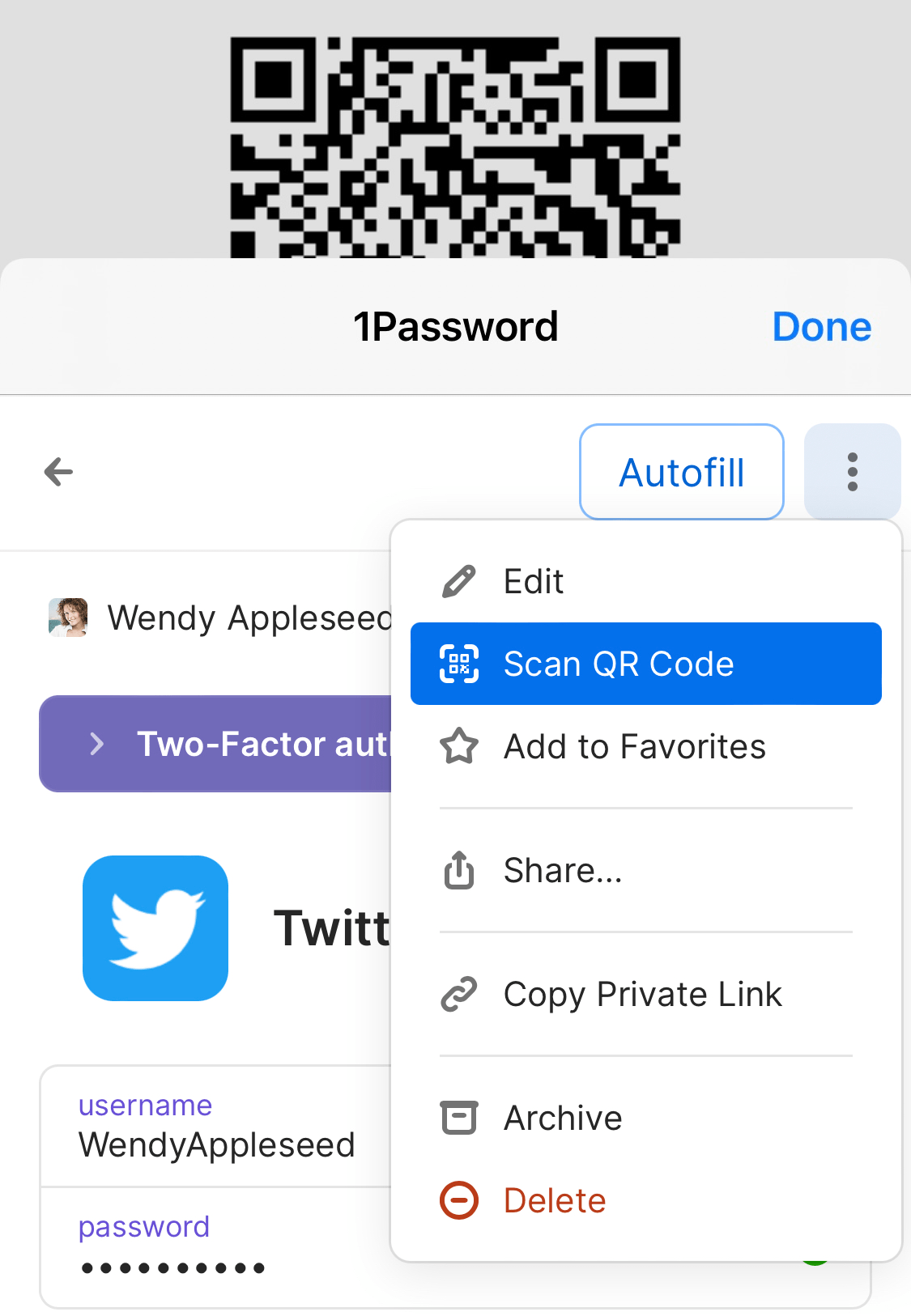
When you see a QR code for 1Password to scan, select in the Safari address bar, then select 1Password to open the pop-up.
If you're using an iPad, select or > 1Password in the Safari address bar to open the pop-up.
Select your Login item for the site, then select the ellipsis . Select Scan QR Code to save it to your Login item. 1Password can then fill your one-time passwords any time you need to sign in to that site.
Switch accounts
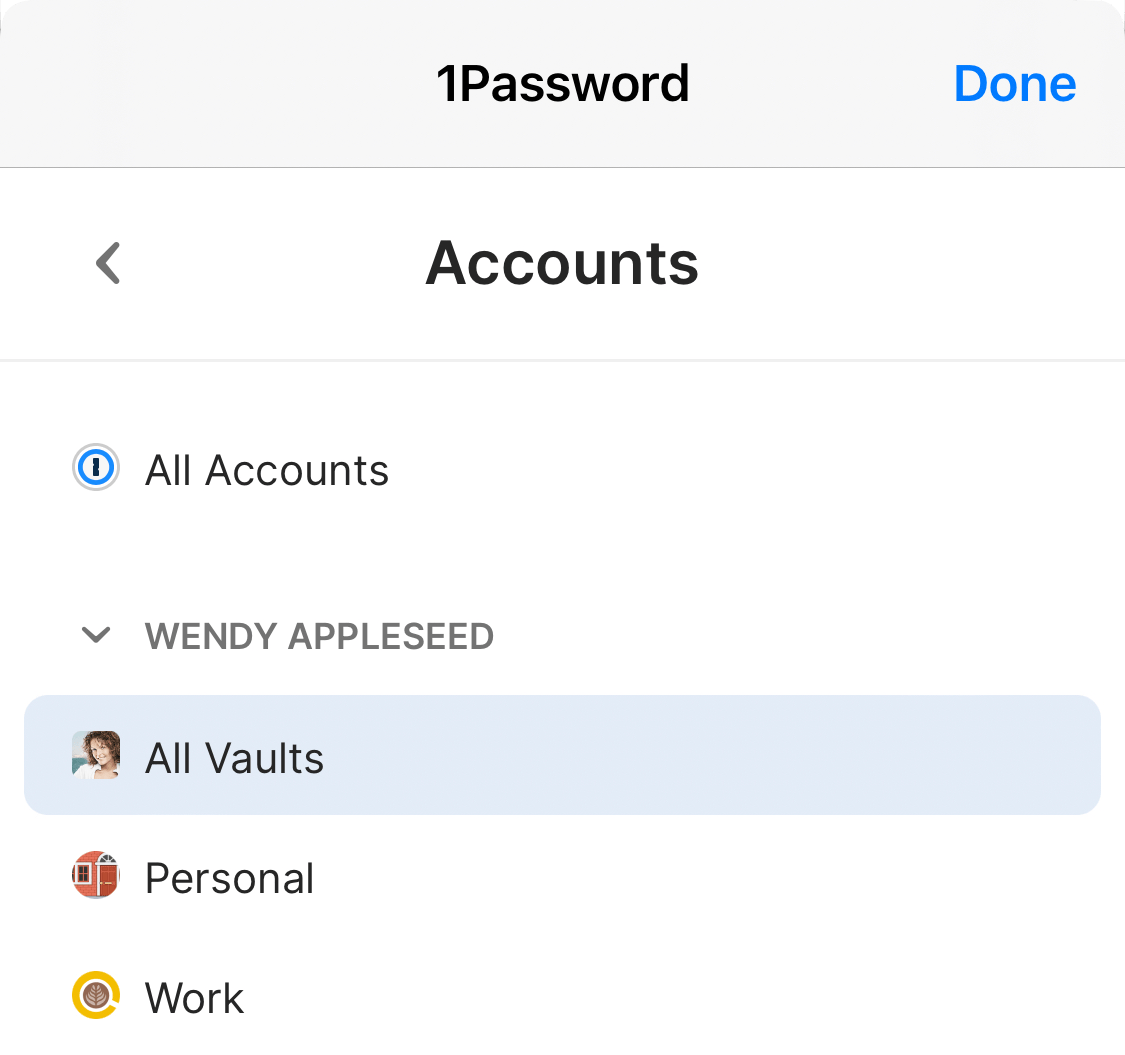
To see a list of your accounts and vaults, open the pop-up, then select  .
.
To see everything, select All Accounts. To see only the items for a specific account, select the name of the account you want.
To see only specific vaults, select Filter List and choose the vaults you want, then select Save changes.
Share items
You can securely share copies of passwords and other items you’ve saved in 1Password with anyone, even if they don’t use 1Password.
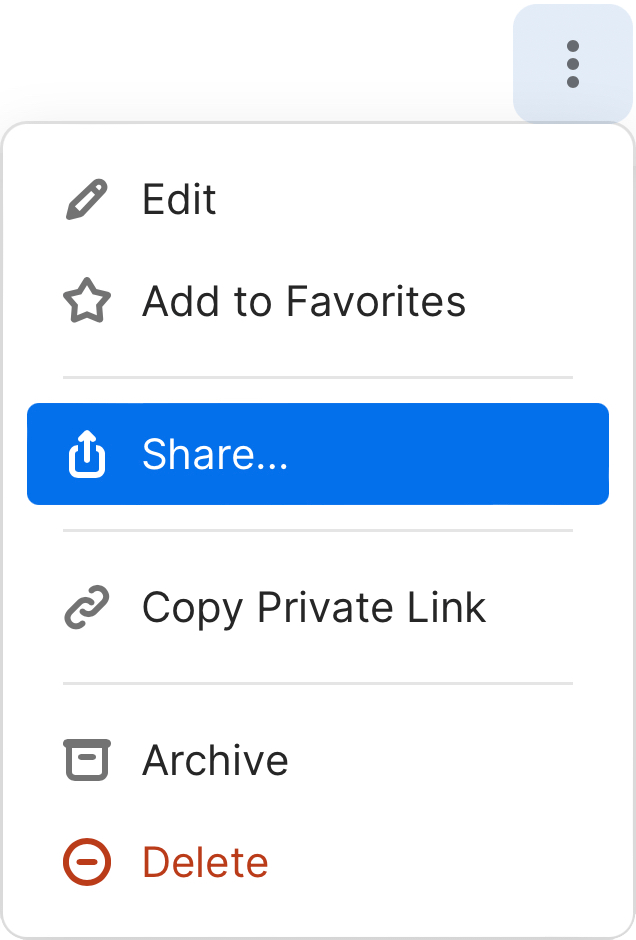
To share an item, open the pop-up, find the item you want to share, then select it. Select the ellipsis then select Share. 1Password will open the item on 1Password.com.
You can choose when the link expires and who to share it with. Select Copy Link, then send the link to the person or people you want to share the item with, like in an email or text message.
Archive and delete items
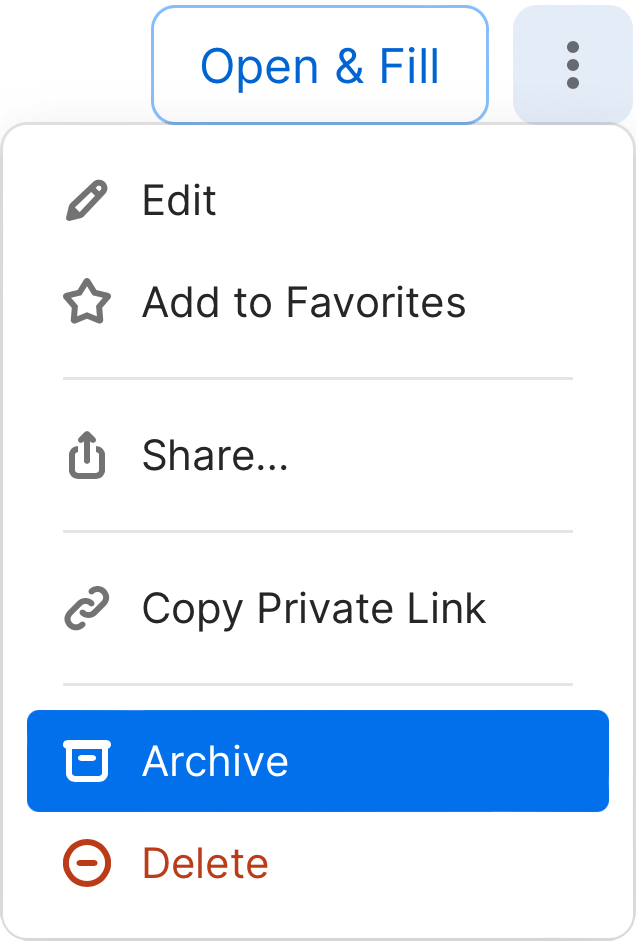
To archive an item, open the pop-up, find the item you want, then select it. Select the ellipsis , then select Archive.
To delete an item, open the pop-up, find the item you want, then select it. Select the ellipsis , then select Delete.
Lock 1Password
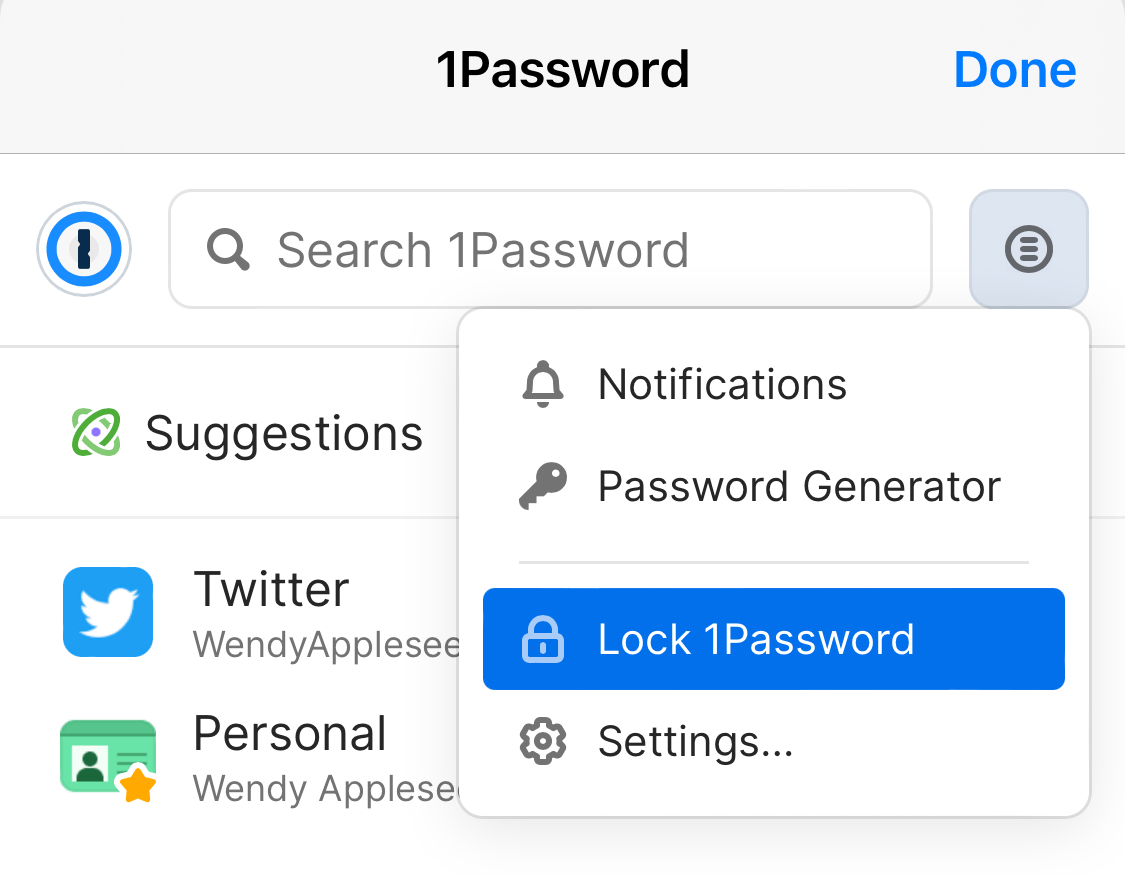
When you’re done using 1Password in Safari, you can lock it. To lock 1Password, open the pop-up, then select the menu button . Select Lock 1Password.
Unlock 1Password again by entering your account password. If you set up Touch ID or Face ID in the app, you can also use your fingerprint or face to unlock 1Password in Safari.
To change how often 1Password for Safari locks, open the pop-up, then select the menu button . Select Settings. In the “Security & privacy” section, select Open 1Password, then select Reauthorize After and choose how often 1Password for Safari locks.
Manage your settings
To manage your settings, open the pop-up, then select the menu button . Select Settings. You’ll be able to manage:
- Watchtower settings
- Language preference
- Pop-up behavior and appearance
- Behavior on web pages
- Accounts & vaults
- Integrations
Get help
If you’ve locked or hidden the 1Password app or turned on Lockdown Mode on your iPhone or iPad, you won’t be able to use 1Password for Safari. You can use Autofill to save and fill on your device instead.
If Safari prevents you from using 1Password to autofill logins, you might need to turn off the built-in password manager in Safari.
If you set restrictions for web content on your iPhone or iPad, you won’t be able to turn on 1Password for Safari. To use 1Password for Safari, turn off any restrictions for web content:
- Open the Settings app.
- Select Screen Time > Content & Privacy Restrictions.
- Select Content Restrictions > Web Content, then select Unrestricted Access.
Learn more
- Get to know 1Password for iOS
- Use 1Password to save logins and sign in to apps and websites on your iPhone and iPad
- Use 1Password as an authenticator for sites with two-factor authentication
- Use Face ID to unlock 1Password on your iPhone or iPad Pro
- Use Touch ID to unlock 1Password on your iPhone or iPad
Was this article helpful?
Glad to hear it! If you have anything you'd like to add, feel free to contact us.
Sorry to hear that. Please contact us if you'd like to provide more details.