Note
Device Groups allow you to group devices together in ways that are beneficial to your organization, both in the UI and programmatically through the API.
Device Groups are useful for both controlling which devices a Check targets and which devices a Check blocks.
Note
Creating a group
Navigate to Devices and click the
+icon next to the label Device Groups in the filter sidebar.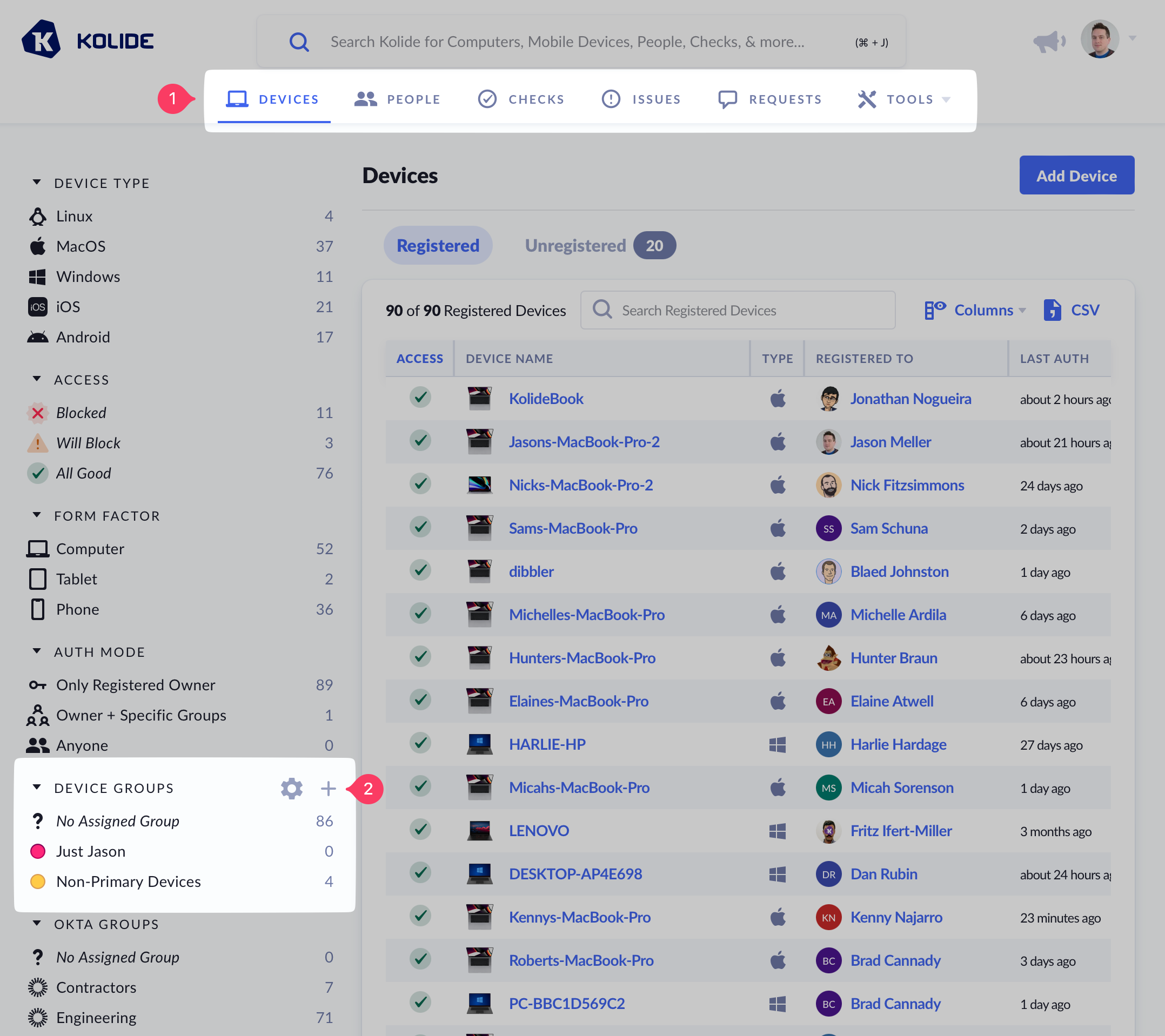
Note
If the add button is missing and you have confirmed that you are subscribed to Kolide Max, ask another Device Trust administrator in your organization to remove the Group Modifications feature restriction.In the modal, enter the Device Group’s name, a description (optional), and choose a color for its label. Once complete, click Create Device Group.
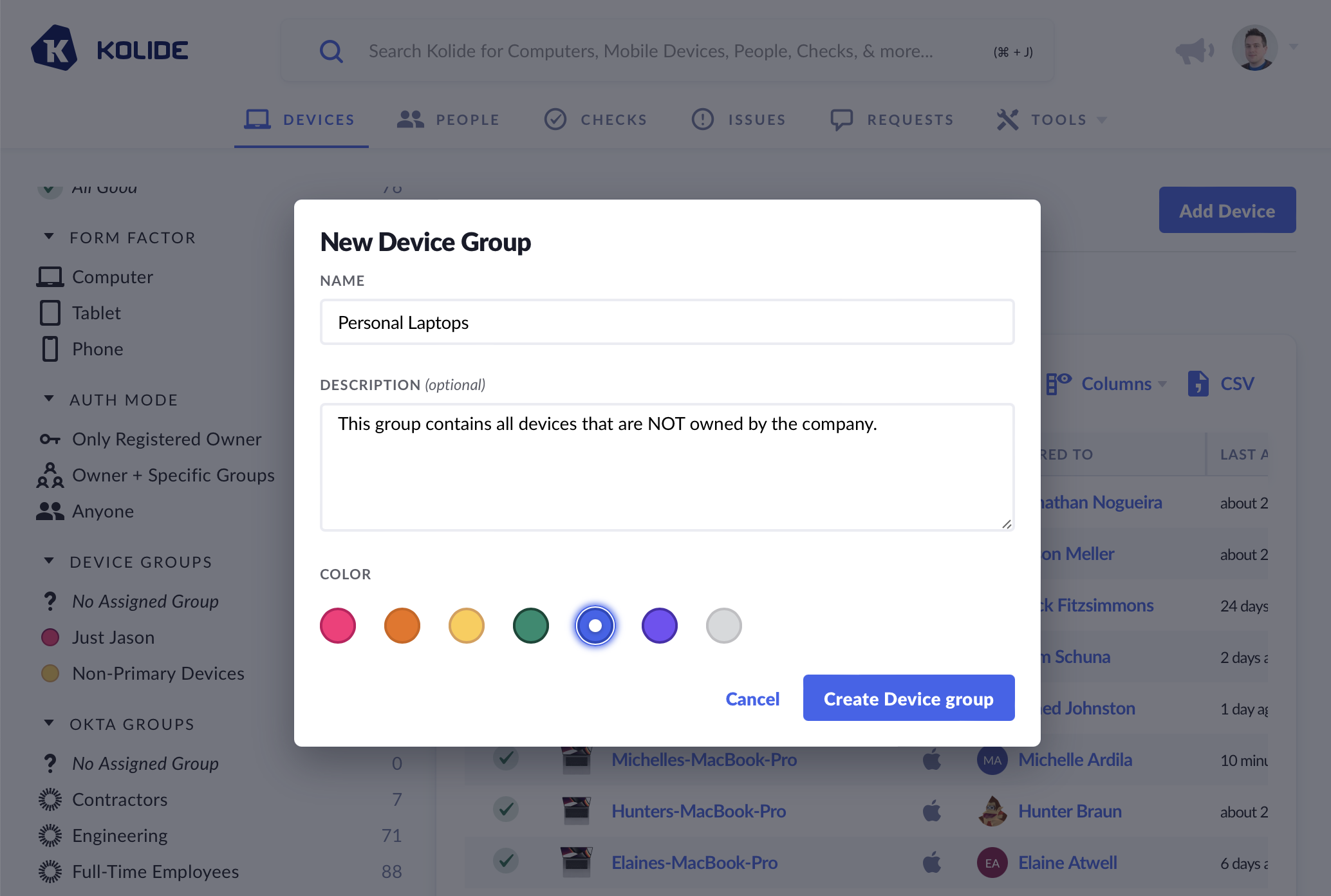
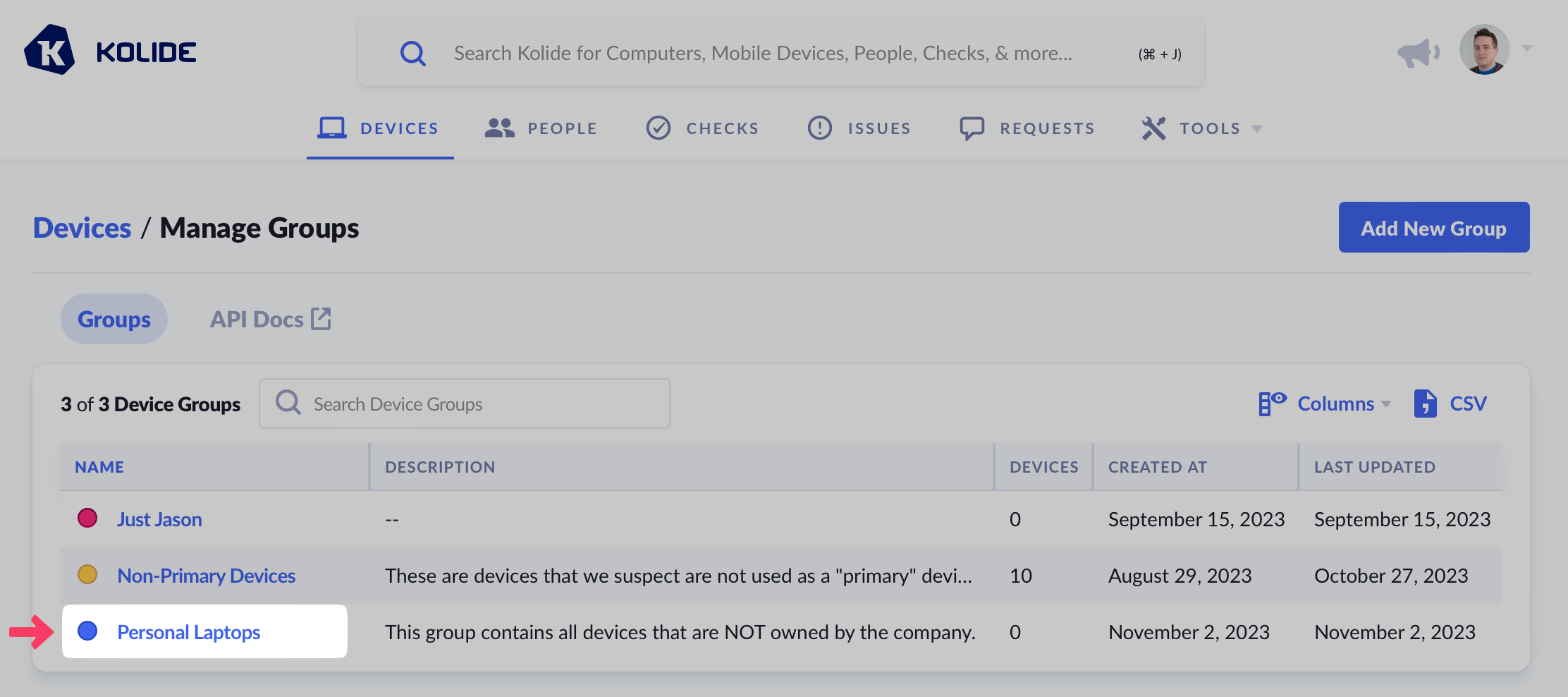
After creation, you will be redirected to the membership and configuration page of your new Device Group, where you can start adding devices.
Managing membership
Through the Device Trust admin console
Navigate to Devices and click the gear/cog icon next to the label Device Groups in the filter sidebar.
Note
If the configure button is missing and you have confirmed that you are subscribed to Kolide Max, ask another Device Trust administrator in your organization to remove the Group Modifications feature restriction.Click the Device Group you wish to manage.
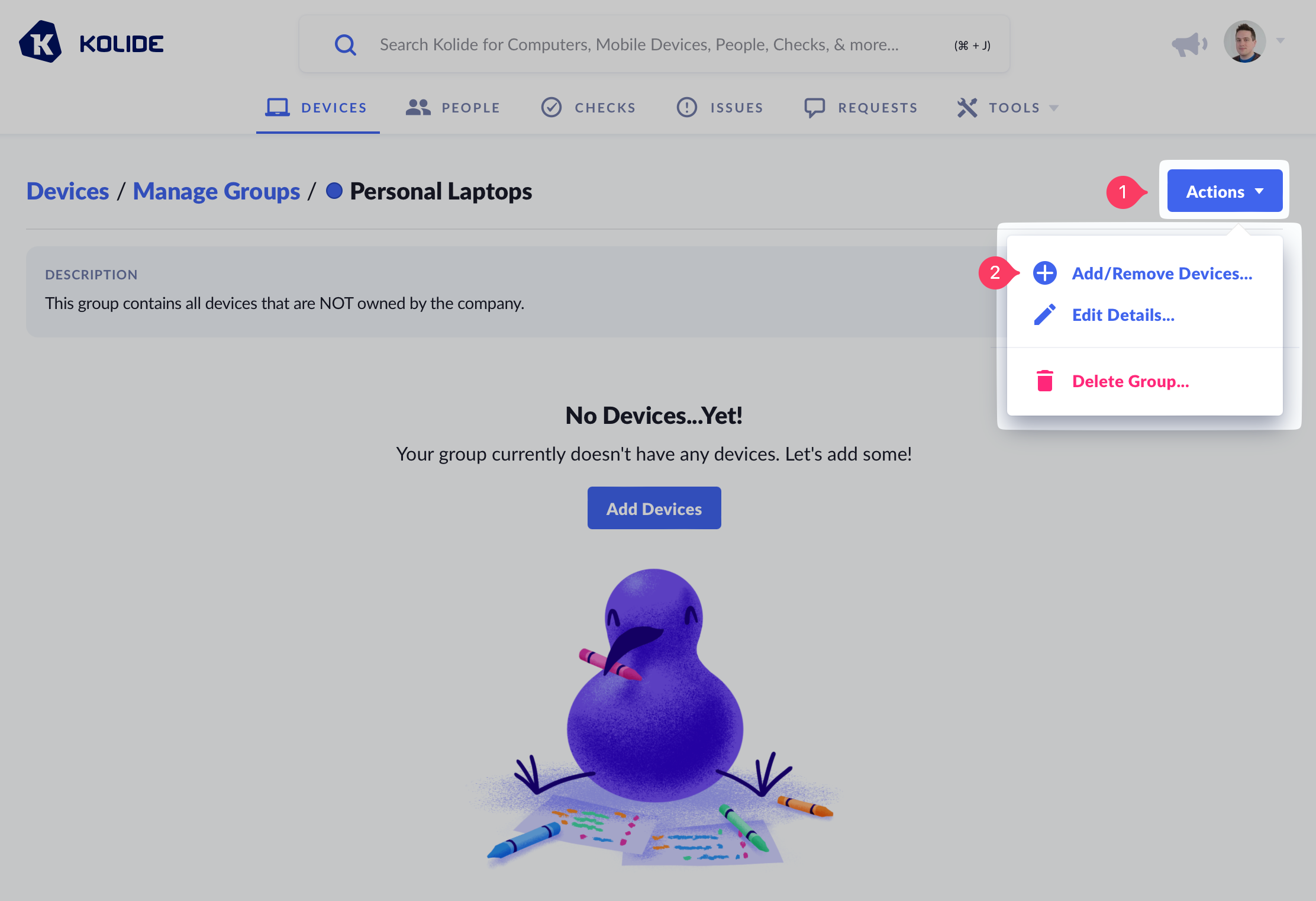
Click the Actions menu and choose Add/Remove Devices.
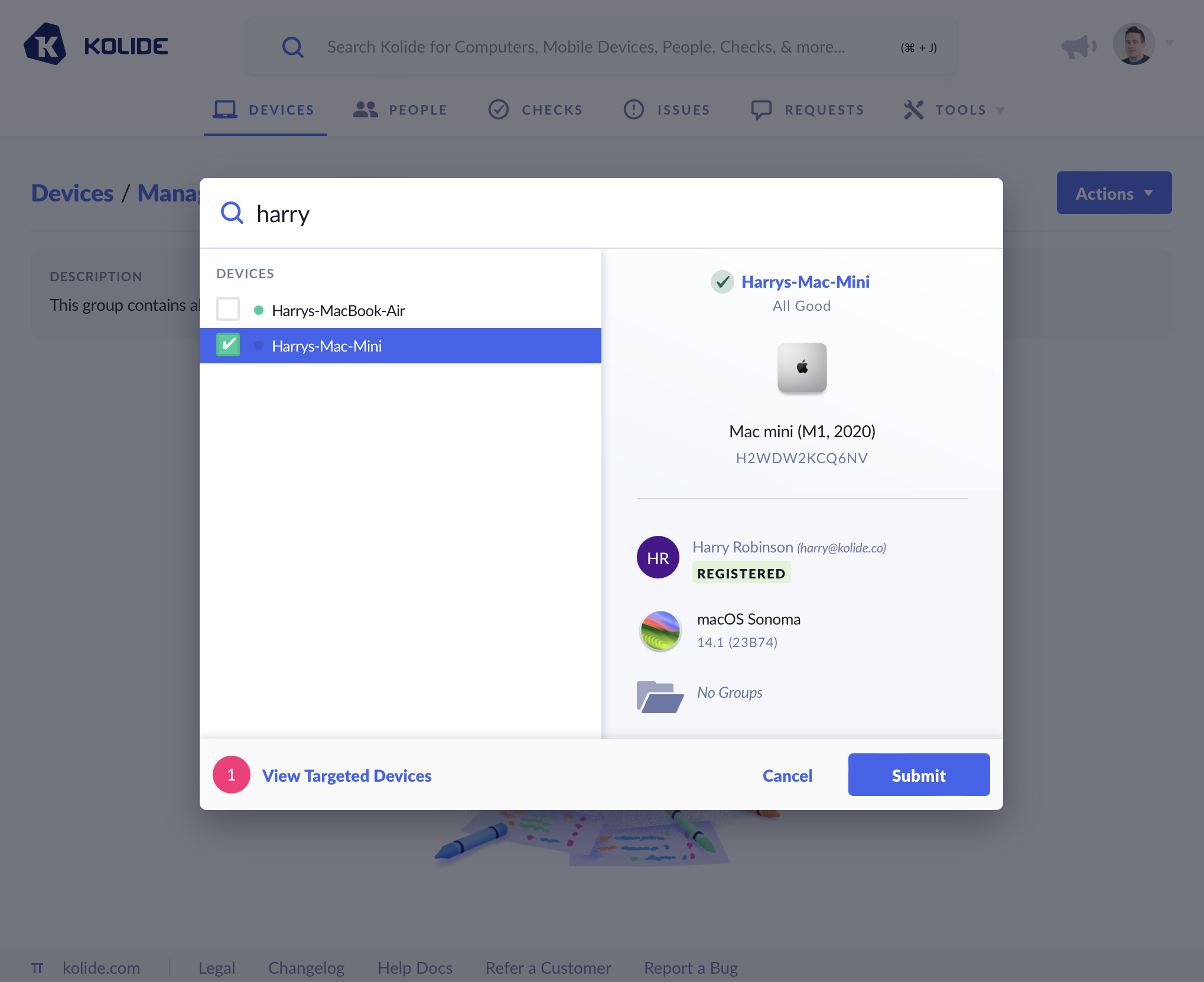
In the target selector, use the search function to locate devices you’d like to add to the group. If you wish to remove any existing devices, click View Targeted Devices at the bottom and then click Remove next to any entries you’d like to remove. Once you’ve made your selections, click Submit.
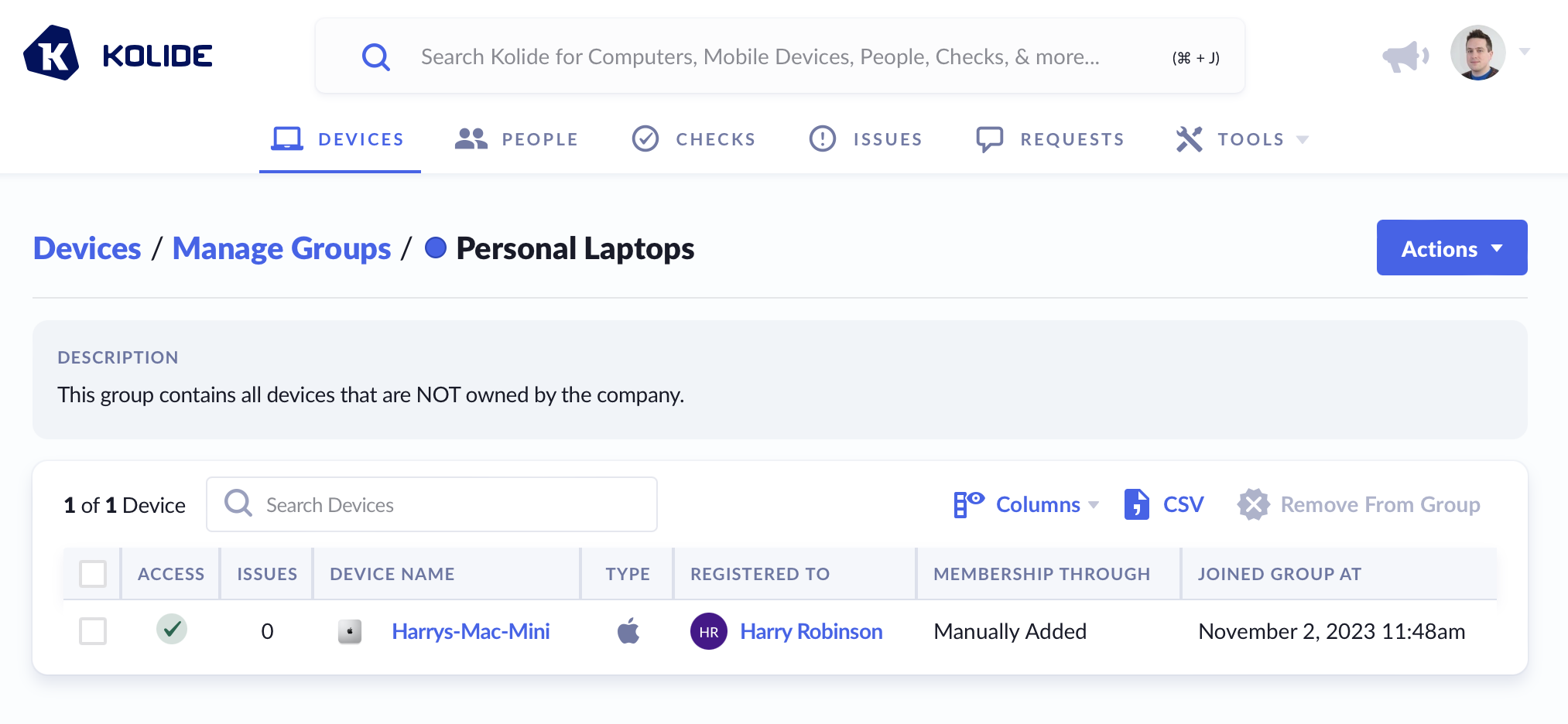
Once completed, the devices will appear in the listing.
Through the Device Trust API
If you haven’t already, create an API Key with the Manage Device Groups write permission.
Refer to Device Trust API Reference for documentation and code examples on how to add or remove devices from a group.
Deleting a group
To remove a Device Group from Device Trust, follow these instructions:
Navigate to Devices and click the gear/cog icon next to the label Device Groups in the filter sidebar.
Note
If the configure button is missing and you have confirmed that you are subscribed to Kolide Max, ask another Device Trust administrator in your organization to remove the Group Modifications feature restriction.Click the Device Group you wish to manage.
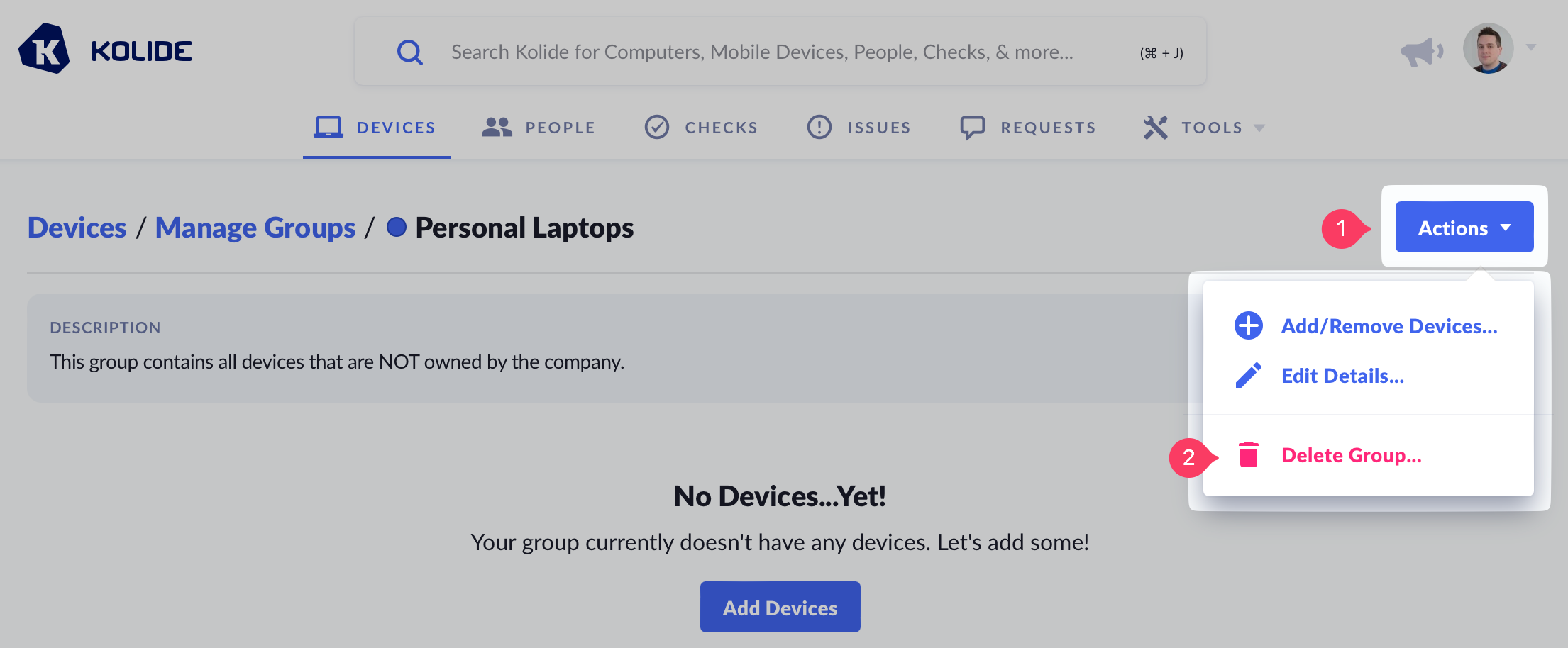
Click the Actions menu and choose Delete Group.
Important
Was this article helpful?
Glad to hear it! If you have anything you'd like to add, feel free to contact us.
Sorry to hear that. Please contact us if you'd like to provide more details.