Note
When a user tries to sign into an app that is protected by 1Password Device Trust, you may have questions about the user’s experience. Auth Logs are designed to answer the most common questions administrators have, including:
- What browser did the user sign in from?
- Was the Kolide agent successfully detected?
- Was the device initially blocked?
- Did the user click any Checks to view more details?
- Did they attempt to recheck their device?
- What country did the authentication originate from?
Tip
Looking for Audit Logs?
In addition to authentication logs, Device Trust also maintains full audit logs for actions taken by Device Trust administrators.
Viewing Auth Logs
There are several ways you can access Auth Logs within the Device Trust admin console.
For a single device
Auth Logs are available for all registered devices in Device Trust. Just go to any Device’s overview page, and click Auth Logs in the tabbed menubar.
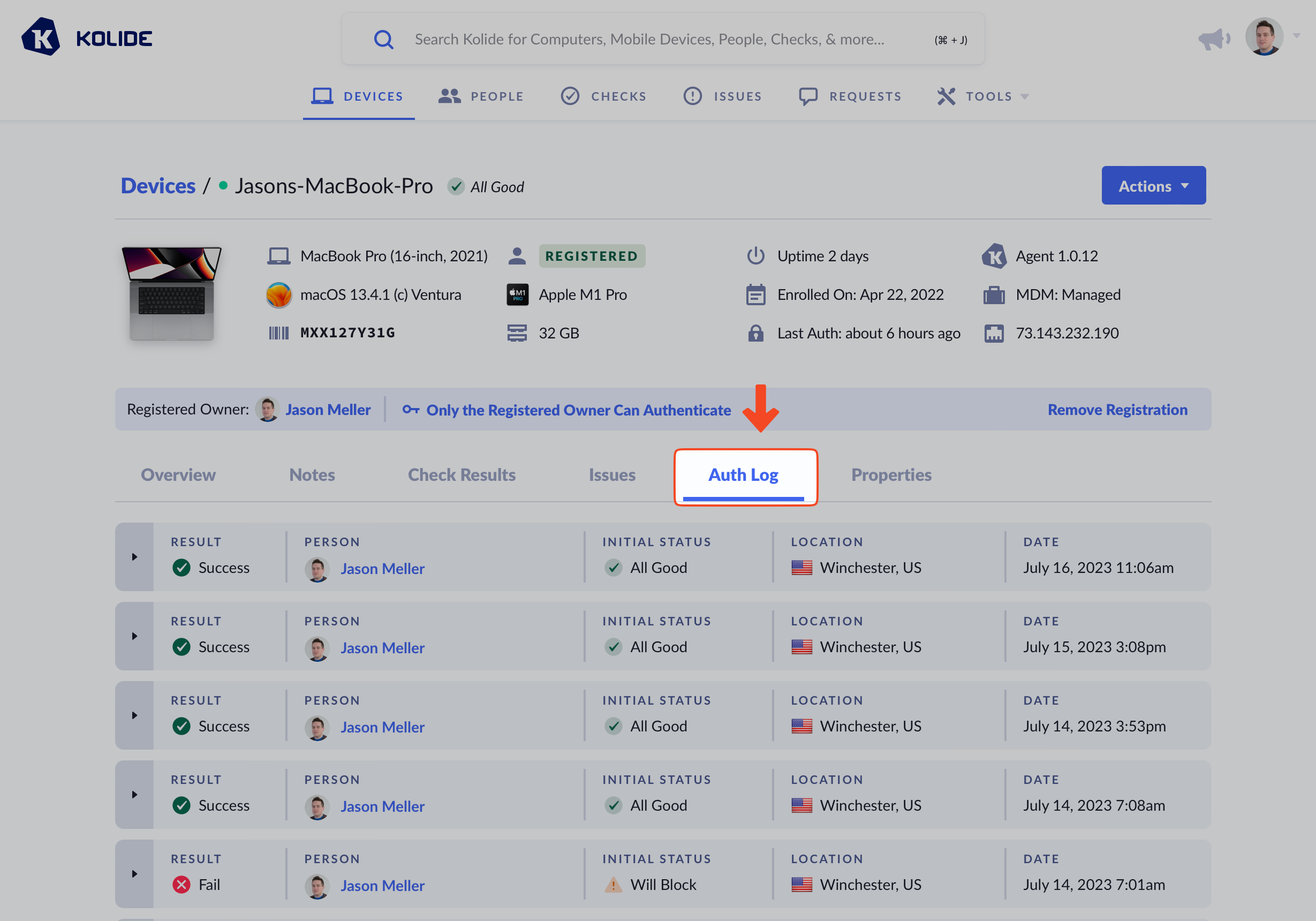
Not only will you see authentication attempts from the registered user of the device, you may also see notification attempts from other users who attempted to sign into apps with this device. Those attempts will be unsuccessful unless the device allows authentications from multiple users.
For a person
Auth Logs are also available for every user listed in People in the Device Trust admin console. Just go to any Person’s details page, and click Auth Logs in the tabbed menubar.
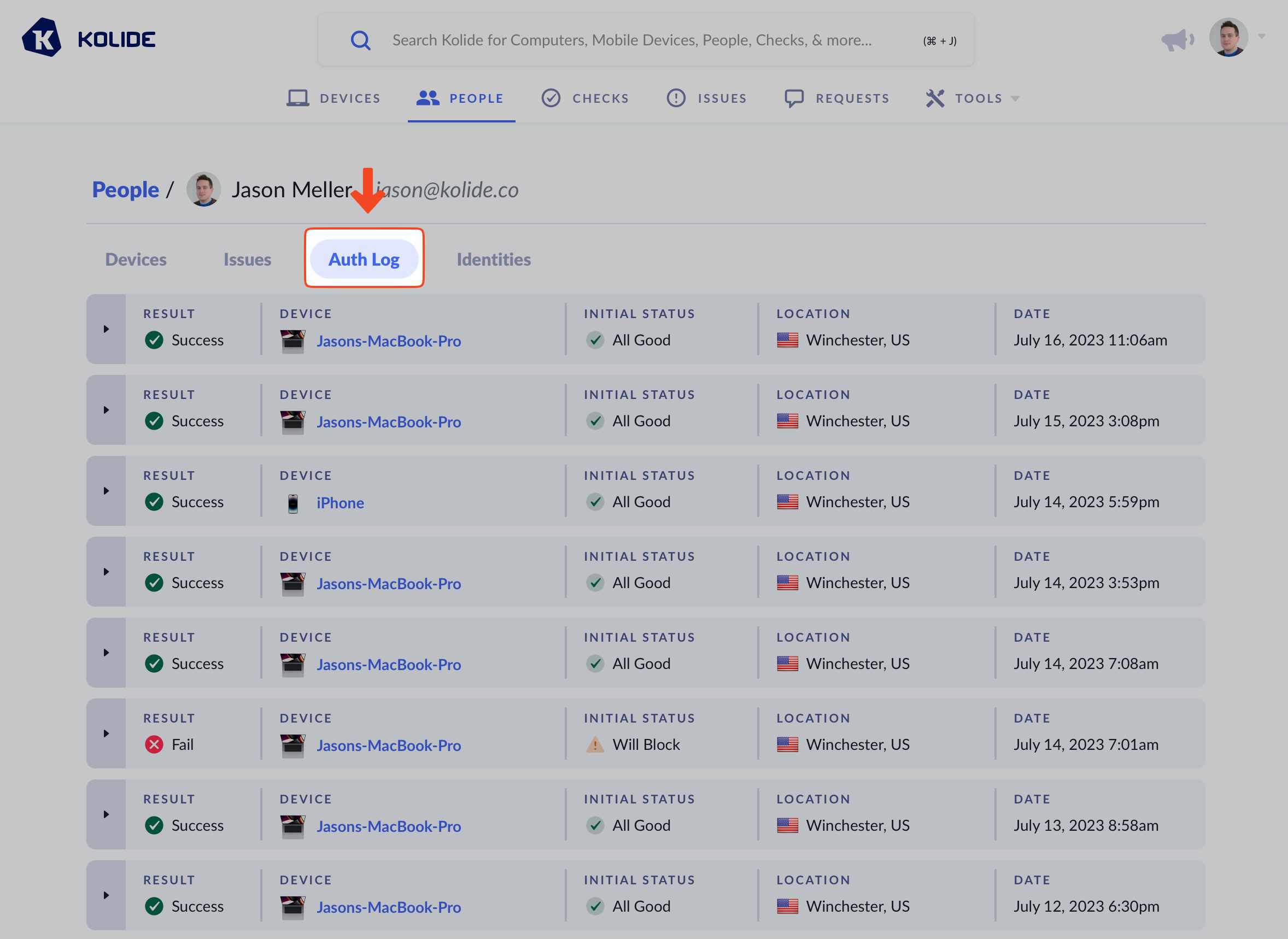
Unlike the device-scoped view, here you can get insight into failed authentication attempts where the agent was not detected.
Viewing everything
If you don’t have a particular person or device in mind and want to see Auth Logs across the entire system, you can do so by clicking on Tools > Auth Logs in the main navigation.
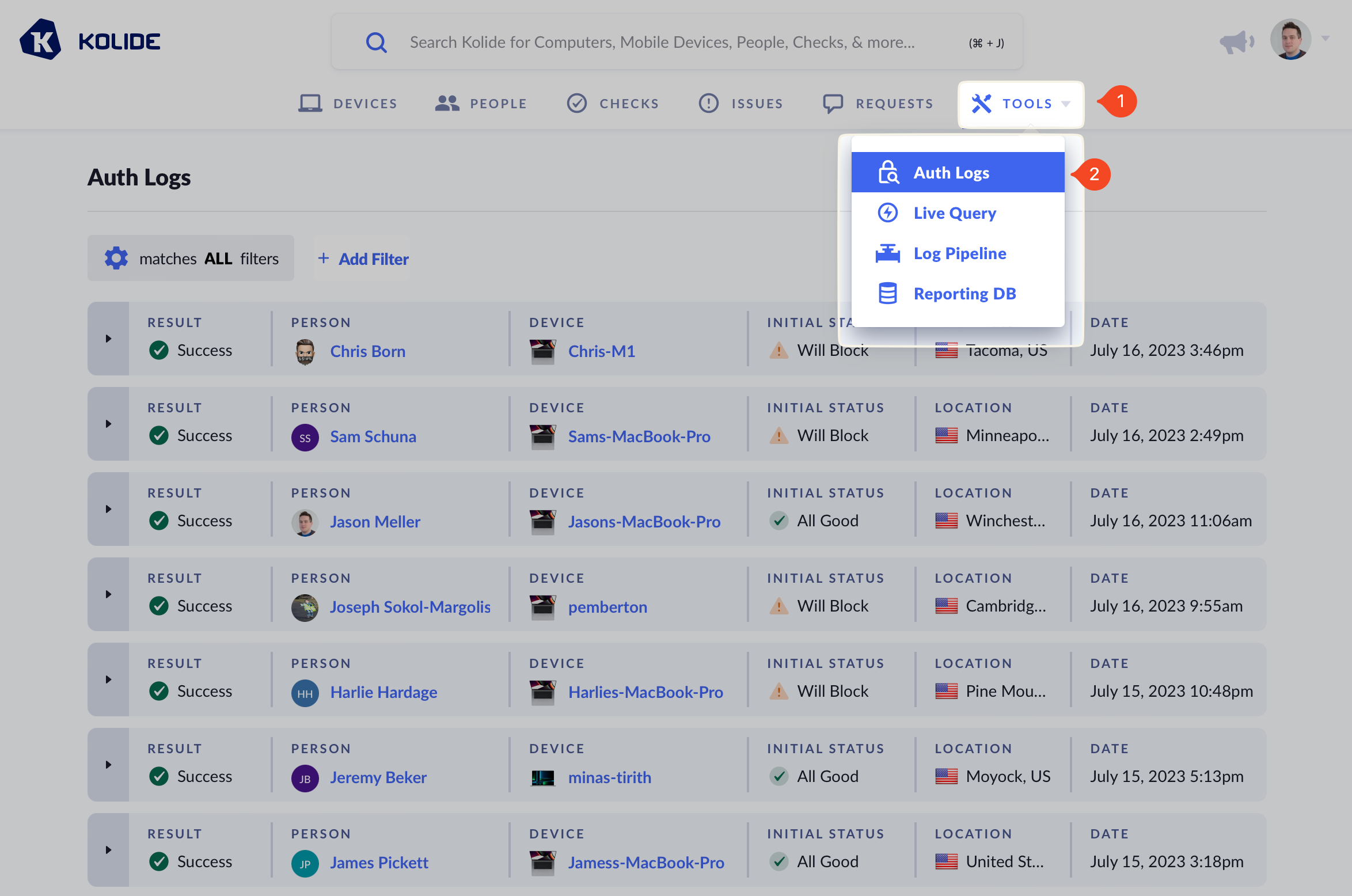
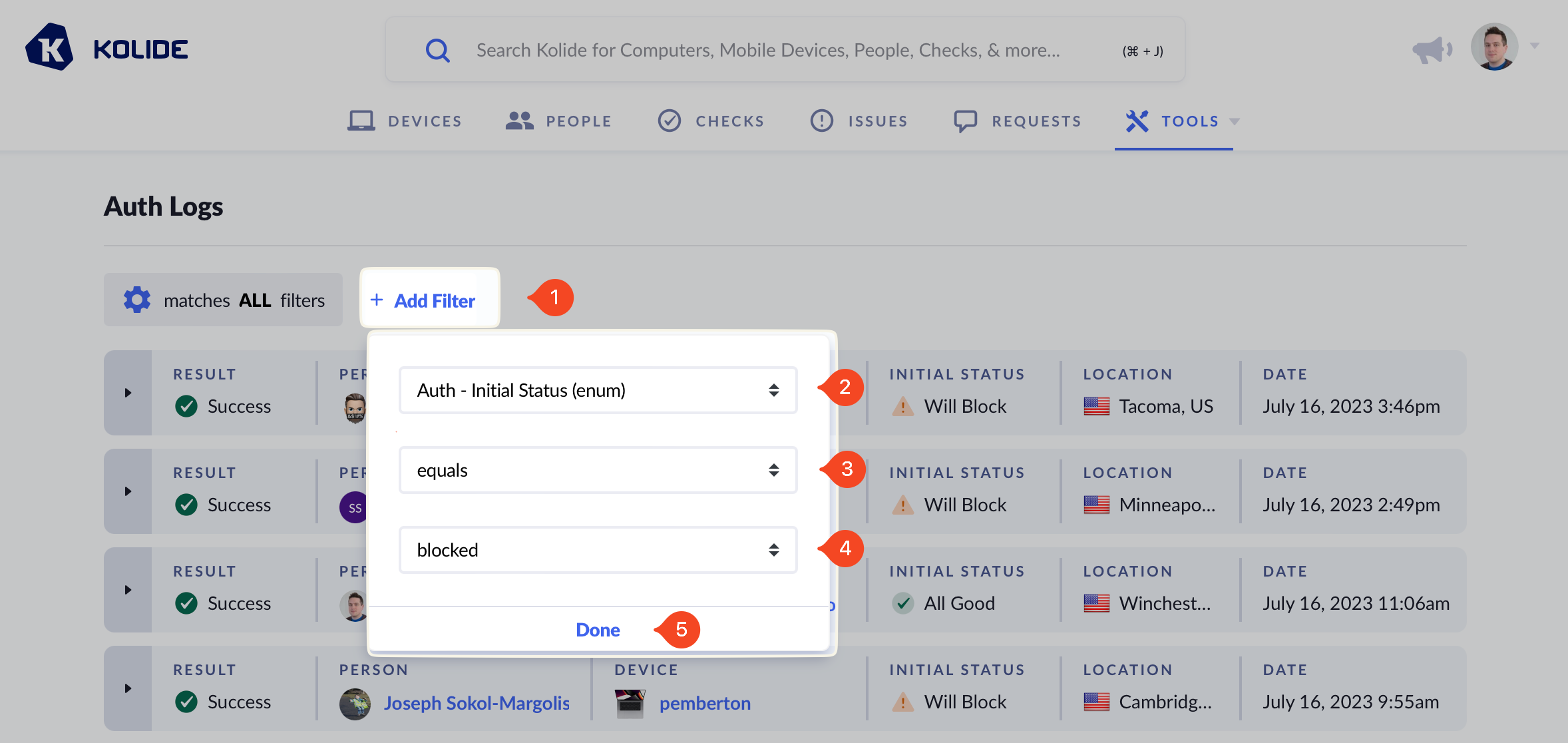
Unlike the other views, viewing the global Auth Log shows both the person and the device that signed in. Additionally, to aid in searching, the view can be filtered by different fields recorded in each Auth Log.
Viewing programmatically
Auth Logs are also accessible programmatically through the Device Trust API. If you haven’t already, create an API Key. There are no special permissions needed to access auth log entries programmatically.
Refer to Device Trust API Reference for documentation on how to programmatically access Auth Logs.
curl --request GET \
     --url 'https://api.kolide.com/auth_logs?per_page=25' \
     --header 'accept: application/json' \
     --header 'authorization: Bearer <TOKEN>' \
     --header 'x-kolide-api-version: 2026-04-07'
{
  "data": [
    {
      "id": "id5566707866140862015275017",
      "timestamp": "2023-11-26T15:38:09.179Z",
      "person_name": "Jason Meller",
      "person_email": "jason@kolide.co",
      "person_info": {
        "identifier": 1,
        "link": "https://api.kolide.com/people/1"
      },
      "device_info": {
        "identifier": 135129,
        "link": "https://api.kolide.com/devices/1"
      },
      "result": "Success",
      "initial_status": "all_good",
      "ip_address": "123.123.123.123",
      "agent_version": "1.2.1",
      "country": "United States",
      "city": "Winchester",
      "browser_name": "Safari",
      "browser_user_agent": "Mozilla/5.0 (Macintosh; Intel Mac OS X 10_15_7) AppleWebKit/605.1.15 (KHTML, like Gecko) Version/17.1 Safari/605.1.15",
      "issues_displayed": [],
      "events": [
        {
          "timestamp": "2023-11-26T15:38:09.116Z",
          "event_type": "sign_in_attempt",
          "event_description": "SAML session started by jason@kolide.co"
        },
        {
          "timestamp": "2023-11-26T15:38:09.559Z",
          "event_type": "agent_detection_success",
          "event_description": "Kolide agent found"
        },
        {
          "timestamp": "2023-11-26T15:38:10.844Z",
          "event_type": "sign_in_success",
          "event_description": "SAML session completed successfully"
        }
      ]
    }
    // SNIP
  ],
  "pagination": {
    "next": "https://api.kolide.com/auth_logs?per_page=25&cursor=aWQ2NDMwNzY1NDUzMzMyMjA1MjI4ODgzNDksMjAyMy0wMy0wOCAxNDoyNzo1MC41ODMwMDA=",
    "next_cursor": "aWQ2NDMwNzY1NDUzMzMyMjA1MjI4ODgzNDksMjAyMy0wMy0wOCAxNDoyNzo1MC41ODMwMDA=",
    "current_cursor": "",
    "count": 25
  }
}
Auth log anatomy
An auth log is a visualization of an Auth Log Session which contains many Auth Log Events. An Auth Log Session is created when an end-user is first redirected to Device Trust to complete the Device Trust authentication flow and the events that happen in that flow are associated with that session.
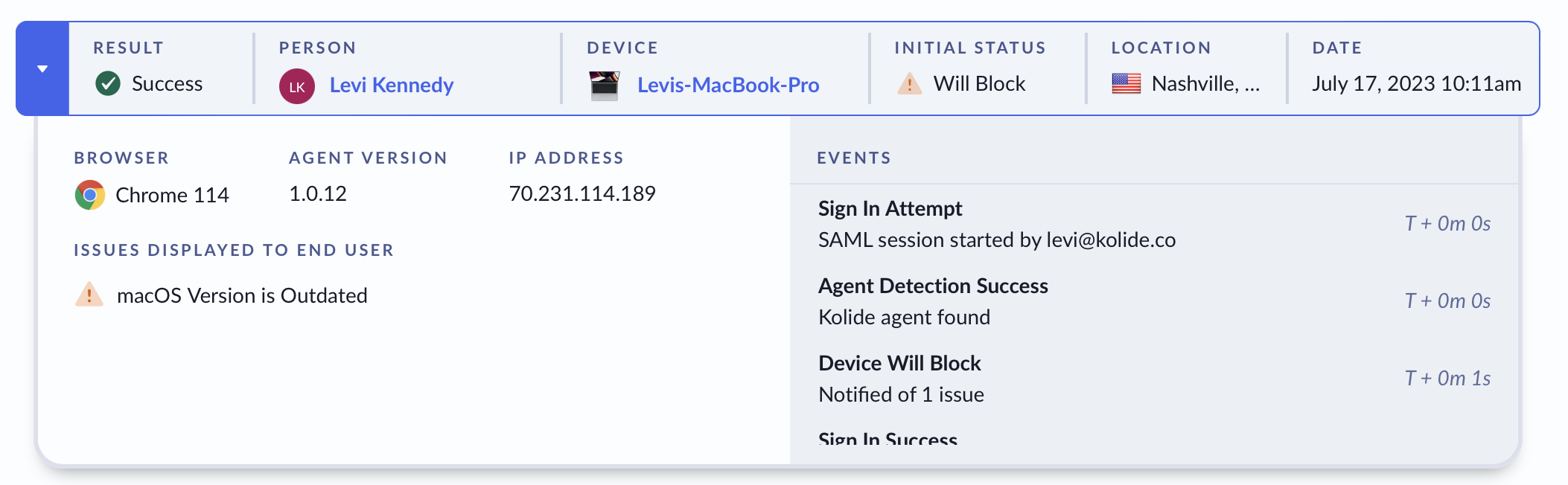
Auth Log Sessions are a summarization of the end-user’s authentication experience and is modified while the session is still open. Once the session ends (either with a successful or failed authentication event), the session is no longer updated.
Data available
A session contains the following information:
Result - Describes if the end-user’s authentication attempt was successful or not. Can be either Success or Fail.
Person - The full name of the end-user who attempted to authenticate.
Device - The display name and icon for the device that was used to authenticate. This will show as No Agent Detected if Device Trust could not communicate with the agent.
Initial Status - The Device’s initial authentication status at the start of the Auth Log Session. Can be one of All Good, Will Block, Blocked or
--(if the device could not be identified)Location - A flag representing the country the authentication originated from, along with the city and country’s two-letter code.
Date - The start time of the authentication attempt shown in the user’s local time.
Browser - The common name of the browser along with its major version number (for example, Safari 17). You can hover on this field to view the User Agent associated with this authentication attempt.
Agent Version - The Semantic Version number of the Kolide agent detected during authentication or Unknown Version if agent detection failed
IP Address - The remote IP addresses Device Trust saw the authentication request originate from. Both IPv4 and IPv6 formats are displayed
Issues Displayed To End User - A list of Issue titles and their blocking status icons for each issue shown to an end-user during authentication. Note: Issues listed here may be skipped if the user was previously warned about them in a previous authentication attempt in the last 24 hours.
Events - A list of events and when they occurred, represented as the amount of minutes and seconds elapsed since the start of the authentication session. For a list of possible events, see the Event Types section.
Important
Location Accuracy
Location is determined based on IP address using a regularly updated Maxmind’s GeoLite2-City database. This method typically produces accurate results within several hundred miles but can occasionally produce wildly inaccurate results, particularly for IP addresses associated with VPNs or mobile cellular providers.
Note
Browser Identification Accuracy
The browser name and version is determined by analyzing the user agent associated with the request. No javascript-based detection methods are used, which can limit accuracy when attempting to determine slightly differentiated versions of Google Chrome. For example, both the Arc and Brave web browsers are identified as Google Chrome.
Event types
Below, you will find a listing of the different events collected during the authentication process and when Device Trust began collecting them.
| Event Name | Description | Collected Since |
|---|---|---|
sign_in_attempt | The end-user was redirected to Device Trust through a valid SAML request. | Mar-7-2023 |
sign_in_success | The end-user clicked “Continue to Sign In” or was automatically redirected to the intended app. | Mar-7-2023 |
sign_in_failure | The incoming SAML request was invalid, expired, or the end-user gave up during an auth attempt. | Mar-7-2023 |
device_blocked | The device initially had a status of “blocked” when authentication began (issues stored as: blocking_issues, will_block_issues, and notify_issues). | Mar-8-2023 |
device_will_block | The device initially had a status of "will block" when authentication began (issues stored as: will_block_issues and notify_issues). | Mar-8-2023 |
skipped_device_will_block | The device initially had a status of "will block" when authentication began, but all issues were already shown to the user in a previous authentication attempt too recently (as defined by the global end-user remediation settings) | Dec-13-2023 |
device_notified | The device initially had a status of "notified" when authentication began (issues stored as: notify_issues). | Feb-2-2024 |
skipped_device_notified | The device initially had a status of "notified" when authentication began, but all failing checks were already shown to the user in a previous authentication attempt too recently (as defined by the global end-user remediation settings) | Apr-19-2024 |
factor_enrollment_timeout | There may be an issue with verifying the end-users factor enrollment status from the Okta event hook. | Nov-22-2023 |
factor_sequence_attempt | The end-user was redirected to an additional sequenced authentication factor. | Jun-26-2023 |
factor_sequence_success | The end-user successfully completed the additional sequenced authentication factor. | Jun-26-2023 |
factor_sequence_failure | An identity mismatch or session time-out did not allow the end-user to complete the sequenced authentication factor. | Aug-26-2023 |
factor_sequence_timeout | The external action time-out and did not allow the end-user to complete the sequenced authentication factor. | Aug-23-2024 |
agent_detection_success | Device Trust successfully identified the desktop agent during authentication. | Jun-26-2023 |
agent_detection_failure | Device Trust failed to identify the desktop agent during authentication. | Jun-26-2023 |
agent_download_request | The end-user requested to download the Kolide agent installation package (stored as package_name). | Jun-26-2023 |
agent_enrolled | The end-user has enrolled their Kolide agent installation successfully. | Nov-06-2025 |
device_registration_request | The end-user requested to register a new Device through Trust On First Use (TOFU). | Jun-26-2023 |
device_registration_successful | End-user successfully registers a new Device through Trust On First Use (TOFU). | Jun-26-2023 |
device_registration_confirmation | End-user successfully confirms a new Device through Trust On First Use (TOFU). | Oct-18-2023 |
device_registration_blocked | The end-user was prevented from registering their Device because it did not meet registration requirements. | Jun-26-2023 |
check_snoozed | The end-user successfully snoozed a Check (stored as: snoozed_check) | Jul-17-2023 |
checks_automatically_snoozed | One or more Checks were automatically snoozed for the end-user (stored as: auto_snoozed_checks) | Jul-17-2023 |
expired_check_refresh_request | The end-user authentication flow was paused because their device has not run certain checks or the data we had for those Checks has expired. The end-user is waiting for the Checks to complete. | Nov-30-2023 |
expired_check_refresh_complete | Device Trust has finished obtaining the data it needs from the device to refresh expired or missing Checks. The end-user's authentication flow is no longer paused. | Nov-30-2023 |
federated_auth_attempt | Device Trust has initiated an authentication attempt with an external authentication provider. | Nov-07-2024 |
federated_auth_complete | An external authentication provider has successfully authenticated the end-user. | Nov-07-2024 |
Limiting access
Since authentication logs can be considered sensitive (they reveal the time and the general location of the authenticated user), you may want to limit access to this feature.
Disabling the feature
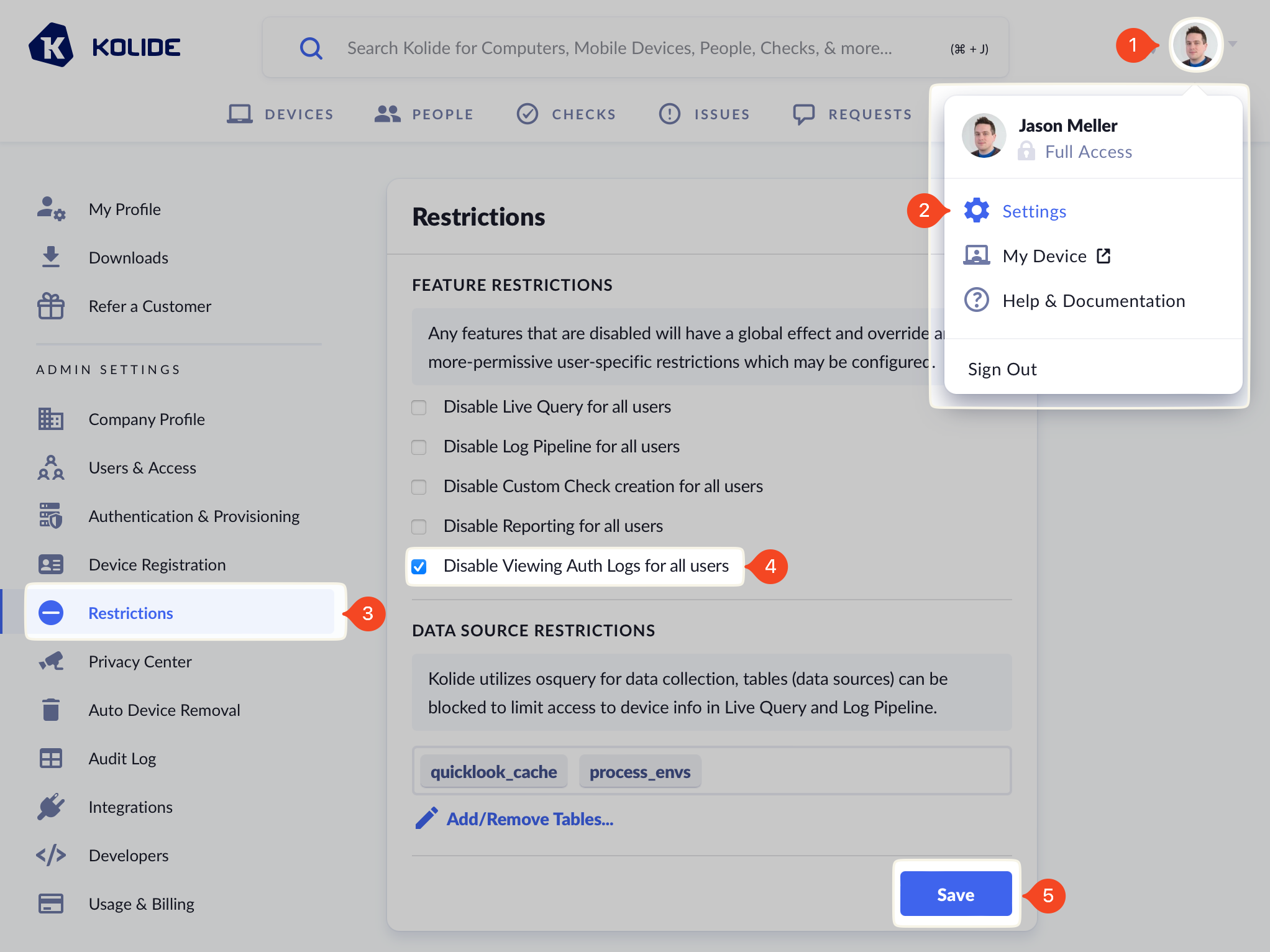
To disable viewing authentication logs for all users, including full administrators:
- In the Device Trust admin console, click your user avatar in the upper-right corner.
- Click Settings.
- Click Restrictions in the left sidebar menu.
- Tick the checkbox Disable Viewing Auth Logs for All Users.
- Click Save (this action will be logged in the audit log).
Note
Disabling for a specific user
Device Trust users with Limited Access can either be invited with the Auth Log restricted, or have their access revoked later.
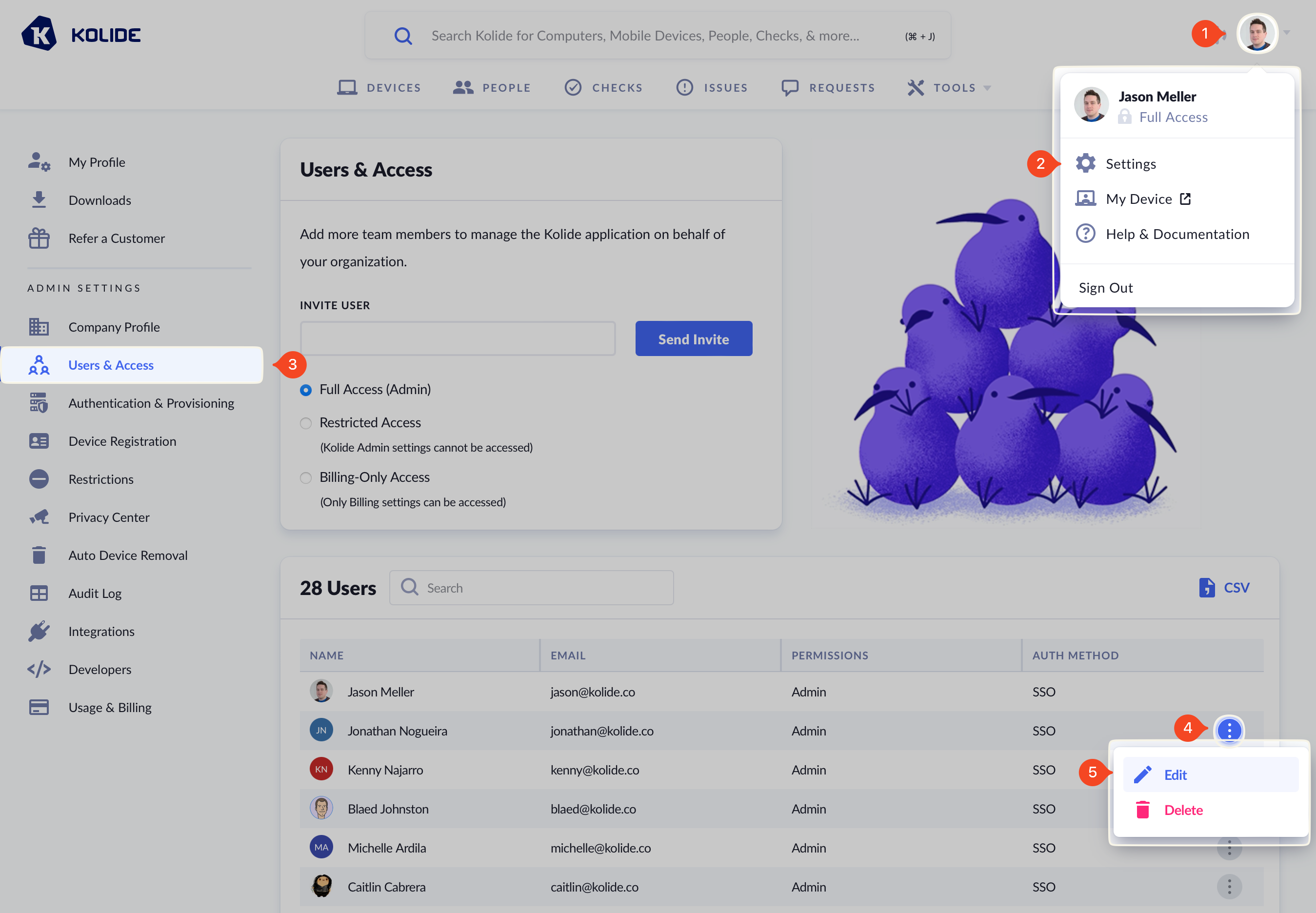
To restrict a Device Trust admin’s access:
- In the Device Trust admin console, click your user avatar in the upper-right corner.
- Click Settings.
- Click Users & Access in the left sidebar menu.
- Locate the user you want to restrict and click Edit.
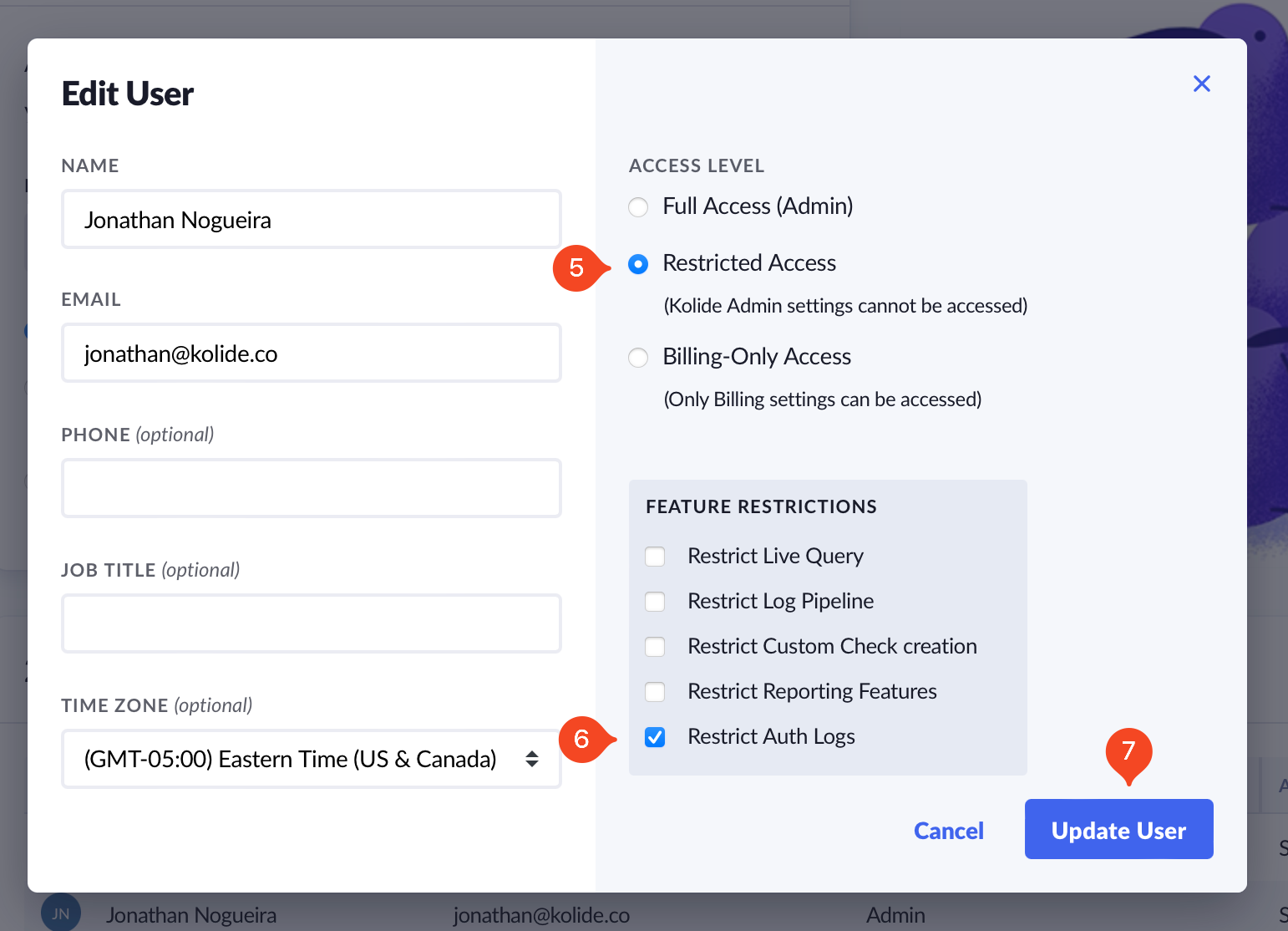
- In the modal that opens, make sure the Restricted Access radio button is selected. This will reveal Feature Restrictions options.
- Check the Restrict Auth Logs box.
- Click Save to apply the changes.
Was this article helpful?
Glad to hear it! If you have anything you'd like to add, feel free to contact us.
Sorry to hear that. Please contact us if you'd like to provide more details.