With 1Password Business, you can create a report to discover plaintext developer secrets that team members store outside of 1Password, such as unencrypted SSH private keys and .env files with plaintext environment variables.
When you turn on the local disk scanning policy, 1Password checks for plaintext secrets on the local disks of anyone signed in to your organization’s 1Password account with the desktop app. This generates the developer secrets discovery report, where you can review the list of detected secrets and mitigate any issues.
Secret values are never collected, shared, or made visible to anyone.
Before you begin
Step 1: Comply with any legal requirements
Before you turn on local disk scanning, you are responsible for satisfying any applicable employee notice, works-council consultation, or other legal requirements in your jurisdiction (including those required under applicable law).
Local scanning runs on any device signed into your organization’s account on a 1Password desktop app, including personal devices used for work. It’s your responsibility to meet any requirements before using this feature.
Learn more about how local disk scanning works.
Step 2: Turn on local disk scanning
To view the developer secrets discovery report, an account owner, administrator, or someone who is part of a group with the Manage Settings permission needs to turn on the local disk scanning policy in your account. Then anyone in the Owners and Security groups can view the report.
- Sign in to your business account on 1Password.com.
- Select Policies in the sidebar.
- Select Manage policies under “Sharing and permissions”.
- In the “Local disk scanning” section, turn on Allow local disk scanning.
- You’ll be prompted to acknowledge your responsibility for meeting any privacy requirements. Select the checkbox, then select Turn on local scanning.
- Choose which secrets to scan for: unencrypted SSH private keys,
.envfiles that contain plaintext secrets, or both. - Scroll to the bottom of the page and select Save.
After you turn on local disk scanning, you’ll be able to review the results in the developer secrets discovery report.
You can update your local disk scanning policy at any time. If the policy is later turned off, the developer secrets discovery report will no longer be available but 1Password retains the report history. If you turn the policy back on, the history will be restored in the report.
Review the report
When local disk scanning is turned on, anyone in the Owners and Security groups can view the developer secrets discovery report.
- Sign in to your business account on 1Password.com.
- Select Reports in the sidebar.
- In the “Security reports” section, select View on the Developer secrets discovery report.
You can use the report to check if 1Password detected any plaintext developer secrets on the local disks of team members, so you can mitigate any issues.
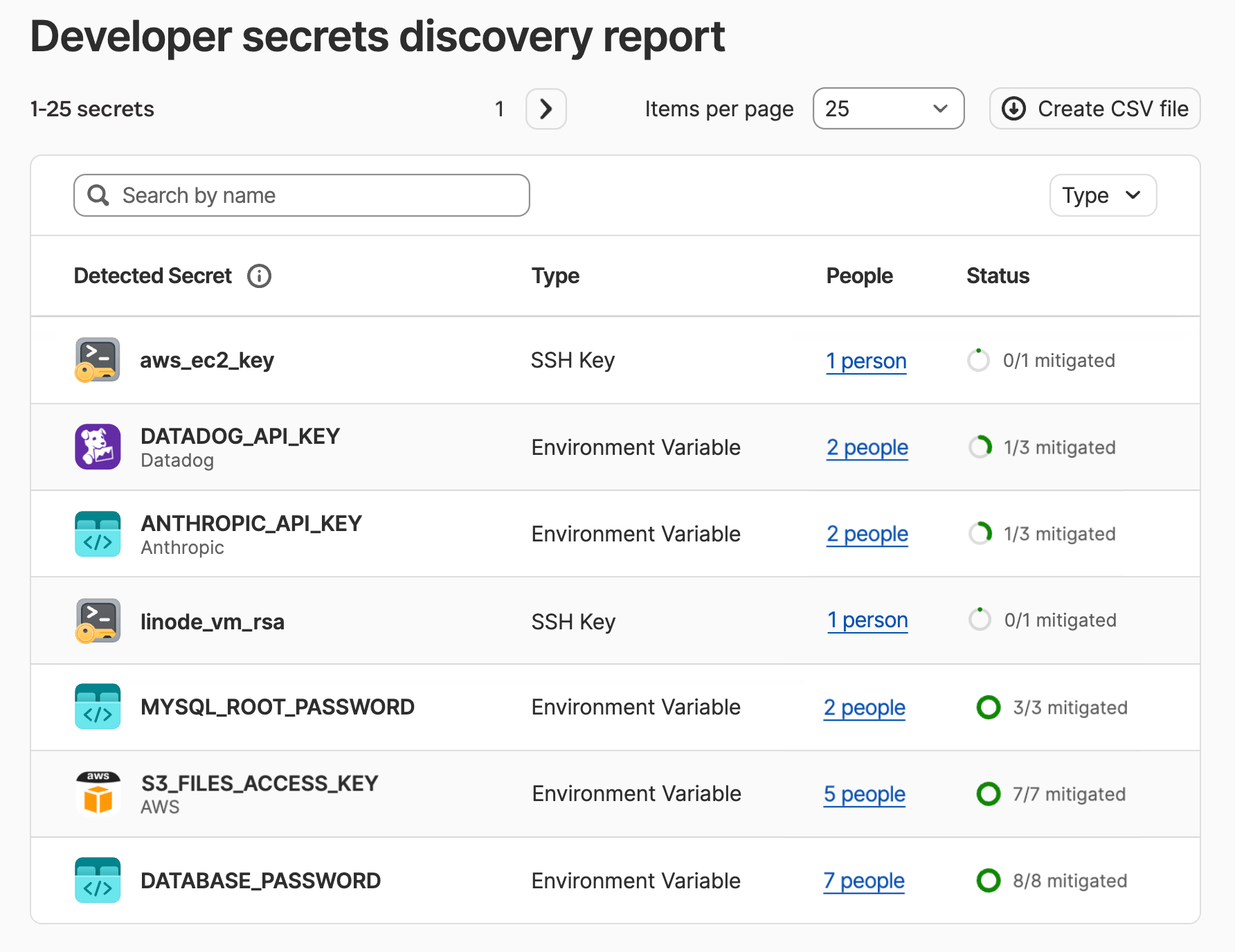
The report provides information about the name and type of each detected secret and the number of people who have it stored in plaintext on their local disk. It also provides the mitigation status of the secret, including the total number of occurrences of that secret across devices and how many have been mitigated.
To adjust the number of results on a page, select the dropdown next to “Items per page” and adjust the number of items shown on each page. If there are multiple pages, use the right arrow above the list to move to the next page of the report.
To narrow the scope of secrets shown in the report, you can use one or more filters:
- To find a specific developer secret, enter its name in the search field at the top of the list. Enter a partial name for a wider number of matches. For example, the search term
tokenwill show results for items likeCLOUDFLARE_API_TOKENandGITHUB_TOKEN. Search terms aren’t case sensitive. - To show only one type of developer secret, select Type at the top of the list, choose a secret type, then select Apply.
To remove all filters, select Clear all at the top of the list.
You can also export the report to a CSV file. Select Create CSV file above the list. If you’ve applied any filters, the export will only include those filtered items.
Mitigate secrets risk
To mitigate secrets risk, use the report to find plaintext secrets, then notify affected team members and track progress.
Step 1: Discover which team members have plaintext secrets on their devices
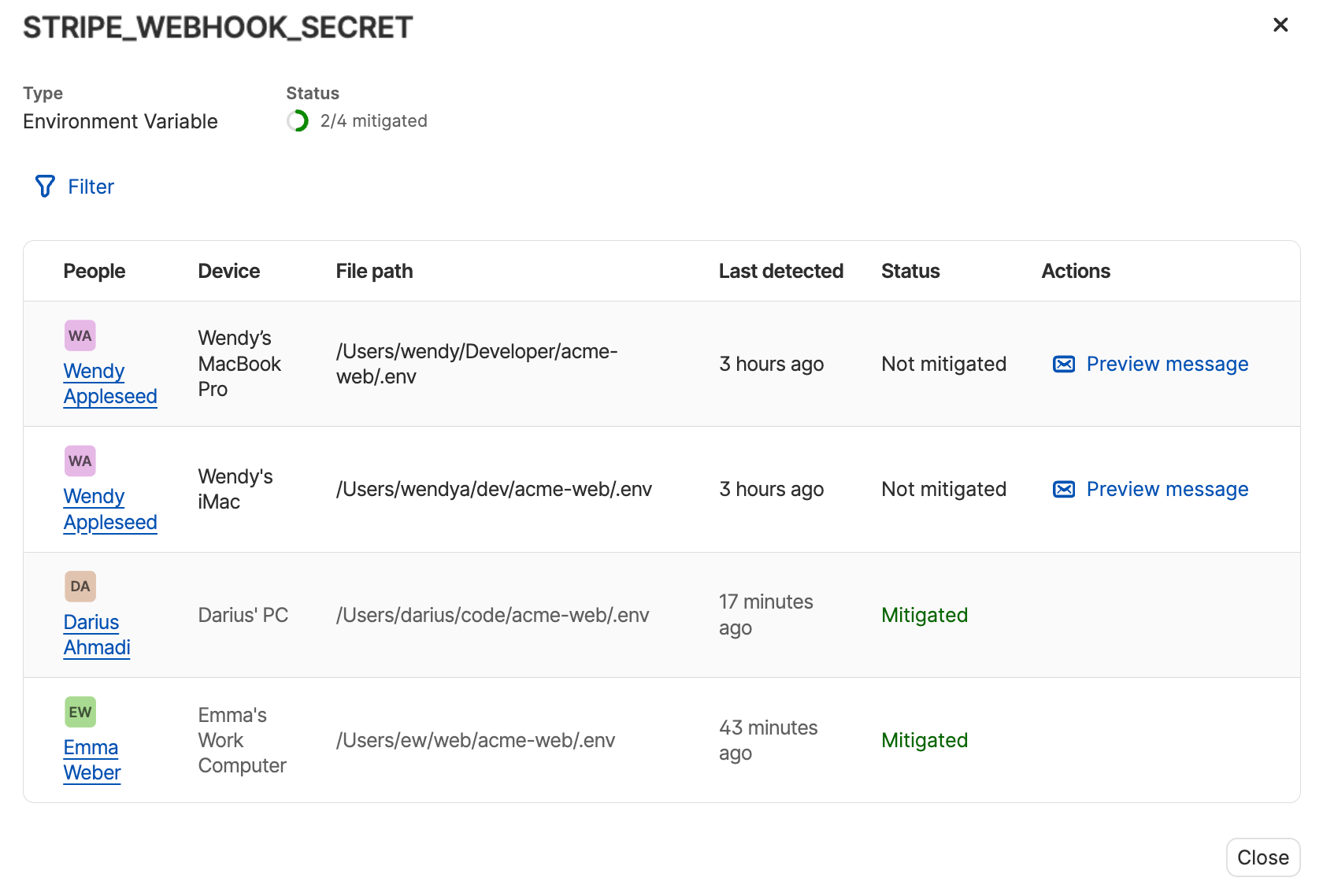
In the developer secrets discovery report, select the link in the People column of the detected secret to see the following information:
- People: The names of people who have that secret stored on their local disks.
- Device: The name of each person’s device.
- Last detected: The last time a local disk scan found and submitted a plaintext secret, or the last time the scan detected the secret was mitigated.
- Status: Whether the plaintext secret appears in local disk scans on that device. Options are “Not mitigated” or “Mitigated”.
- Actions: The actions each person can take to mitigate the issue.
Step 2: Notify the affected team members
Send an email to each affected team member with the information they need to secure the secret on their device:
- In the report, select the link in the People column for a secret that needs to be mitigated.
- In the Actions column, select Preview message for one of the people in the list. The message contains the name of the secret, the device where it was found, and the recommended action to secure the secret.
- Select Copy message, then paste the message into an email and send it to the recipient.
If a team member has multiple occurrences of a secret on one or more devices, the report provides a separate entry and message for each occurrence they need to mitigate.
If the secret is in an environment file, the message includes a link that opens Developer Watchtower in the 1Password desktop app. The team member can then import the secret into a 1Password Environment.
Step 3: Track the mitigation process
After you notify team members, you can use the report to track the mitigation progress for each detected secret:
- Check the Status column to see the total number of occurrences of a secret and how many have been mitigated.
- Select the link in the People column to view the mitigation status for individual occurrences of the secret. By default, you’ll see the ones that haven’t been mitigated. Select Filter to choose a status filter. You can choose “Mitigated”, “Not mitigated”, or both.
Data about detected secrets, including secrets that have been fully mitigated, is retained in the report for auditing purposes.
Limitations
The report only includes findings from Mac, Windows, and Linux devices that have the 1Password desktop app installed and signed in to your organization’s 1Password account. Local disk scanning isn’t available on iOS and Android devices.
Local disk scanning checks defined areas in the users’ $HOME directory for plaintext secrets. This covers the areas developers most commonly store secrets, while limiting privacy intrusions and providing fewer false positives.
At this time, local disk scans only detect and report the following types of developer secrets:
- Unencrypted SSH private keys on Mac, Windows, and Linux devices.
- Plaintext secrets in
.envfiles on Mac, Windows, and Linux devices (requires 1Password 8.12.32 or later).
Learn more about how local disk scanning works.
Next steps
Reducing secrets risk is most effective when your whole team takes part. You can:
- Use the developer secrets discovery report to regularly audit secrets risks on team members’ devices.
- Help secure your organization’s development workflows using 1Password developer tools.
- Encourage developers and other team members to use 1Password Developer Watchtower in the desktop app, so they can find and fix issues early and build stronger secret management habits over time.
Appendix: About secrets mitigation and local disk scanning
What is secrets mitigation?
Mitigating secrets means taking steps to reduce or remove the risk of those secrets being exposed and exploited. Developer secrets stored in plaintext in the local user accounts of your organization’s devices makes them vulnerable to malicious programs that could potentially access and read them.
One way to reduce secrets risk is to use the local disk scanning policy to check for plaintext developer secrets stored on your organization’s local disks. Then have team members import any detected secrets into 1Password. Secrets are encrypted and safeguarded behind the 1Password security model, while still being accessible for developers to use when and where they need them.
How does local disk scanning work in 1Password?
When you turn on the local disk scanning policy, 1Password checks for plaintext secrets on the local disks of anyone signed in to your organization’s account with 1Password for Mac, Windows, or Linux.
1Password scans for the following types of developer secrets in specific locations of the users’ $HOME directory:
- Unencrypted SSH private keys: 1Password scans the
~/.sshdirectory, up to 3 nested directories, and can detect SSH private keys in OpenSSH, PKCS#8, or PKCS#1 format. 1Password doesn’t follow symlinks or traverse file systems. For example, an external drive mounted at~/.ssh/otherwill be skipped. Files over 1 MiB (mebibyte) in size are also skipped. - Plaintext environment variables: 1Password scans for
.envfiles in the following directories:~/Developer,~/code,~/src,~/Projects,~/projects,~/work,~/repos,~/git, and~/dev. It also checks for any variants matching the^\.env(\..+)?$pattern, such as.env,.env.local, or.env.production. 1Password only surfaces.envfiles that contain values likely to be sensitive, such as API keys or tokens. It doesn’t surface files that contain only values known to be non-sensitive, such asNODE_ENV=development, or where the values are already securely managed by 1Password.
Help
.env files in the 1Password desktop apps is being rolled out in stages and requires 1Password 8.12.32. If a team member doesn’t see the option to import .env files with plaintext secrets in Developer Watchtower and they already have 1Password 8.12.32 installed on their device, they can switch to the beta or nightly release channel.Local disk scans are triggered on a device at the following times:
- When the 1Password desktop app is unlocked on a device.
- When someone selects Refresh in 1Password Developer Watchtower in the app.
1Password sends local scan data to the report whenever it detects a change, like when it finds a new plaintext secret, or when it no longer detects a secret it found in an earlier scan. 1Password will also send a reaffirmation to the report every 24 hours if nothing has changed.
If a team member isn’t signed in to your organization’s account in the 1Password desktop app on a device, 1Password can’t collect or send information to the developer secrets discovery report for that device.
If a team member signs in to your organization’s account in the desktop app and they later sign out, previously detected secrets on that device that weren’t mitigated will continue to show a “Not mitigated” status in the report. 1Password can’t confirm metadata for that secret until the user signs in to your organization’s account in the app again.
What information does 1Password collect?
1Password doesn’t collect, store, or show secret values. Local disk scanning collects only the metadata necessary to identify and mitigate each finding, including:
- The name and type of the secret.
- The name of the device where the secret was discovered.
- The name of the team member signed in to the 1Password app.
1Password intentionally limits the kind of data it can scan for and collect, and where it can scan, to provide a balance between securing company secrets and respecting the privacy of employees personal information on devices.
How does this affect user privacy on personal devices?
When you turn on the local disk scanning policy in your organization’s 1Password account, it runs on any device signed into that account in the 1Password desktop app, including personal devices used for work.
Before you turn on the policy, it’s your responsibility to satisfy any applicable employee notice, works-council consultation, or other legal requirements in your jurisdiction (including those required under applicable law).
If a team member doesn’t sign in to your organization’s account in the 1Password desktop app on a device, the local disk scanning policy won’t be active on that device.
Learn more
- 1Password Developer Watchtower
- Set up your organization to use 1Password developer tools
- 1Password for SSH & Git
- 1Password Environments
- Create reports in 1Password Business
- Manage team policies in 1Password Business
Was this article helpful?
Glad to hear it! If you have anything you'd like to add, feel free to contact us.
Sorry to hear that. Please contact us if you'd like to provide more details.